Pairing to Snapchat
With Lens Studio, you can preview your Lenses inside Snapchat. When paired, any changes you make in Lens Studio are reflected in preview Lenses on your mobile device. Previewing your Lenses inside Snapchat will help you test and iterate on the Lens' user experience.
To pair Snapchat with Lens Studio, you'll need the latest version of Snapchat as well as the latest version of Lens Studio.
Pairing Your Device
To preview your Lenses on your device, first you must pair your device with Lens Studio.
- Press the
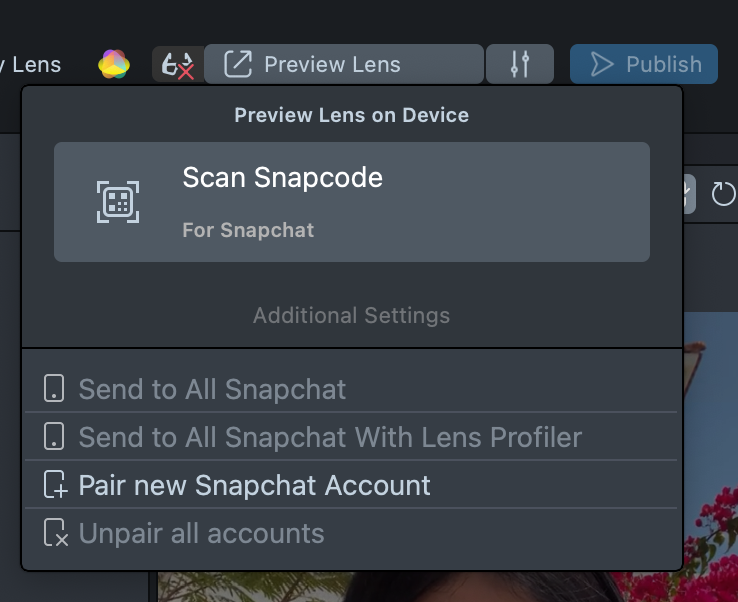
Preview Lensbutton in the top right corner of Lens Studio. You should see a Snapcode pop up. This Snapcode is unique to your Lens Studio instance
-
Open Snapchat on your device
-
In Snapchat, point your camera at the Snapcode
-
Press and hold the image of the Snapcode to scan it
-
You should see a prompt to Pair with Lens Studio
-
Press the
Openbutton -
When paired, you should see the
Device Pairedmessage in Lens Studio
The pairing process can take up to 30 seconds depending on your network. After clicking Pair, please allow some time for the device to find and connect to Lens Studio.
You can pair more than one devices to Lens Studio. This is useful for testing on multiple devices, as well as while working on Connected Lenses. Once one phone is connected, you can press the down arrow button next to the Send to Snapchat button, and press Pair New Account.
If you want to remove the paired lens from Snapchat, first open Snapchat. Then, go to Settings. There, select Additional Services -> Manage -> Lens Studio -> Pair Status -> Tap to ``Unpair. This will unpair your device and remove the paired Lenses from your Lenses carousel. Note, you might have to force quit and reopen Snapchat if you want the Lenses removed immediately.
Previewing Your Lenses
Now that your device is paired with Lens Studio, you can now push your Lenses to Snapchat to preview them.
-
Press the
Preview Lensbutton to send your Lenses to your paired device for preview
-
When sending, the button will display
Sending Lens...
-
Once the Lens has been sent to your device, the button will display the
Lens Sentmessage.
-
Finally, once the push is successful, you should now see your Lenses for preview in your Lenses carousel. The icons of the Lenses will be whatever you set them to in the Project Info
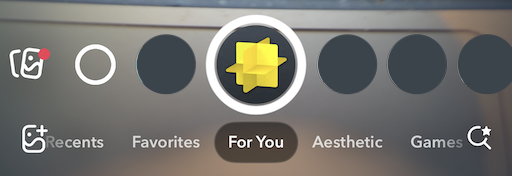
If you don't see your Lens in your carousel, make sure you're on the side of the camera which you've set your Lens to show up in, in the Project Info window.
Checking Lenses Performances
When paired, you're able to see the performance of your Lenses. Please refer to the Performance and Optimization guide for performance requirements and best practices. To display your Lenses' performance:
-
With your Lenses paired and opened in Snapchat, click the
Bugbutton in the top left corner of Snapchat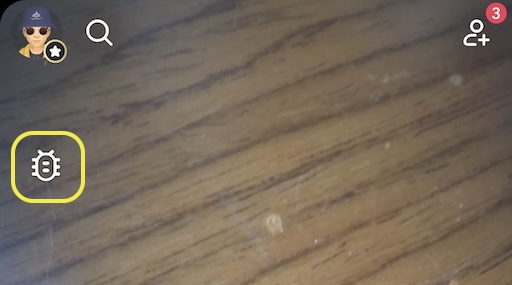
-
After clicking the
Bugbutton, you should now see performance stats for your Lenses.FPSrepresents your Lenses' framerates.RAMrepresents how much memory your Lenses are consuming.SIZErepresents how large your Lenses are.LATrepresents the Lens Activation Time.- a time stamp displays when the Lenses were last pushed.
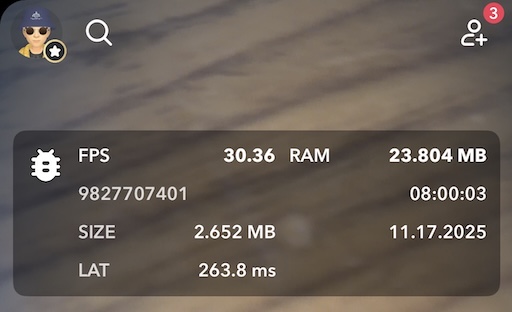
You can get more details about your Lens performance using the Lens Profiler and Trace Analysis.