OBJ, 3D Object Import
Lens Studio supports importing the OBJ file format for 3D models. The OBJ file format supports 3D geometry and texture but does not support animation. Generally speaking, if you're exporting your own models, it's recommended to use the FBX format by following our 3D Object Export guides.
For models that are downloaded from other sources, like Sketchfab and Google's Poly, it's recommended to use the OBJ format for the highest compatibility.
Please refer to the Performance and Optimization guide for 3D model performance requirements.
Import OBJ into Lens Studio
To import an OBJ, select File -> Import... from the menu bar.
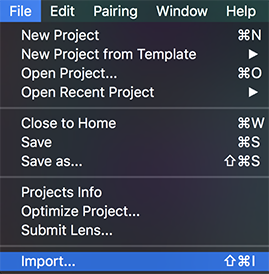
Select the OBJ you wish to import. You can also drag and drop your OBJ into the Resources panel.
Once the OBJ is imported into Lens Studio, you should see it listed in your Objects panel as a new object added to the scene. It will also appear in your Scene panel, where it can be manipulated. Finally, your model resource will now be available in the Resources panel as well.
Dragging and Dropping
You can drag and drop OBJ files from your computer directly into the Resources panel or the Objects panel.
If you drag into the Objects panel, your OBJ will automatically be added to your scene. If you drag into the Resources panel, however, your object will only be added as a resource.
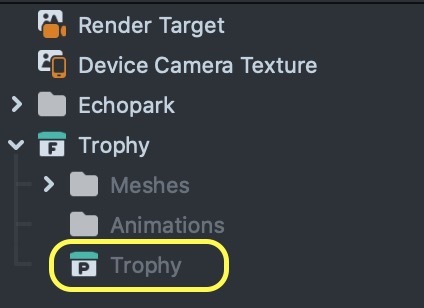
To add your model into the scene, open the new folder created by the OBJ import, and drag the prefab from the Resources panel into your scene, or Objects panel.
If your OBJ fails to import, check the Logger panel for an import error message.