Start Menu and Player Mode
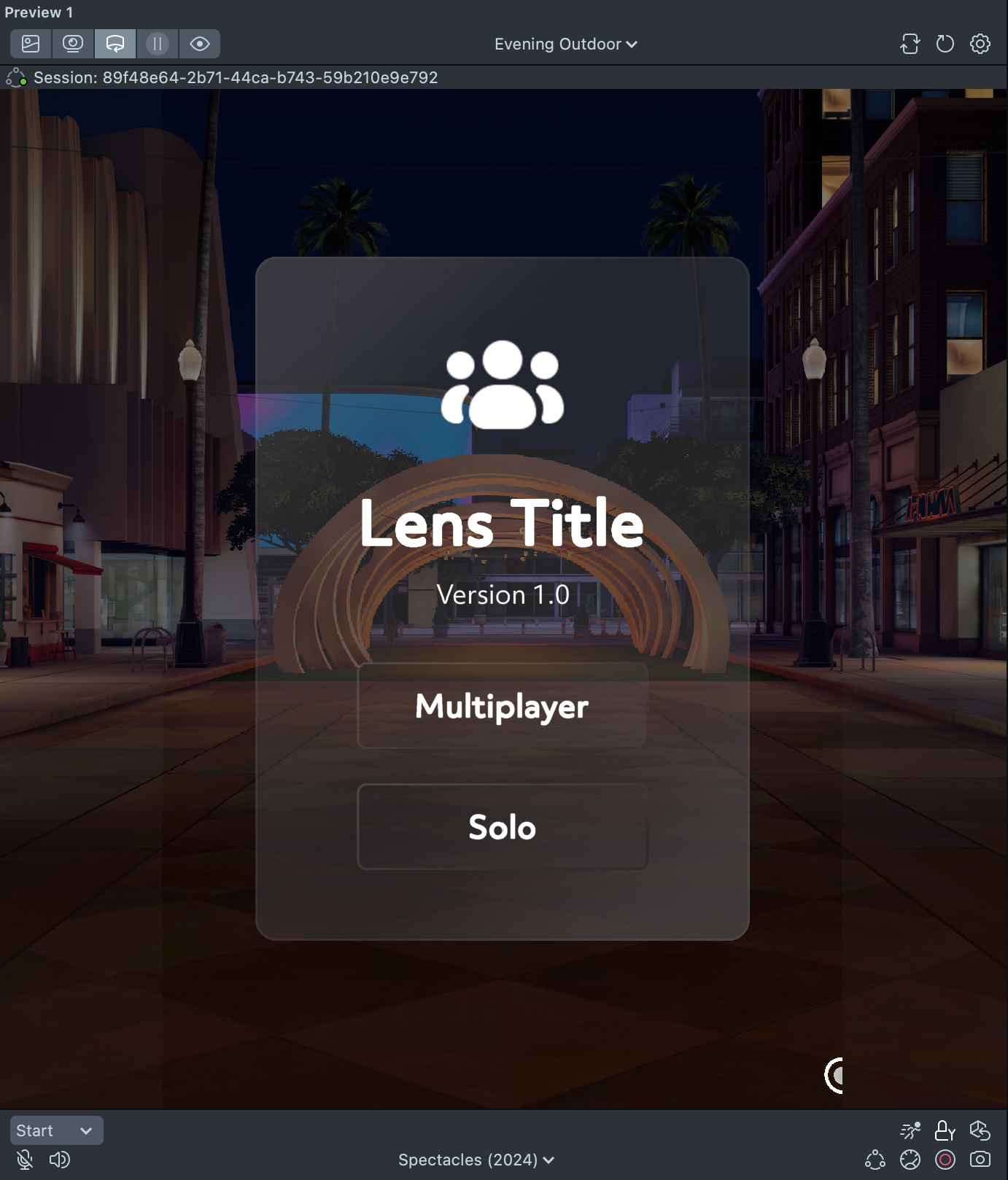
While Connected Lenses are meant to be experienced together, users should also have the option to enjoy the Lens on their own. For that purpose, the Spectacles Sync Kit package includes an example Start Menu, which has Multiplayer and Singleplayer buttons.
The Start Menu is shown to users when they enter a Connected Lens. If a user selects Multiplayer, they enter the co-located joining flow. If they choose Singleplayer, they skip the joining flow and are put directly into the Lens.
UI Customization
You are highly encouraged to customize the Start Menu to match the design of your Lens. To change the Start Menu visuals, locate the StartMenu scene object in the Scene Hierarchy.
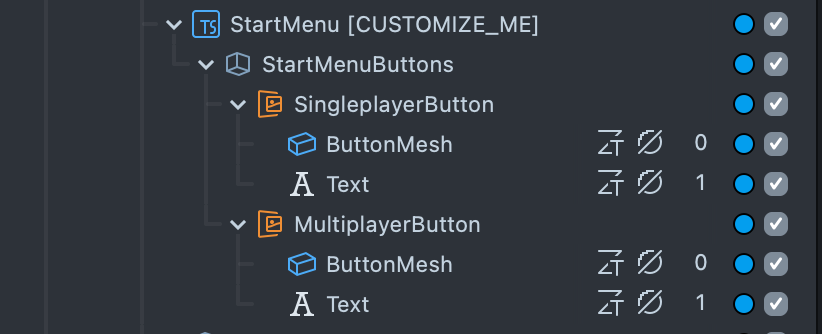
- Graphic: The icon graphic on the top for the Start Menu.
- Lens Title: The title for the Lens.
- Lens Version: The version number for the Lens.
- Multiplayer Button: The button to start a multiplayer session. Update the Multiplayer buttons to suit your design. Currently, the default visuals are using Spectacles UI Kit, it allows you to customize the appearance and behavior. You may also want to add a title splashscreen for your Lens. The example buttons include Spectacles Interaction Kit components to make them pinchable; keep these components or use them as a guide for how to set up your own buttons.
- Solo Button: The button to start a singleplayer session.
In the Inspector panel for the StartMenu script, ensure the Single Player Button and Multi Player Button inputs are populated with the PinchButton components for each button.
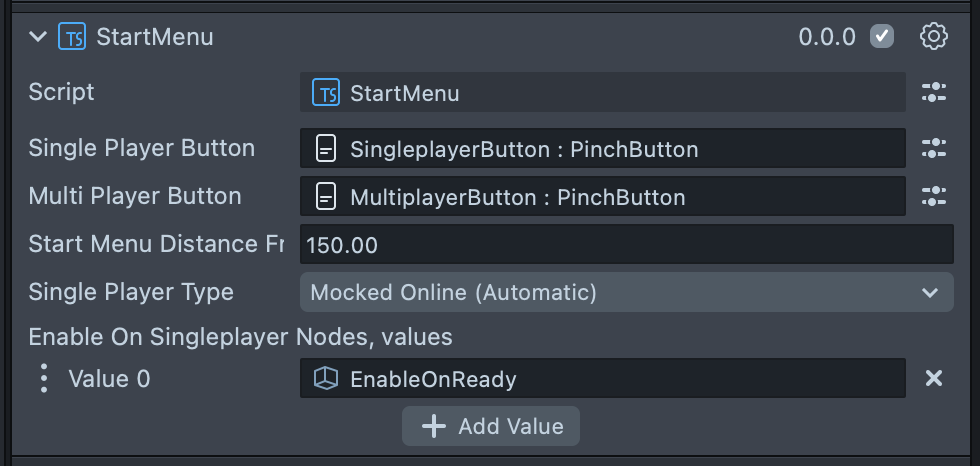
The Start Menu Distance From User input sets how far in front of the user in centimeters the Start Menu appears when they join the Lens.
Single Player Configuration
The Inspector panel for the StartMenu script includes two inputs for configuring single player mode—Single Player Type and Enable On Singleplayer Nodes.
Single Player Type
From the dropdown, choose how single player logic will be handled in your Lens. Two options are available:
- Mocked Online (Automatic): When this option is selected, your synchronization logic will automatically work for single player. The Lens will use a mock Connected Lens module to mimic communication with the Connected Lenses server.
- Manual: When this option is selected, you will need to handle your own single player logic.
Enable on Singleplayer Nodes
The scene objects added to this list are enabled after a user selects Singleplayer from the Start Menu. By default, this input is populated with the EnableOnReady scene object.
Start Mode Configuration
In Session Controller Component, there are three options to configure Start Mode to set up how the session starts.

- Start Menu: (default) Displays default Start Menu that allows the user to choose between singleplayer and multiplayer modes.
- Multiplayer: Starts a multiplayer session immediately without displaying the Start Menu. When a Same Session ID is set, the Lens will enter the dedicated session and start mapping flow directly without prompting for session selection.
If Same Session ID is not configured, this will enter the session selection state. Please refer to Same Session ID Configuration if skipping session selection is needed.
- Off: Starts a singleplayer session immediately without displaying the Start Menu with ability to start multiplayer session later.
Important: When skipping Player Mode Selection with multiple Preview Panels active in Lens Studio, use the "Randomize Session ID" option on the ConnectedLensModule to force a new session. Avoid restarting individual preview windows, as they rejoin immediately while other panels remain connected, preventing the session state from fully resetting.
Manual Multiplayer Mode Button
This provides users with the flexibility to join a Multiplayer session at any time during the Lens experience. This is particularly useful in scenarios where the experience starts in Singleplayer Mode or requires a user action before joining a connected session.
- Disable
StartMenuunderHiddenFromSceneView - Add a manual script
EnableMultiplayerand attach to a Scene Object - This code snippet also checks whether the user launched the Lens via
Active Nearbyin Lens Explore. If so, the Lens initializes in Multiplayer Mode by default.
- TypeScript
- JavaScript
import { SessionController } from 'SpectaclesSyncKit.lspkg/Core/SessionController';
import { PinchButton } from 'SpectaclesInteractionKit.lspkg/Components/UI/PinchButton/PinchButton';
import {
  StartModeController,
  StartMode,
} from 'SpectaclesSyncKit.lspkg/StartMenu/Scripts/StartModeController';
import {
  ErrorMessageController,
  ErrorType,
} from 'SpectaclesSyncKit.lspkg/StartMenu/Scripts/ErrorMessageController';

const ERROR_DURATION_SECONDS = 5;

@component
export class EnableMultiplayer extends BaseScriptComponent {
  @input
  multiplayerButton: PinchButton;

  @input
  worldCamera: SceneObject;

  @input
  startMenuDistanceFromUser: number;

  @input
  startMenuTransform: Transform;

  onAwake() {
    this.createEvent('OnStartEvent').bind(() => this.onStart());
  }

  onStart() {
    // Skip the start menu if the lens was launched directly as multiplayer
    this.checkIfStartedAsMultiplayer();

    // Pinch multiplayer button to start multiplayer session
    this.multiplayerButton.onButtonPinched.add(() =>
      this.startMultiplayerSession()
    );

    // Re-enable the start menu if the connection fails
    SessionController.getInstance().onConnectionFailed.add(
      (code: string, description: string) => {
        // Intentional cancellation and errors use the same callback, so we need to check the code
        if (code !== 'CancelledByUser') {
          print(
            `Connection failed (${code}): ${description}, showing error alert`
          );
          ErrorMessageController.getInstance().showError(
            ErrorType.ConnectionFailed,
            this.getSceneObject(),
            ERROR_DURATION_SECONDS
          );
        } else {
          print('Connection cancelled by user, not showing error alert');
        }

        // Only re-enable the start menu if we're in Menu mode
        // Auto-start mode handles failures with retries, not by showing the menu
        const controller = StartModeController.getInstance();
        if (controller.getAutoStartMode() === StartMode.Menu) {
          this.getSceneObject().enabled = true;
          this.setStartMenuInFrontOfUser();
        }
      }
    );
  }

  startMultiplayerSession() {
    print('Start multiplayer session');
    SessionController.getInstance().init();
  }

  /**
   * If the systemUI has requested that the lens launch directly into multiplayer mode,
   * immediately dismiss this menu and initialize the Spectacles Sync Kit.
   */
  private checkIfStartedAsMultiplayer() {
    const shouldStartMultiplayer =
      global.launchParams.getBool('StartMultiplayer');
    print(`Lens started as multiplayer: ${shouldStartMultiplayer}`);
    if (shouldStartMultiplayer) {
      this.startMultiplayerSession();
    }
  }

  private setStartMenuInFrontOfUser() {
    const head = this.worldCamera.getTransform().getWorldPosition();
    const forward = this.worldCamera.getTransform().forward;
    forward.y = 0;
    const pos = forward
      .normalize()
      .uniformScale(-this.startMenuDistanceFromUser);
    this.startMenuTransform.setWorldPosition(head.add(pos));

    this.startMenuTransform.setWorldRotation(
      quat.lookAt(pos.uniformScale(-1), vec3.up())
    );
  }
const PinchButton = require('SpectaclesInteractionKit.lspkg/Components/UI/PinchButton/PinchButton');

/** @typedef {PinchButton} */
//@input PinchButton multiplayerButton

var sessionController = global.sessionController;

function onAwake() {
  script.createEvent('OnStartEvent').bind(function () {
    onStart();
  });
}

function onStart() {
  // Skip the start menu if the lens was launched directly as multiplayer
  checkIfStartedAsMultiplayer();
  // Pinch multiplayer button to start multiplayer session
  script.multiplayerButton.onButtonPinched.add(function () {
    startMultiplayerSession();
  });
}

function startMultiplayerSession() {
  print('Start multiplayer session');
  sessionController.init();
}

/**
 * If the systemUI has requested that the lens launch directly into multiplayer mode,
 * immediately dismiss this menu and initialize the Spectacles Sync Kit.
 */
function checkIfStartedAsMultiplayer() {
  var shouldStartMultiplayer = global.launchParams.getBool('StartMultiplayer');
  print('Lens started as multiplayer: ' + shouldStartMultiplayer);
  if (shouldStartMultiplayer) {
    startMultiplayerSession();
  }
}

onAwake();