Music Video
The Music Video template allows you to time different effects based on audio timestamps. The template comes with helper scripts that allow you to trigger scripts, set text, call Behaviors, and more!
This template does not require an Licensed Music asset. However, this template will utilize the Licensed Music asset to showcase how the template works. It can be used with any other File Audio Track.
Guide
To make our music video Lens, we will need to: get the sound to play, get timing information for our sounds, and finally set up our effects to be called based on these times.
Importing the Sound
First, find the Music you’d like to prepare a video for on the Asset Library or import your own audio file.
Choosing Audio Track To Play
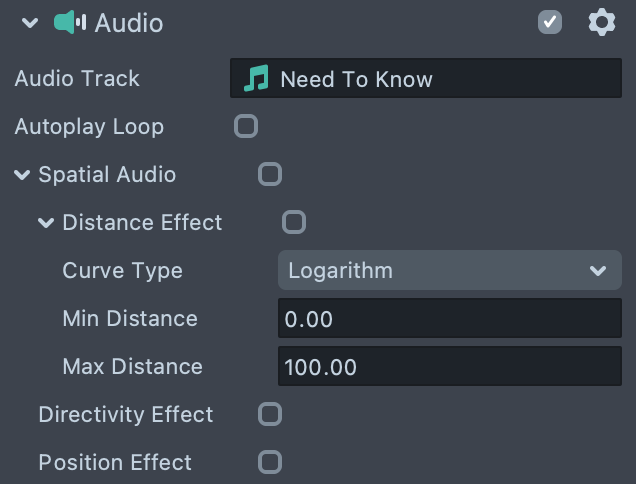
Select theAudio [SWAP AUDIO TRACK]scene object in the Objects panel and replace the audio track input of the Audio Component in the Inspector panel with the audio track of your choice.
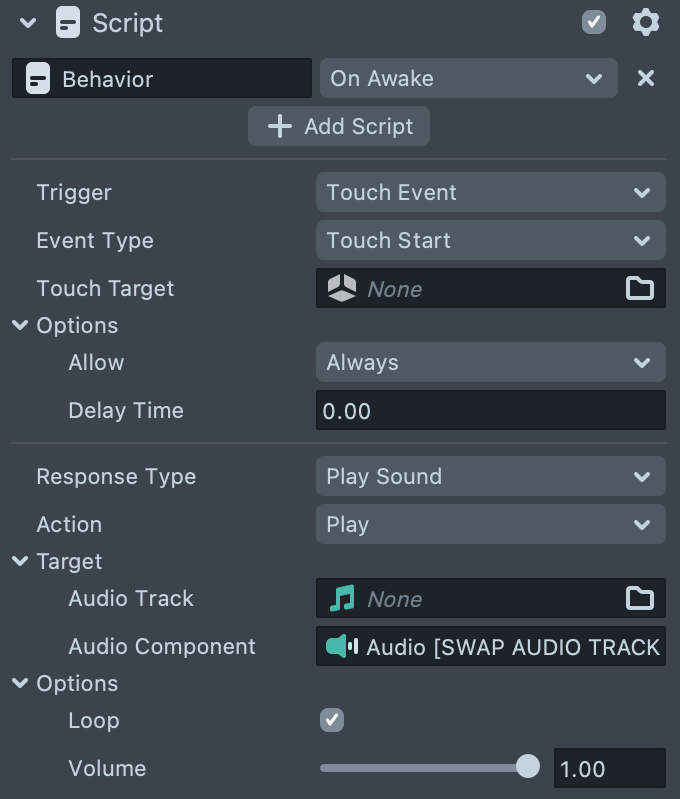
Audio [SWAP AUDIO TRACK] component is played using a Behavior script. Select the Behavior - Tap To Play [EDIT] object to modify the event used to play sound.
Preparing lyrics
If you do not intend to use song lyrics in your project you can skip to the next part.
The next step would be to get lyrics with timestamps in the .lrc format and save the file to your drive. This file is a common format used to store the relationship between song lyrics and the song itself. For convenience remove everything except for the segment we’re interested in.
Let's say that you are interested in the 30 second piece that starts at second 29, so let’s remove all other lines and save the file
[00:29.70]I just been fantasizin' (Size)
[00:31.40]And we got a lotta time (Time)
[00:33.30]Baby, come throw the pipe (Pipe)
[00:35.10]Gotta know what it's like (Like)
[00:36.90]Yeah-yeah, oh-woah-woah
[00:40.40]Baby, I need to know, mmm
[00:44.90]What's your size? (Size)
[00:46.40]Add, subtract, divide ('Vide)
[00:48.10]Daddy don't throw no curves (Curves)
[00:49.90]Hold up, I'm goin' wide (Wide)
[00:51.70]We could just start at ten (Ten)
[00:53.50]Then we can go to five (Five)
[00:55.40]I don't play with my pen (Pen)
[00:57.20]I mean what I writе
[00:59.10]Yeah-yeah, woah-woah-woah
Next, we need to convert these timestamps to be usable by the Lens. You can either calculate them yourself, or process a .lrc file using this short python script to obtain converted values. Download the example script here. It can be run in Google Collab :
- Unzip and upload notebook to your Google Drive.
- Open the notebook.
- Left-click on the Folder button on the left to open the content folder.
- Drag and drop your
.lrcfile into the folder. - Left-click on the Run button in the top left corner of the cell with python code.
AudioAttachedSequence
AudioAttachedSequence script allows you to perform different actions at the specified time of the played audio track.
The Audio field should be set with the Audio Component configured to play the audio track of your choice.
Mode allows you to select one of next options :
- Time Stamp Sequence performs one action per each timestamp
- Single Timestamp performs a sequence of actions for one timestamp.
Timestamp input or Timestamps array input will be enabled correspondingly. Values can be filled out with the ones obtained in the previous section or tweaked by ear.
Action: specifies the action to perform:
Enable/Disable Scene Objects
Allows to enable scene object for current timestamp and disable previous one.
SceneObjects: list of Scene Objects to enable/disable for each timestamp.
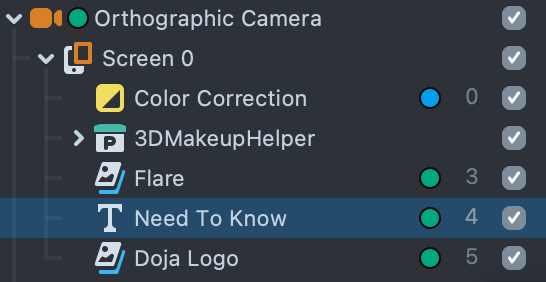
Expand the Orthographic camera’s hierarchy to check out how each screen scene object is set up. Each stage has a hierarchy of scene objects with images, post effects, text components combined with some Tween and Behavior scripts, as well as a couple scripts from the Text3D template. Almost all assets used here were found in the Asset Library!
Since our music will loop in the Lens, we will want our animations to loop as well. There are some extra settings that allow to restart helper scripts in the hierarchy of specified scene objects.
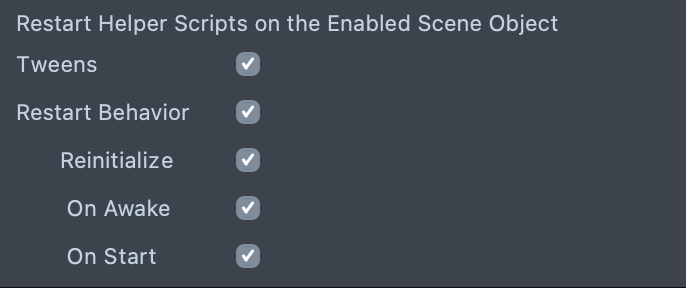
Tweens: restarts all tweens in the scene objects hierarchy that have autoplay
Restart Behavior: allows to reinitialize, or invoke OnAwake and OnStart events for the behavior scripts attached to the scene objects and their children.
Set Text
Let’s check out another action type, to do so switch Action Type to Set Text, add Text or 3D Text object to your scene and set the Text/3DText input of the helper script with this component. While timestamps stay the same lets populate elements of the Text array with the lines of the lyrics.
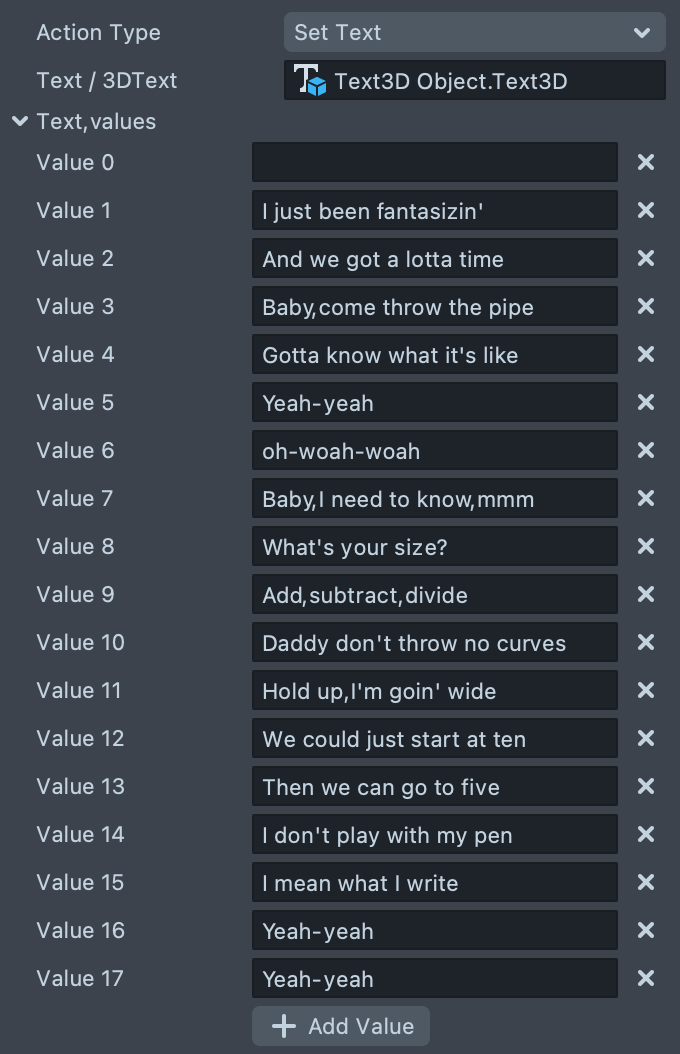
Refresh the Preview panel, and click to start audio again and see the text update along with the audio!
Start/Stop Tween
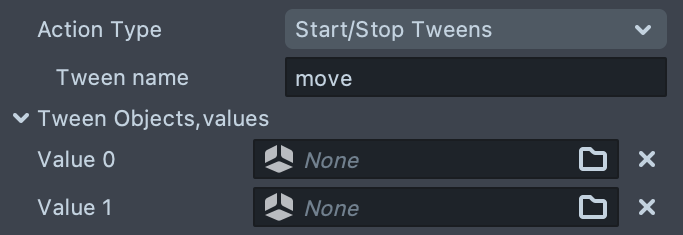
Start/Stop Tween Action Type allows to start and stop a tween with specified Tween name on the scene object from the Tween Objects array. At each time stamp tween on the previous scene object is stopped, and the one on the next sceneObject is being reset and played.
Call Api Function
Call Api Function Action Type allows to call startApiFunction API function of the specified script and stopFunctionName on the previous script from Scripts With Api array.
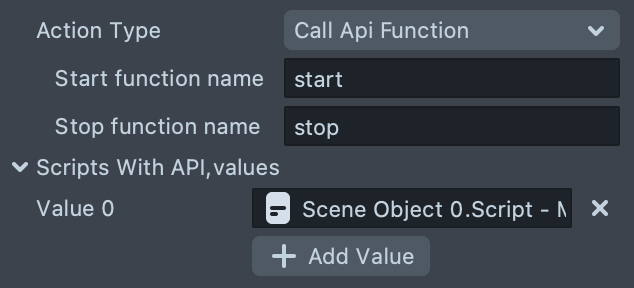
Script with api can look like this:
script.api.start = function () {
  //do something when this timestamp is on
};
script.api.stop = function () {
  //do something when this timestamp is off
};
Call Behavior
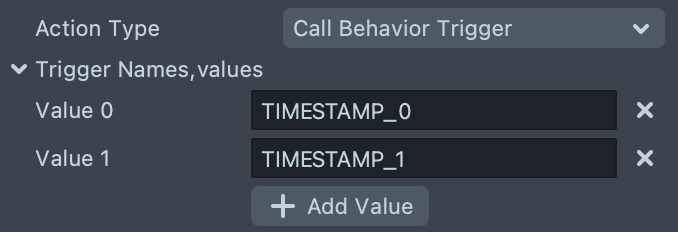
Call Behavior Action Type trigger calls a corresponding behavior Custom Trigger on each timestamp.
Previewing Your Lens
You're now ready to preview your world Lens experience. To preview your Lens in Snapchat, follow the Pairing to Snapchat guide.
Related Guides
Please refer to the guides below for additional information: