Ad Codes
Quickly boost creator content using shareable codes—no formal partnership setup required.
Overview
User Story: "A creator posted something great, but we don't have a formal partnership set up in the Business Manager. They just sent me a code."
Ad Codes provide a fast-track workflow for boosting specific creator content without establishing a formal partnership through the roles API. The creator generates a code for their post, shares it with you, and you exchange it for a media asset.
Workflow Summary
When to Use Ad Codes
| Scenario | Use Ad Codes |
|---|---|
| One-off promotions without ongoing partnership | Yes |
| Quick turnaround on trending creator content | Yes |
| Testing creator collaboration before formal deal | Yes |
| Ongoing campaign with multiple posts | No, use Brand Partnership |
| Need to run ads as creator's profile | No, use Ad Partnership |
Comparison: Ad Codes vs. Partnerships
| Feature | Ad Codes | Brand Partnership | Ad Partnership |
|---|---|---|---|
| Setup Required | None | BRAND_LEVEL invite | AD_LEVEL invite |
| Creator Approval | Per-post (code) | One-time | One-time |
| Content Discovery | Manual (code share) | API endpoint | N/A |
| Multiple Posts | New code each time | Automatic discovery | Brand creates content |
| Run as Creator Profile | ❌ | ❌ | ✅ |
| Best For | One-off boosts | Ongoing campaigns | Creator endorsements |
- Quick one-off boost? → Use Ad Codes
- Ongoing content collaboration? → Set up Brand Partnership via Partnership Setup
- Want ads from creator's profile? → Set up Ad Partnership via Partnership Setup
Best Practices
For Brands
- Claim Immediately: Claim codes as soon as you receive them, even if you're not ready to create ads yet
- Verify Expiration: Ask creators about the expiration duration when they share codes
- Test First: Create a small test campaign before launching large-scale promotions
- Communicate: Keep creators informed when you boost their content
- Track Performance: Share results with creators to strengthen relationships
For Creators
- Choose Appropriate Duration: Use longer durations (30-60 days) for established partnerships
- Verify Brand: Only share codes with brands you trust
- Track Usage: Note which brands you've sent codes to
- Communicate Changes: Inform brands if you need to revoke a code before they claim it
Limitations
| Limitation | Details |
|---|---|
| Single Use | Each code can only be claimed by one ad account |
| No Discovery | You can't search for available codes—creator must share |
| No Profile Swap | Ads run from your profile, not the creator's |
| Creator Can Revoke (Before Claim) | Creator can invalidate unclaimed codes at any time |
| No Renewal | Expired codes require creator to generate new ones |
Implementation Tracks
Choose the track that matches how you'll be working:
- Marketing UI — Step-by-step walkthrough using Business Manager to claim and boost Ad Codes. Best for marketers managing one-off collaborations.
- Developer API — Code samples and endpoint references for programmatic Ad Code claiming. Best for engineers building automated workflows.
Switch between tracks using the tabs below — Choose Marketing UI for manual workflows or Developer API for automated integrations.
- Marketing UI
- Developer API
Marketing Track
This workflow guides you through boosting creator content using Partnership Ad Codes in Business Manager.
Step 1: Creator Generates the Ad Code
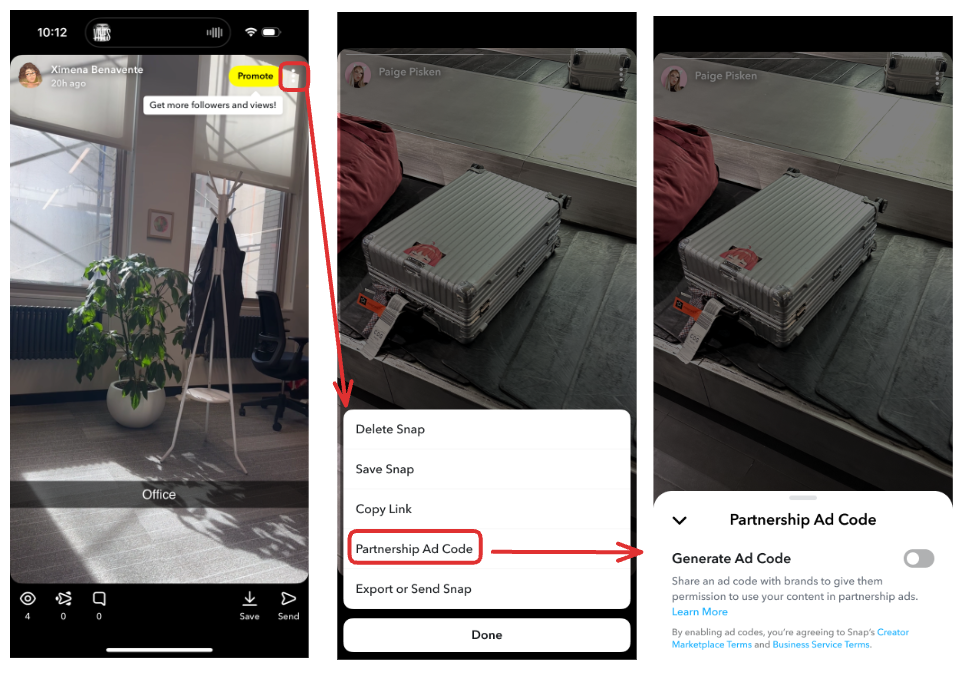
The creator must generate a Partnership Ad Code from within the Snapchat app for the specific Snap they want to allow for boosting.
Creator's Actions:
- Open the Snapchat app and navigate to the Snap they want to share
- Tap on the More Options menu (three dots or context menu)
- Select "Partnership Ad Code" from the menu
-
Choose an expiration duration from the available options:
- 7 days
- 30 days
- 60 days
- 180 days
- 365 days
-
Tap "Generate Code"
-
The code appears in the format:
adcode_[unique-id] -
Tap "Copy" to copy the code to clipboard
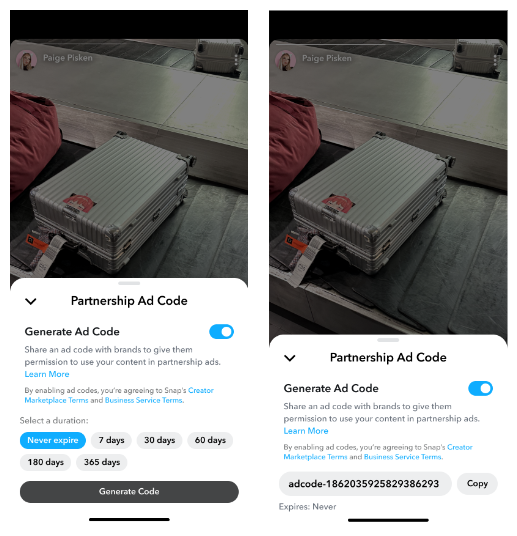
- Share the code with the brand via email, DM, or other communication channel
Ad Codes are creator-controlled. The creator sets the expiration and can revoke the code at any time before you claim it. Once you claim the code, the media asset remains in your account even if the creator later revokes the code.
Step 2: Brand Navigates to Collaborations
As the brand/advertiser, you'll import the code through Business Manager.
- Log in to Snapchat Business Manager
- Navigate to Creator Dashboard → Collaborations
- Locate and click the "+ Partnership Ad Code" button
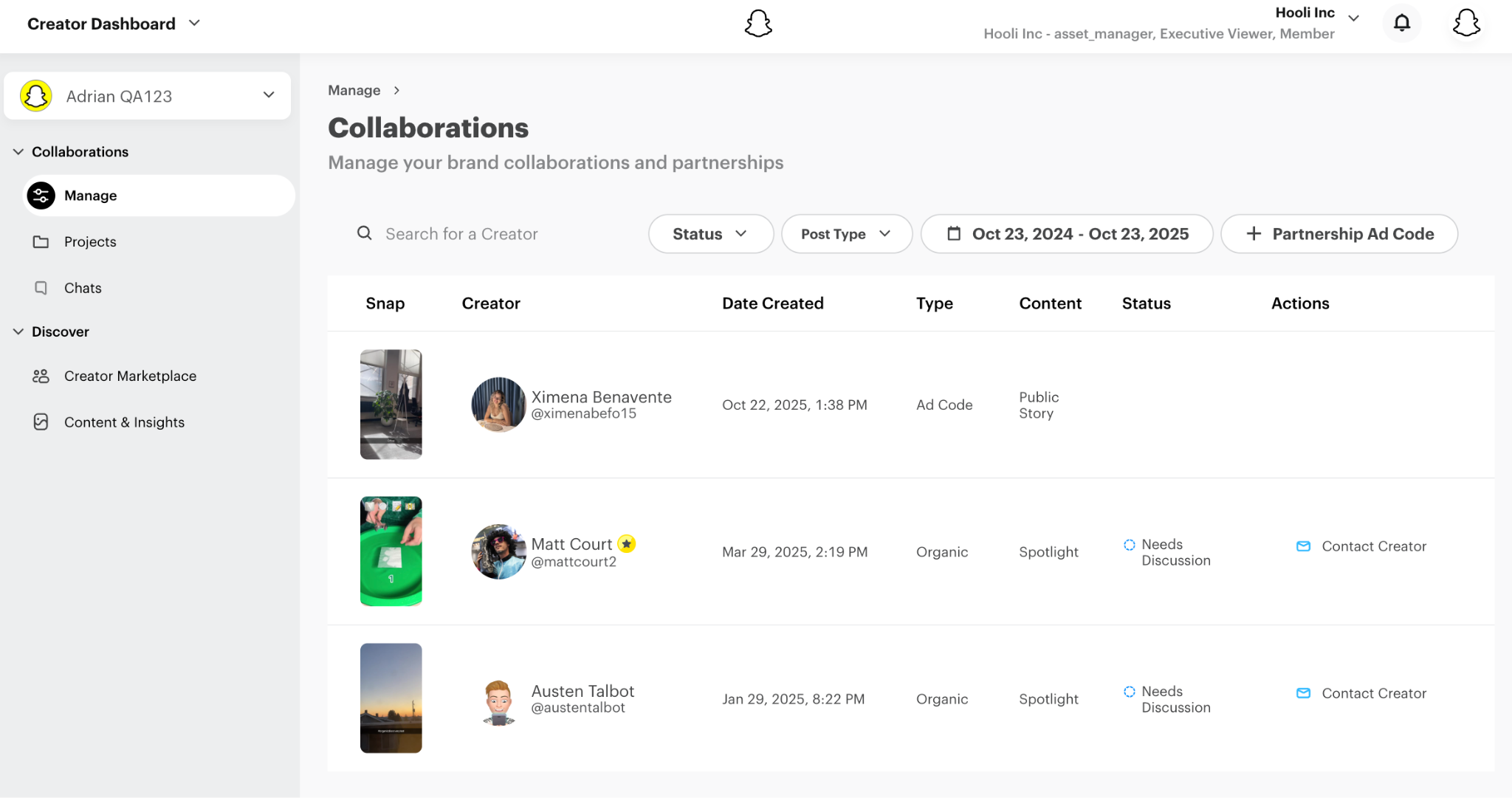
You can also access this via Ads Manager → Ad Account → Creatives → "Import from Ad Code" (if available in your interface).
Step 3: Input the Ad Code
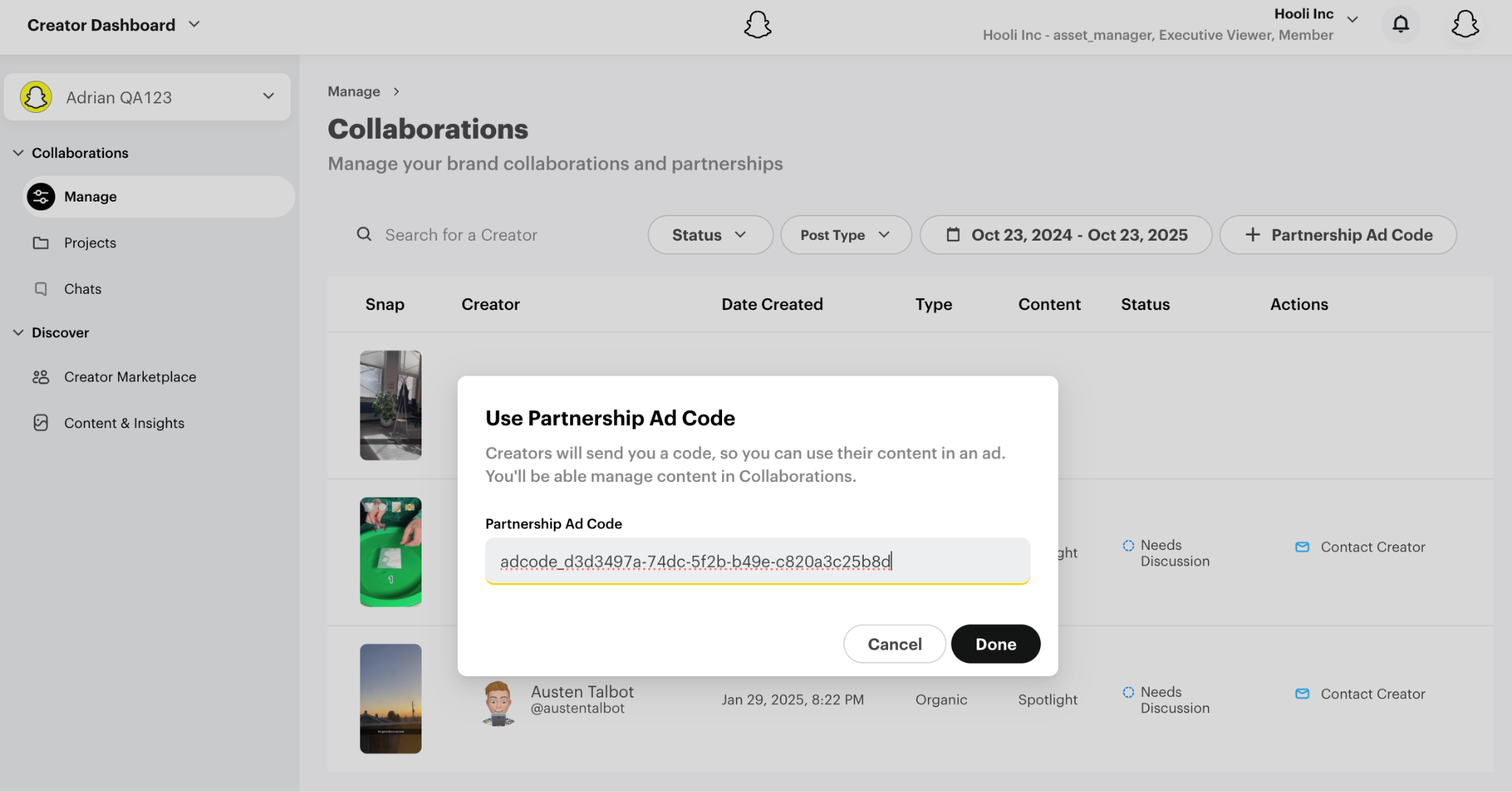
A modal window will appear prompting you to enter the code.
- In the "Partnership Ad Code" modal, paste the code string you received from the creator
- The code format should be:
adcode_a1b2c3d4-e5f6-7890-abcd-ef1234567890 - Ensure the full code including the
adcode_prefix is included - Click "Import" or "Submit"
If you receive an error:
- "Invalid Code": Verify the code format includes the
adcode_prefix and no extra spaces - "Code Not Found": The code may have expired or been revoked by the creator
- "Already Claimed": This code has already been used by another ad account (codes are single-use)
Step 4: Media Processing
After submitting the code, Business Manager will begin processing the creator's content.
- The system displays a "Processing" status indicator
- Processing typically takes 30 seconds to 5 minutes depending on video length and quality
- Once complete, the status changes to "Ready"
- Images: Usually under 30 seconds
- Short videos (< 30s): 1-2 minutes
- Longer videos: Up to 5 minutes
- If processing takes longer than 10 minutes, contact Snapchat Support
Step 5: Asset Available for Boosting
Once processing is complete, the asset appears in your Collaborations library.
- The imported Snap now appears in your Collaborations list
- The asset shows:
- Creator's name and profile
- Thumbnail preview
- "Ready" status badge
- Duration (for videos)
Step 6: Create Ad from Asset
Now you can boost the creator's content as an ad.
- Click on the asset in your Collaborations list
- Click the "Create Ad" button
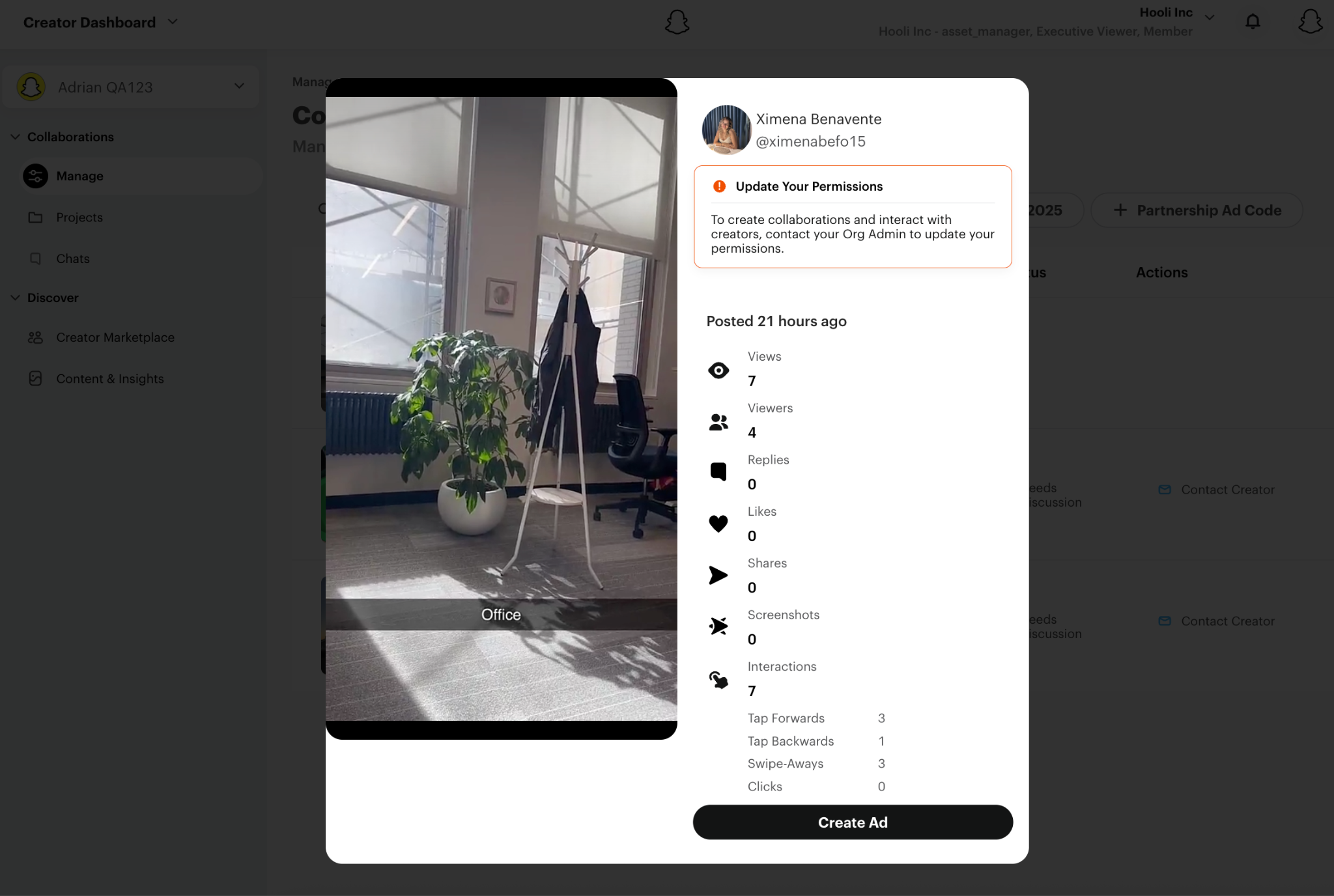
- This launches the standard ad creation flow:
- The media is pre-populated as the creative
- Select your Campaign (or create a new one)
- Configure your Ad Set (targeting, budget, schedule)
- Add your Headline and Call-to-Action
- Configure Attachments (website URL, app install, etc.)
- Review the ad preview
- Click "Publish"
Ads created from Partnership Ad Codes will display:
- Your brand's avatar and name in the ad header
- "Paid Partnership" label
- The creator's content as the media
- Your brand as the advertiser
The ad does not run from the creator's profile. For that, use Ad Partnerships.
Step 7: Monitor Performance
Once your ad is live:
- Review Status: Check Ads Manager for review status (typically 1-2 hours)
- Track Metrics: Monitor impressions, swipe-ups, and conversions
- Edit as Needed: Modify targeting, budget, or creative elements
- Duplicate: Reuse the asset in additional campaigns without needing a new code
Once you've claimed and processed an Ad Code, the media asset remains in your account permanently (unless the creator requests removal through Snapchat). You can use it in multiple campaigns without needing new codes.
Developer Track
The Ad Code workflow uses the Claim Media API to exchange creator-generated codes for media assets. This guide focuses on when and why to call each endpoint—for full parameter details, see the linked API references.
APIs Used:
- Claim Media by Ad Code — Exchange codes for media assets
- Media — Verify media processing status
- Creatives — Create ads with claimed media
Step 1: Receive and Validate Ad Code
The creator generates an Ad Code from within their Snapchat app for a specific post.
Ad Code Format:
adcode_[UUID-string]
Example: adcode_a1b2c3d4-e5f6-7890-abcd-ef1234567890
What the creator does:
- Opens the Snap they want to share
- Taps the share/options menu → "Create Ad Code"
- Sets expiration (7, 30, 60, 180, or 365 days)
- Copies and sends the code to you
Ad Codes are creator-controlled. The creator sets the expiration and can revoke the code at any time. You have no visibility into when a code might become invalid.
Step 2: Exchange Code for Media Asset
Convert the Ad Code into a media asset in your Ad Account.
What to do:
- Call
POST /v1/adaccounts/{ad_account_id}/claim_media_by_ad_codewith the full code string (includingadcode_prefix) - Response returns
media_entity_idwith statusPENDING_UPLOAD - The media asset is now in your account and begins processing
Common errors:
- 400 (Invalid Code): Verify code format includes
adcode_prefix and has no extra spaces - 404 (Code Not Found): Code expired or was revoked by creator—request a new code
- 409 (Already Claimed): Code already used by another ad account—codes are single-use
Claim codes as soon as you receive them, even if you're not ready to create ads. Once claimed, the media remains in your account permanently.
API Reference: Claim Media by Ad Code
Step 3: Poll for Media Processing
After claiming, the media goes through async processing. Poll until it's ready.
What to do:
- Call
GET /v1/media/{media_entity_id} - Poll every 5-10 seconds until
media_statuschanges toREADY - Typical processing time: 30 seconds to 5 minutes
Processing states:
PENDING_UPLOAD— Downloading and processing (keep polling)READY— Media ready for ad creation (proceed to Step 4)ERROR— Processing failed (request new code from creator)
High-resolution or longer videos may take several minutes. If status isn't READY after 60 minutes, treat as failed.
API Reference: Get Media
Step 4: Create Ad with Claimed Media
With the media ready, create your ad using the standard creatives endpoint.
What to do:
- Call
POST /v1/adaccounts/{ad_account_id}/creatives - Set
top_snap_media_idto your claimedmedia_entity_id - Include
profile_propertieswith your brand's profile ID - Add headline, CTA, and any attachments
How the ad appears:
- Ad header shows your brand's avatar and name
- "Paid Partnership" label displays
- Creator's content is the media
- Your brand is the advertiser
Ads from Ad Codes run from your brand's profile, not the creator's. For creator profile ads, use Ad Partnerships.
API Reference: Create Creative
Code Expiration
Creators set expiration when generating codes. You cannot see or extend this expiration.
Expiration durations (creator-set):
- 1 Week (7 days)
- 1 Month (30 days)
- 2 Months (60 days)
- 6 Months (180 days)
- 1 Year (365 days)
What happens when codes expire:
- Unclaimed codes become invalid—exchange attempts return 404
- Already-claimed media remains valid and usable
- Active ads using the media continue running
Claim codes immediately upon receipt to avoid expiration issues.
Next Steps
- Brand Partnerships — Set up ongoing partnerships for content discovery
- Ad Partnerships — Run ads as the creator's profile
- Troubleshooting — Common errors and solutions