Ad Partnerships
Run ads that appear as if posted by a creator, featuring their profile and identity with your brand attribution.
Overview
User Story: "I want to run an ad that looks like it was posted by the creator. It will appear in the feed as 'Creator Name' sponsored by 'Brand Name'."
Ad Partnerships enable a paid-first workflow where you create ads that feature a creator's profile as the primary sender. Unlike Brand Partnerships, the content is created by you (the advertiser), but it carries the creator's identity and credibility.
Common Use Cases
Celebrity Endorsements
Feature approved celebrity profiles in brand campaigns where the celebrity's identity drives trust and engagement.
Influencer Takeovers
Run campaigns where ads appear to come from the influencer's account, creating an authentic "takeover" experience.
Sponsored Content
Create content with clear creator attribution for transparent sponsored messaging that complies with disclosure requirements.
Key Differences from Brand Partnerships
| Aspect | Brand Partnership | Ad Partnership |
|---|---|---|
| Content Source | Creator's organic posts | Your own creative assets |
| Permission Level | BRAND_LEVEL | AD_LEVEL |
| Creator Action | Must post and tag | Only initial approval needed |
| Ad Display | "Paid Partnership with [Brand]" | "[Creator]" sponsored by "[Brand]" |
| Primary Control | Creator originates content | Brand controls all creative |
Before following this guide, you must establish an AD_LEVEL partnership with creators. See Partnership Setup for the complete invitation and approval process.
Workflow Summary
Key Details
Permission & Content
| Aspect | Details |
|---|---|
| Permission Required | Ad Partner (AD_LEVEL) — higher than Brand Partner |
| Campaign Type | Manual Build only (not available in Instant Create) |
| Content Source | Your own creative assets |
| Primary Profile | Creator's avatar and name appear in ad header |
| Sponsor Attribution | "Sponsored by [Your Brand Name]" |
| Creator Action | One-time approval; no ongoing posting required |
Comparison: Primary Profile Options
The key difference in Ad Partnerships is who appears as the sender:
| Profile Setting | Ad Header Shows | Sponsor Line Shows | Use Case |
|---|---|---|---|
| Creator (Primary) | Creator's avatar & name | "Sponsored by [Brand]" | Creator endorsement feel |
| Brand (Primary) | Brand's avatar & name | "Featuring [Creator]" | Brand campaign with creator talent |
Implementation Tracks
This guide provides two tracks for creating Ad Partnership campaigns:
- Marketing UI — Manual setup via Snapchat Ads Manager (no code required)
- Developer API — Programmatic workflow for automated campaign creation
Switch between tracks using the tabs below to see your preferred approach.
- Marketing UI
- Developer API
Setup via Ads Manager
This workflow guides you through creating Ad Partnership campaigns manually using Snapchat Ads Manager.
Complete Partnership Setup — You must have an active AD_LEVEL partnership before proceeding
Step 1: Create a Campaign
Ad Partnerships require Manual Build campaigns in Ads Manager.
-
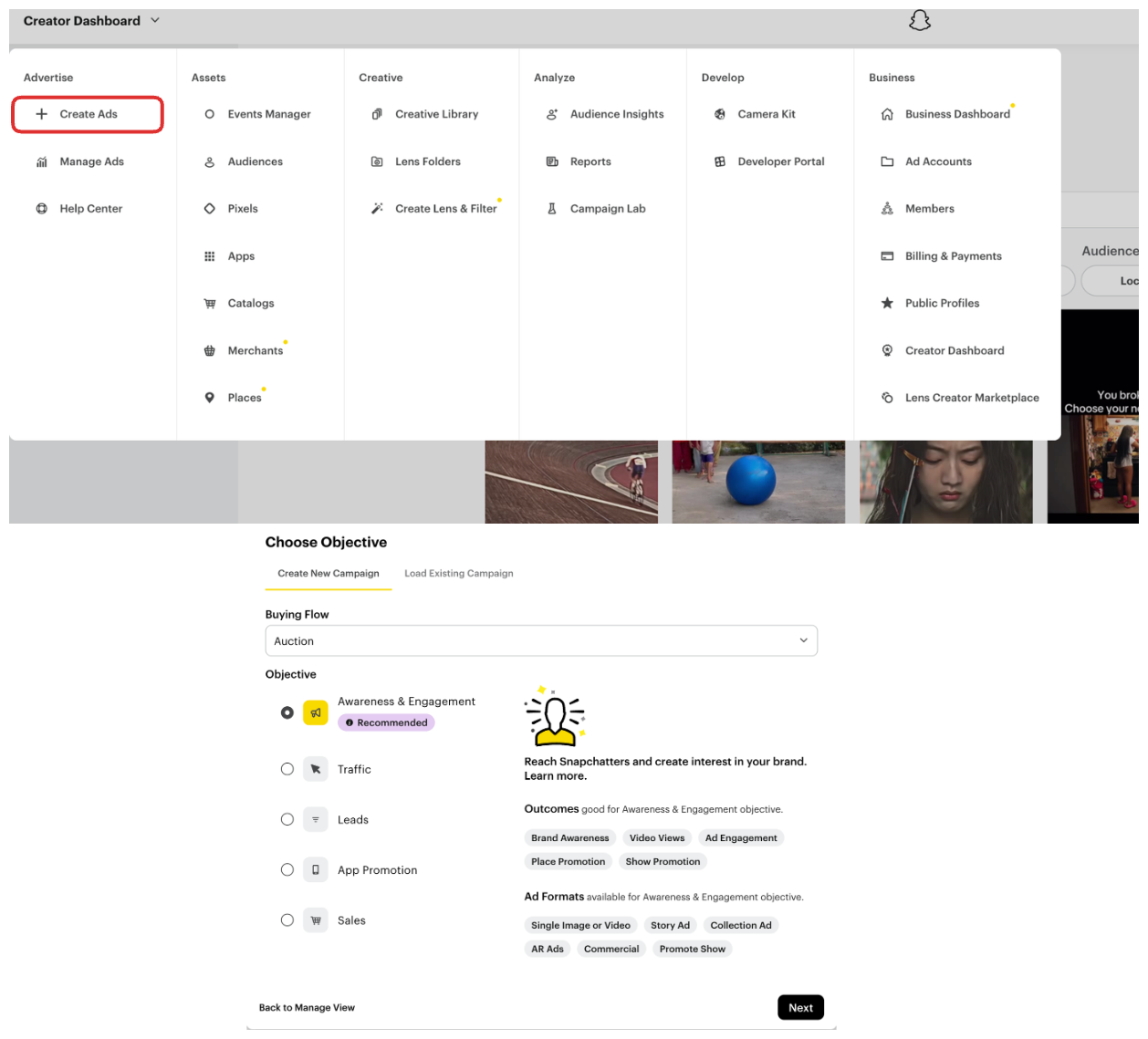
Log in to Snapchat Ads Manager
-
Navigate to Campaigns → Create Campaign
-
Choose your campaign objective (e.g., Awareness & Engagement, Website Conversions, App Installs)
-
On the campaign build type selection screen, choose Manual Build in order to select your own assets and public profile.
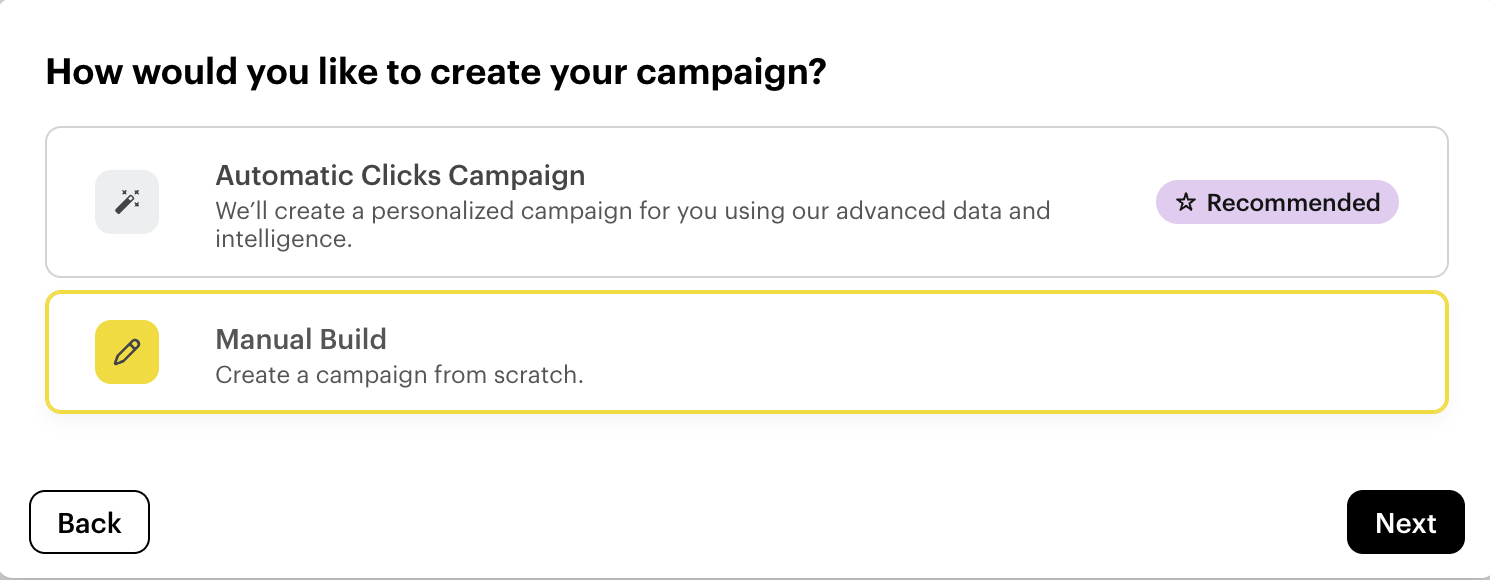
Ad Partnerships are not supported in Instant Create or Automatic campaigns. You must select Manual Build to access Partnership Ad features.
- Configure your campaign settings (name, budget, dates)
- Click Continue to Ad Sets
Step 2: Configure Ad Set
Set up targeting, placement, and budget for your ad set:
- Name your ad set (e.g., "Creator Partnership - January")
- Set your Start Date and End Date
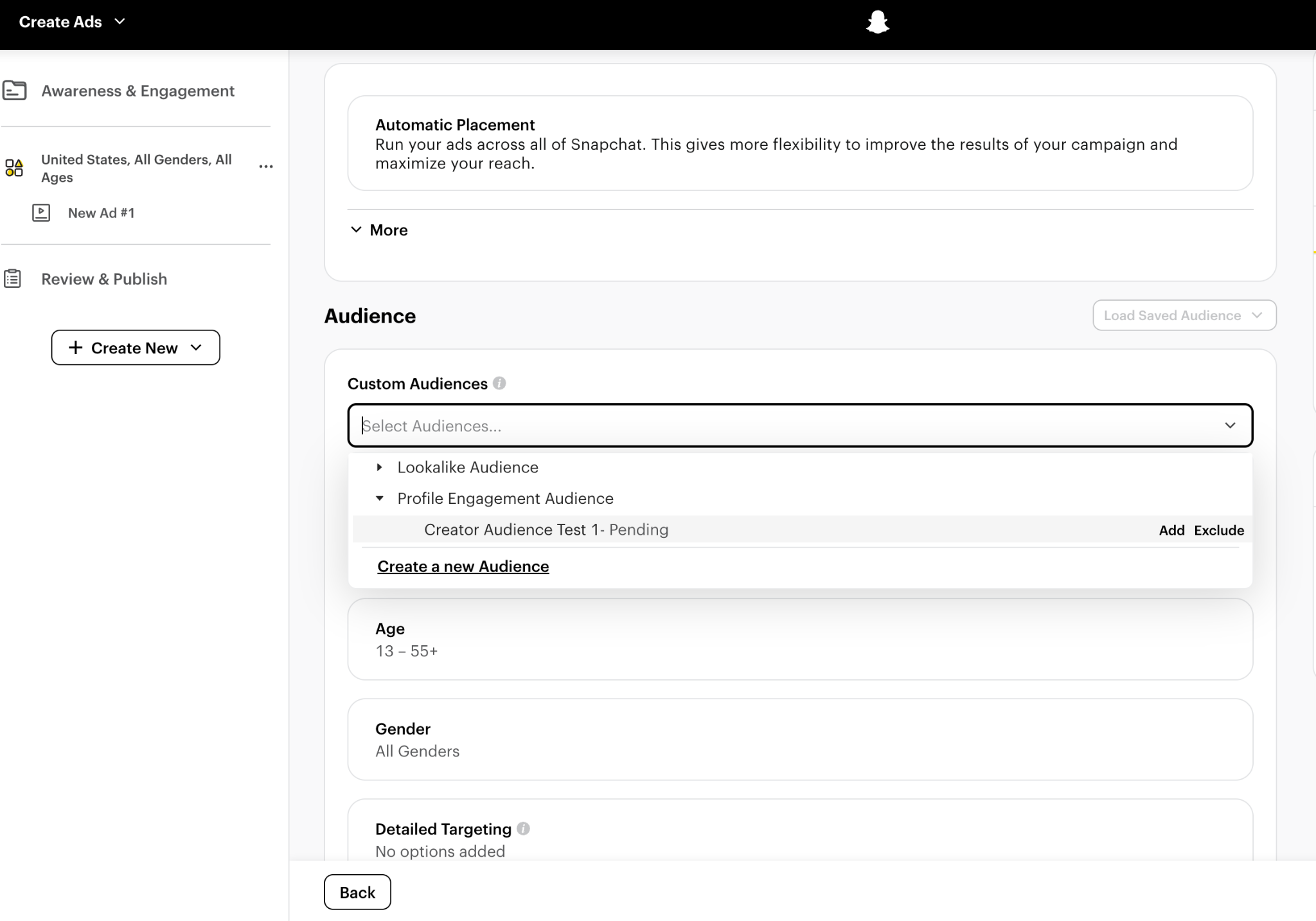
- Configure Audience Targeting (demographics, interests, locations)
- Set your Budget (daily or lifetime)
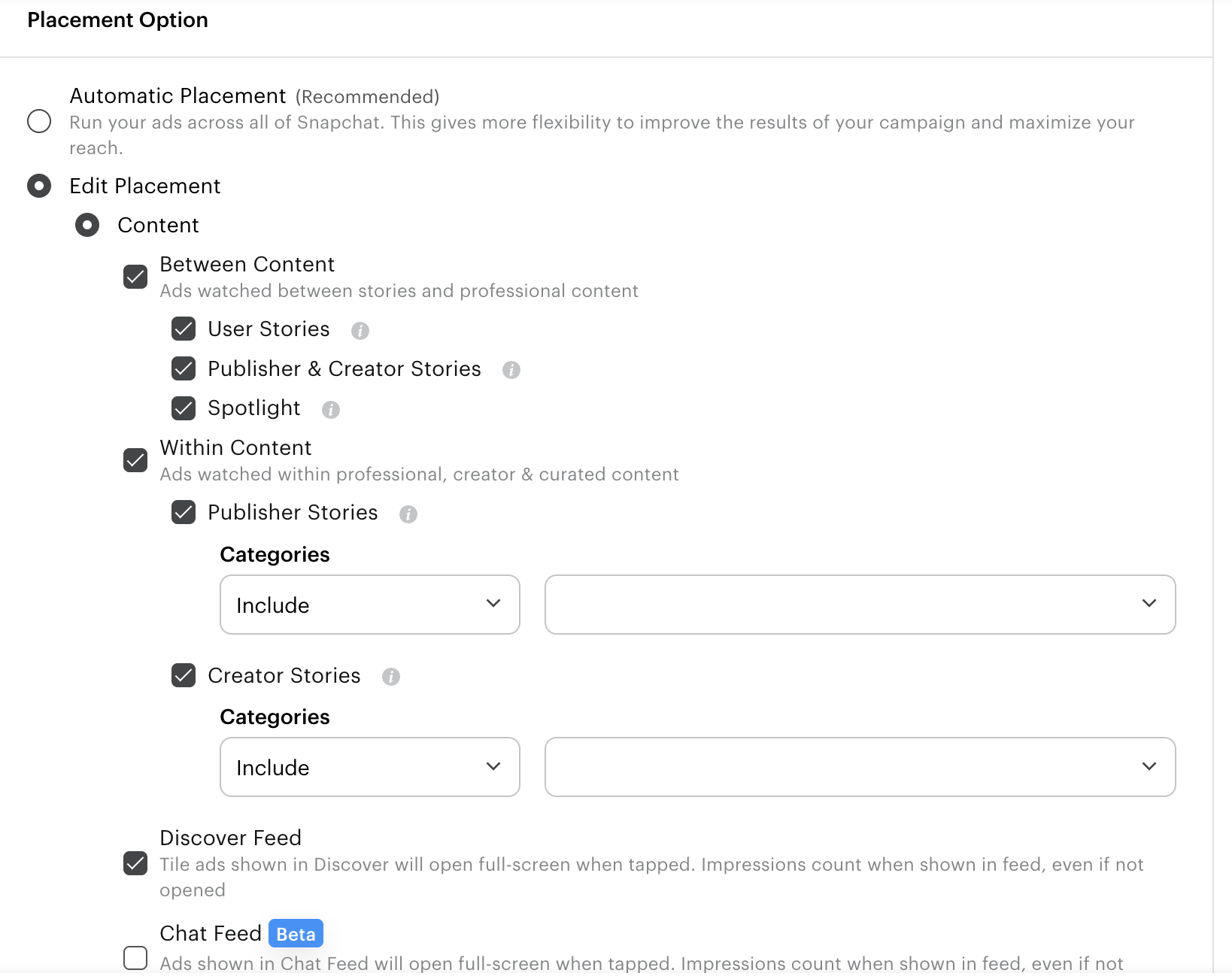
- Choose Placements (Snapchat, Audience Network, etc.)
- Click Continue to Ads
Under placement, you can run creator ads within Stories, Spotlight, or as Sponsored Snaps, with the option to bid exclusively on Sponsored Snaps by selecting only "Chat Feed."
- Configure the audience
To target creator's audience follow the Audience Targeting guide.
- Select Ad Format
Step 3: Upload Creative and Enable Partnership
This is where you configure the Ad Partnership and swap the primary profile to the creator.
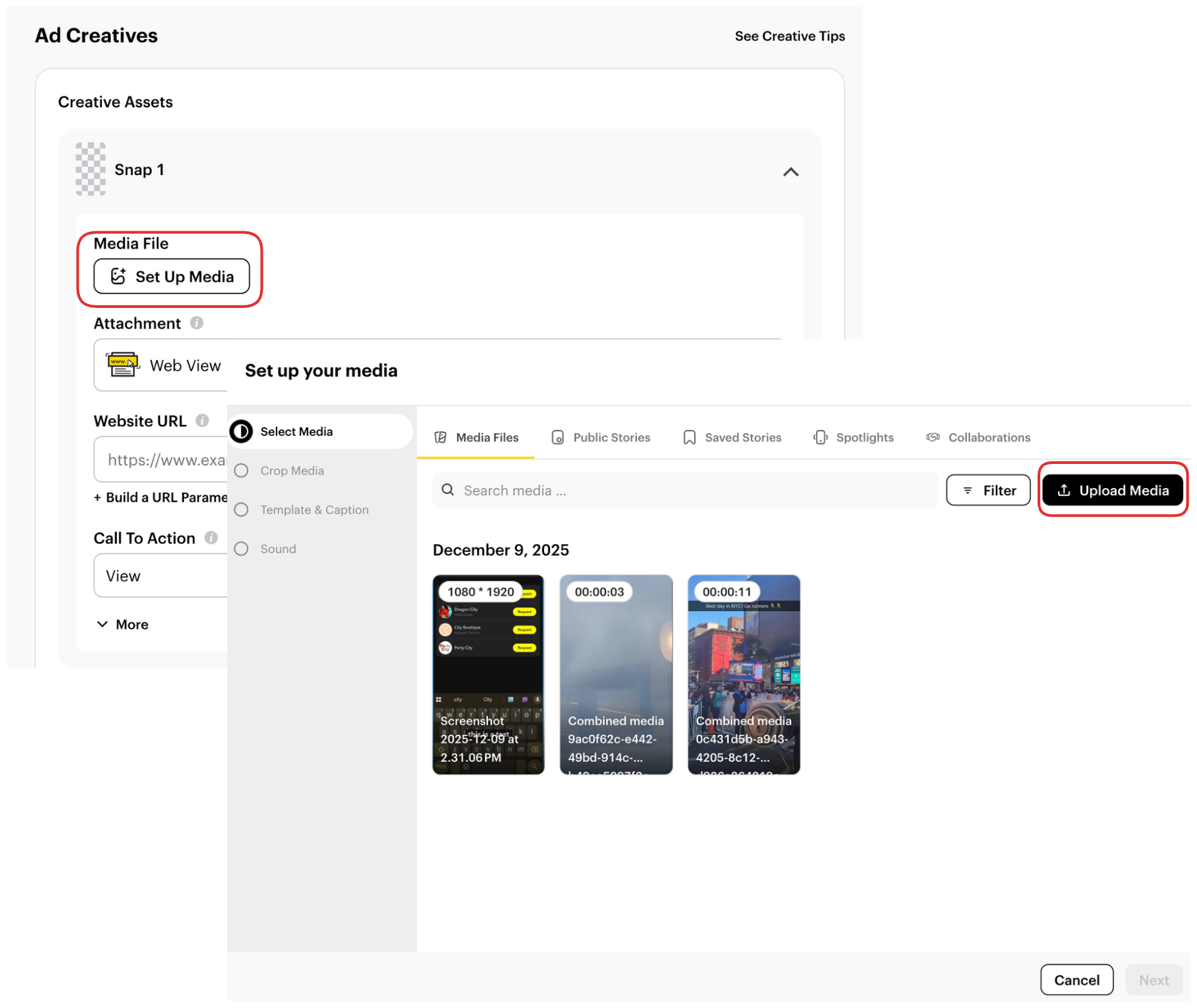
3.1 Upload Media
- In the Ad Creatives section, click Set Up Media
- Choose to upload:
- Brand Asset: Upload your own image or video
- Creator Asset: Use media shared by the creator (if available)
- Upload your creative file
3.2 Enable Partnership Ad
- Scroll to the Public Profile section in the creative setup
- Toggle "Partnership Ad" to ON
- A creator selector will appear
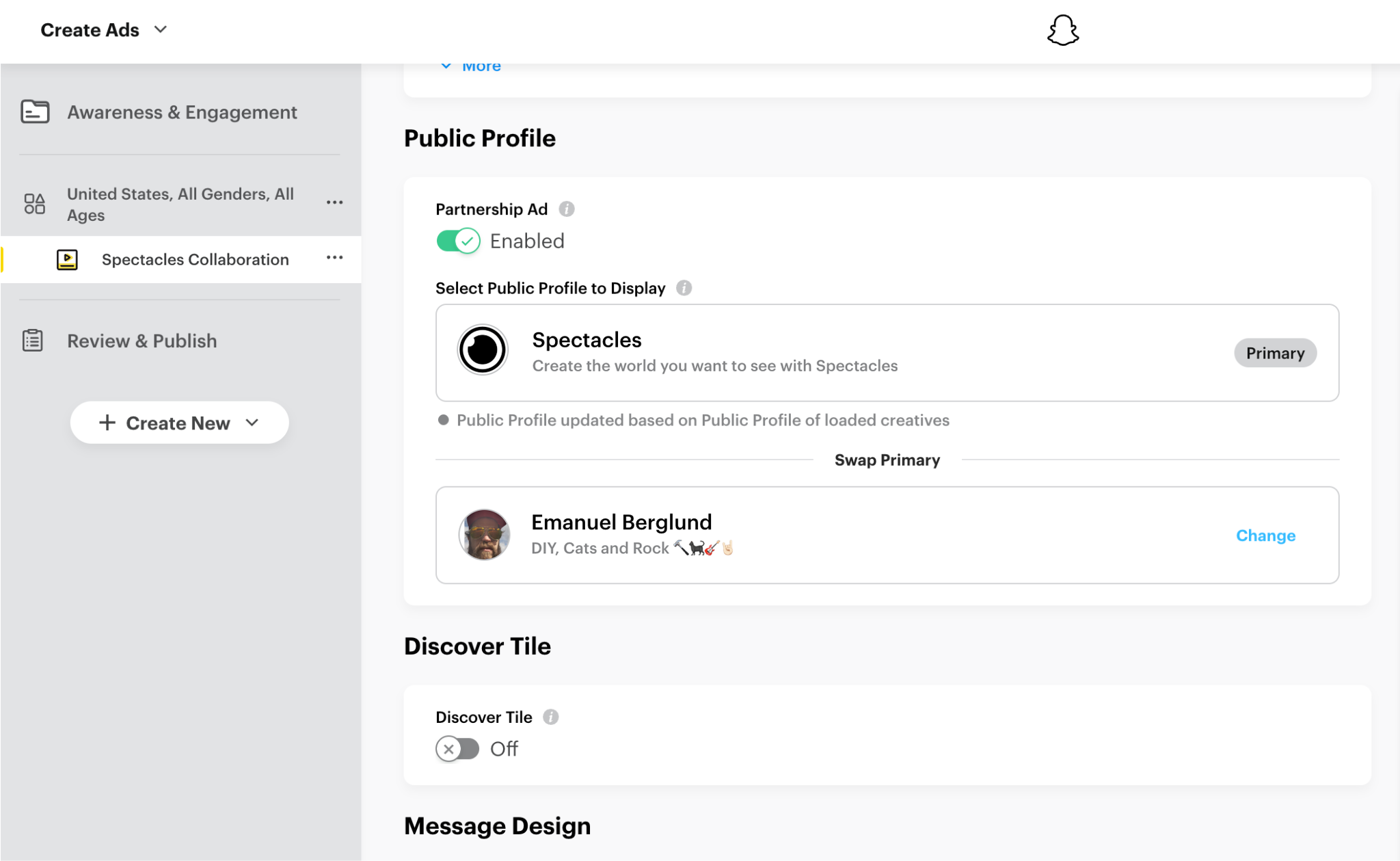
3.3 Select the Creator
- Click the Select Creator dropdown
- Choose the creator you granted "Ad Partner" permission to
- The creator's profile information will populate
3.4 Swap Primary Profile
This is the critical step that makes the ad appear to come from the creator.
- Look for the "Swap Primary" button or toggle near the profile selector
- Click "Swap Primary" to switch the primary profile from your brand to the creator
- Confirm the swap
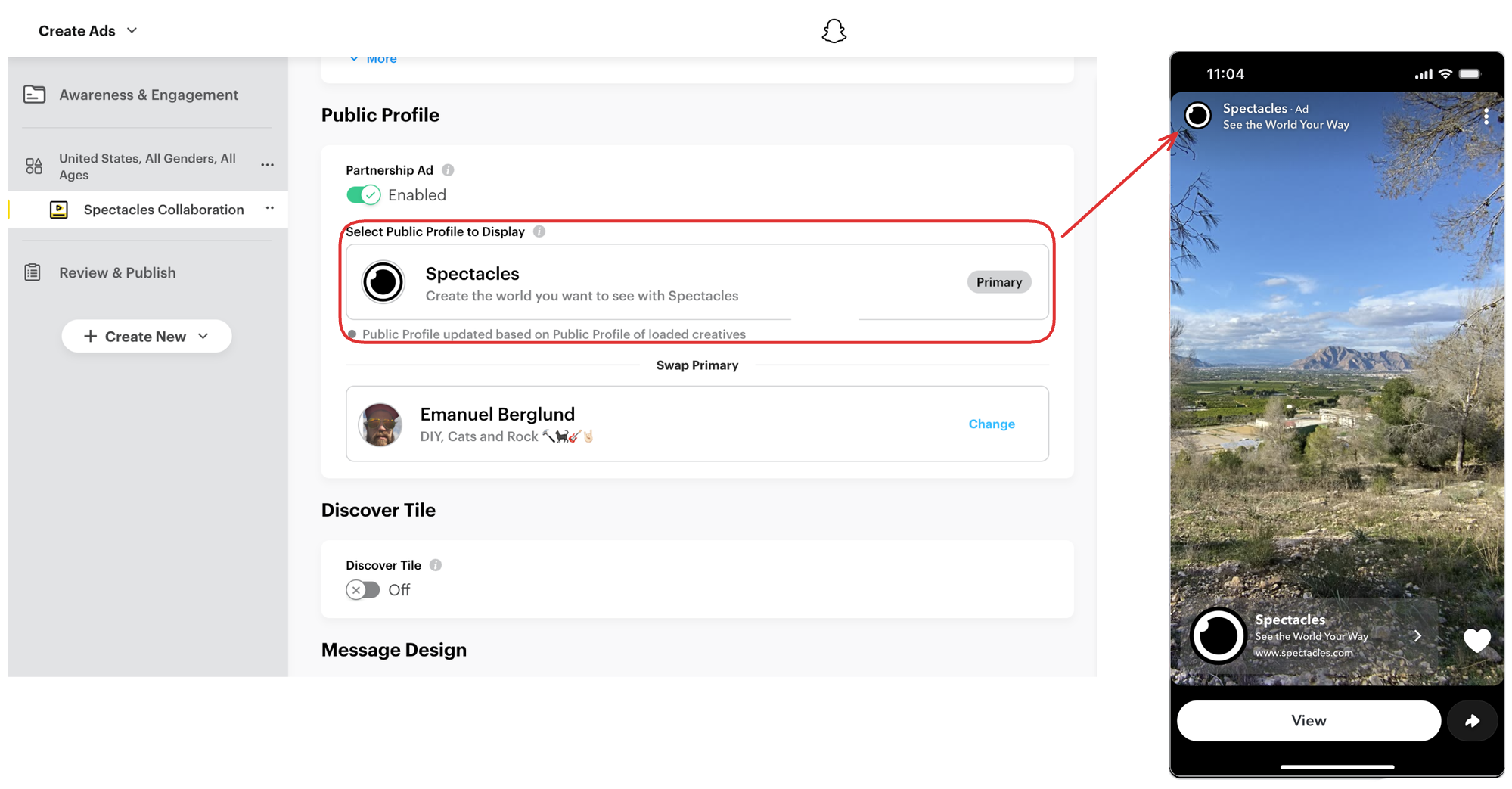
Before Swap:
- Ad Header: Brand Test
- Sponsor Line: "promo 123"
After Swap:
- Ad Header: Shusha Li
- Sponsor Line: "promo 123 @Brand Test"
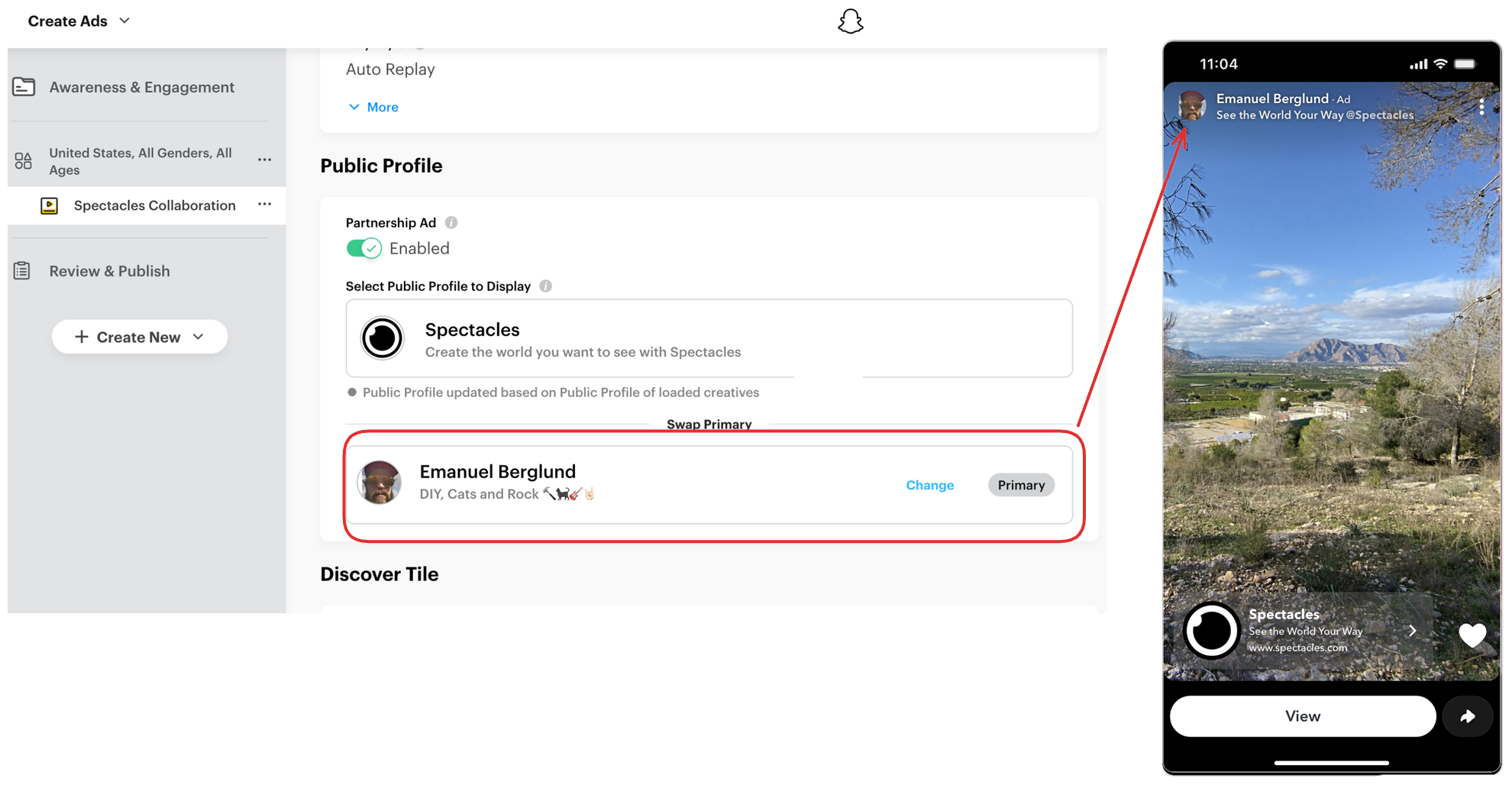
Step 4: Complete Ad Setup
- Add your Headline (e.g., "Check this out!")
- Select a Call-to-Action button (e.g., "Shop Now", "Learn More", "Install Now")
- Add an Attachment (website URL, app install link, etc.)
- Review the Ad Preview to confirm the creator's profile appears as the primary sender
- Click Publish
Always check the ad preview to ensure the creator's avatar and name appear in the header with your brand shown as "Sponsored by [Brand]".
Step 5: Monitor and Manage
Once your ad is live:
- Check Review Status: Ads go through Snapchat's review process (typically 1-2 hours)
- Monitor Performance: Track impressions, swipe-ups, and conversions in the Ads Manager dashboard
- Watch Expiration Dates: Ad Partner permissions expire based on the duration you set. You'll need to re-invite creators when permissions expire.
If the Ad Partner permission expires while your ad is running, the ad may pause or be rejected. Plan to renew partnerships before expiration.
Developer Track: API Implementation
The Ad Partnership workflow uses the Marketing API to create ads that appear from a creator's profile. This guide focuses on when and why to call each endpoint—for full parameter details, see the linked API references.
Complete Partnership Setup — You must have an active AD_LEVEL partnership before proceeding
APIs Used:
- Ad Partner Profiles — List approved creators
- Creatives — Create partnership ads with creator as primary
- Media — Upload your creative assets
Step 1: List Available Ad Partners
Before creating ads, confirm which creators have granted you AD_LEVEL access.
What to do:
- Call
GET /v1/public_profiles/{profile_id}/ad_partner_profiles - Response includes all creators with
AD_LEVELpermissions - Filter to only show
partnership_status: "ACCEPTED"
Use case: Populate a "Select Creator" dropdown in your UI showing only approved partnerships.
API Reference: List Ad Partner Profiles
Step 2: Create Ad with Creator as Primary Profile
Create an ad where the creator's avatar and name appear as the sender, with your brand shown as the sponsor.
What to do:
- Upload your creative media (if not already done)
- Call
POST /v1/adaccounts/{ad_account_id}/creatives - Set
creator_partnership_type: "AD_PARTNERSHIP"← Required - Set
primary_profile: "CREATOR"← Makes creator the sender - Include both
creator_profile_propertiesandprofile_properties
Key parameters:
top_snap_media_id: Your uploaded media assetcreator_partnership_type: Must be"AD_PARTNERSHIP"for proper disclosureprimary_profile:"CREATOR"(creator as sender) or"BRAND"(brand as sender)creator_profile_properties.profile_id: Creator's profile IDprofile_properties.profile_id: Your brand's profile ID
How the ad appears:
Ad Header: [Creator Avatar] Creator Name
Sponsor: "Sponsored by Your Brand Name"
You must set creator_partnership_type to "AD_PARTNERSHIP" and primary_profile to "CREATOR". Omitting these creates a generic ad without proper creator attribution.
API Reference: Create Partnership Ad Creative
Step 3: Monitor Partnership Expiration
Ad Partnerships expire based on approvalTimeInDays set during setup. Monitor and renew before expiration.
What to do:
- Check
expires_attimestamp from the ad partner profiles list - Set calendar alerts for 7 days before expiration
- Re-send partnership invitation before expiration (see Partnership Setup)
If permissions expire while ads are running, active ads may pause or be rejected. Plan proactive renewal for ongoing campaigns.
Next Steps
- Brand Partnerships — Boost organic creator content
- Audience Targeting — Target creator followers with
AD_LEVELpermissions - Technical Reference — Detailed schemas and validation rules
- Troubleshooting — Common errors and solutions