Brand Partnerships
Transform creator-generated organic content into paid advertising while preserving authentic voice and engagement.
Overview
User Story: "I want creators to post organic content tagging my brand. I then want to find that content and turn high-performing posts into ads."
Brand Partnerships enable an organic-to-paid workflow where creators post content featuring your brand, and you amplify the best-performing posts as paid advertisements. This approach leverages authentic creator content that has already proven engagement potential.
Before following this guide, you must establish a BRAND_LEVEL partnership with creators. See Partnership Setup for the complete invitation and approval process.
Workflow Summary
Guidelines
Expand any section below for detailed specs. These are linked throughout the guide when relevant.
Post Types — Stories vs. Spotlight vs. Cross-Post
| Post Type | Distribution | Audience | Duration |
|---|---|---|---|
| Stories | Shown primarily to followers | Subscribers/friends | 3–180 seconds |
| Spotlight | Distributed on the 5th tab (Spotlight feed) | Mix of followers and non-followers | 5 seconds – 2 minutes |
| Cross-Post | Posted to both Stories AND Spotlight | Both audiences | Must meet Spotlight requirements (5s–2min) |
Creators can post the same video to both Stories and Spotlight simultaneously. This maximizes reach across both follower and discovery audiences.
Content Requirements — Duration, format, and music restrictions
Not all content can be boosted. Ensure creator content meets these specs:
| Requirement | Spotlight | Stories |
|---|---|---|
| Aspect Ratio | 9:16 (vertical) | 9:16 (vertical) |
| Duration | 5–60 seconds | 3–180 seconds |
| Availability | Permanent | Expires after 24 hours unless saved |
| Music | No "Snap Library" music | No "Snap Library" music |
Stories expire after 24 hours. Creators must save to Memories or Saved Stories before expiration for content to remain boostable. If a snap_id returns "Not Found," the creator likely didn't save it in time.
Permission Levels — What creators grant when they accept
When creators accept a partnership or tag a brand, they select a permission scope:
| Permission | You Can See Posts? | You Can Boost? | You Get Insights? |
|---|---|---|---|
| Tag Only | ✅ Yes | ❌ No | ❌ No |
| Tagging + Ad Creation (Share Snap) | ✅ Yes | ✅ Yes | ❌ No |
| Tagging + Ad Creation + Insights (Share Snap + Insights) | ✅ Yes | ✅ Yes | ✅ Yes |
If a creator selects "Tag Only," you will see their posts in the dashboard but cannot boost them. Always brief creators to select "Tagging + Ad Creation" or higher.
Best Practices — Avoid common pitfalls
| Practice | Why It Matters |
|---|---|
| Brief creators on permission selection | Prevents "Tag Only" issues that block boosting |
| Remind creators to save Stories | Prevents content loss after 24-hour expiration |
| Review content quickly | Trending content loses relevance over time |
| Communicate ad usage | Maintains creator trust and relationship |
| Verify content specs before claiming | Avoids API errors from ineligible content |
Implementation Tracks
Choose the track that matches how you'll be working:
- Marketing UI — Step-by-step walkthrough using Business Manager and Ads Manager. Best for marketers and campaign managers.
- Developer API — Code samples and endpoint references for programmatic integration. Best for engineers building automated workflows.
Switch between tracks using the tabs below — Choose Business Manager for manual workflows or Developer API for automated integrations.
- Business Manager
- Developer Track
Marketing Track
✅ Complete Partnership Setup — You must have an active BRAND_LEVEL partnership before proceeding
Part I: Creator Posts Tagged Content
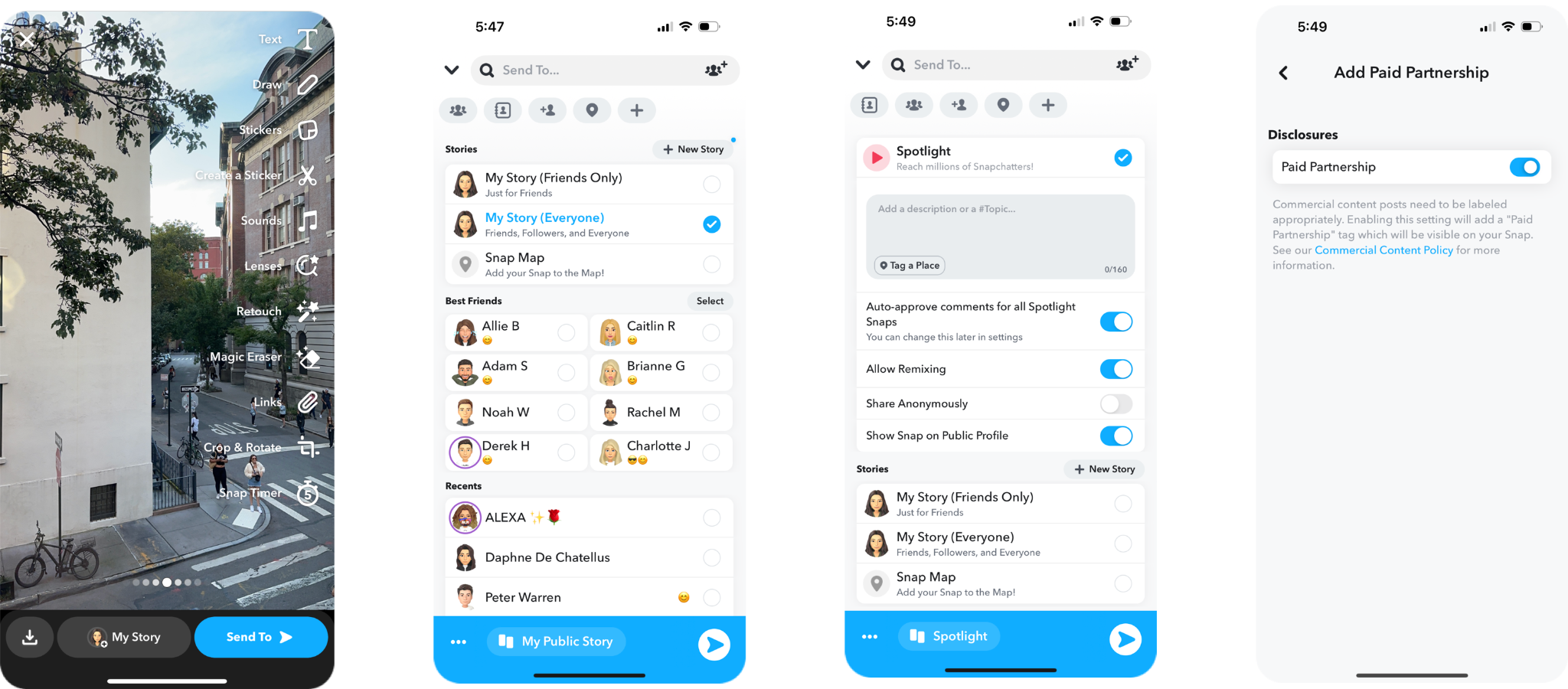
Once the partnership is active, the creator can tag your brand in their organic content.
How Creators Tag Your Brand
- Creator creates a new Snap (Story or Spotlight)
- Before posting, creator taps "More Options" or the link icon
- Creator toggles "Add Paid Partnership"
- Creator searches for and selects your brand
- Creator posts the content
Ensure content meets the Content Requirements before boosting—especially duration limits and Story expiration.
Part II: Boost the Content
Before boosting, review the Best Practices and Content Requirements to avoid common issues.
Step 1 - Find Tagged Content
- Navigate to Business Manager → Creator Dashboard → Collaborations
- Click the "Manage" tab
- You'll see a list of all Snaps where creators have tagged your brand
Step 2 - Create the Ad
- Find the content you want to boost
- Click "Create Ad" next to the asset
- You'll be taken to Ads Manager with the creative pre-loaded
- Configure your campaign:
- Set your objective
- Define your target audience
- Set budget and schedule
- Review and launch
The ad will automatically display the "Paid Partnership with [Your Brand]" label for transparency.
Alternative Flow - Creator-Initiated Tagging
In the flow above, the brand initiates by adding a creator to their Pre-Approved list. However, there's an alternative path where the creator initiates by tagging a brand they want to work with—without being pre-approved first.
Only Snap Stars or creators who have previously worked with a brand can initiate tagging without pre-approval.
Step 1 - Creator Prepares Content
The creator chooses a video or image to post on their Stories or Spotlight and decides to tag a brand they want to collaborate with.
Step 2 - Creator Searches for Brand
- Creator taps "Add Paid Partnership"
- Creator searches for the brand by typing the brand name
- Creator selects the brand from search results
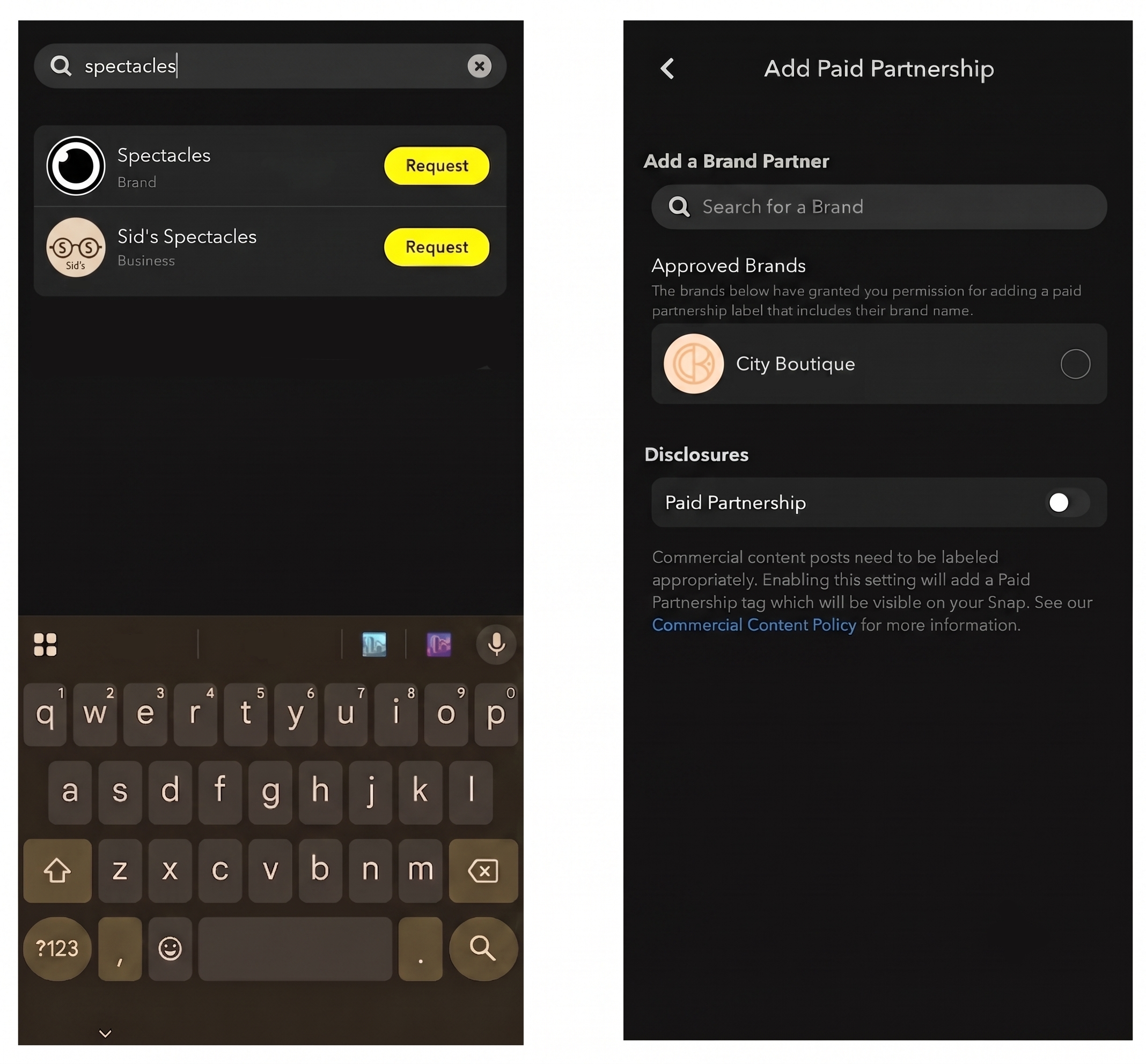
Step 3 - Creator Confirms Tagging Request
- Once the creator finds the brand, they tap "Request"
- A confirmation popup appears explaining that the brand will receive a notification to pre-approve them
- Creator taps "Continue" to send the request
Step 4 - Creator Selects Permission Level
After confirming, the creator selects what permissions to grant the brand:
| Option | What It Allows |
|---|---|
| Cancel | Cancels the tagging process |
| Tag Only | Tags the brand but does NOT allow boosting |
| Share Snap | Brand can use content for ads ✅ |
| Share Snap and Insights | Brand can use content for ads AND see organic metrics ✅ |
If the creator selects "Tag Only," you will see the post but cannot boost it. See Permission Levels for the full breakdown.
Step 5 - Brand Approves or Rejects
- Navigate to Business Manager → Creator Dashboard → Collaborations
- You'll see a pending notification from the creator
- Review the request and click Approve or Reject
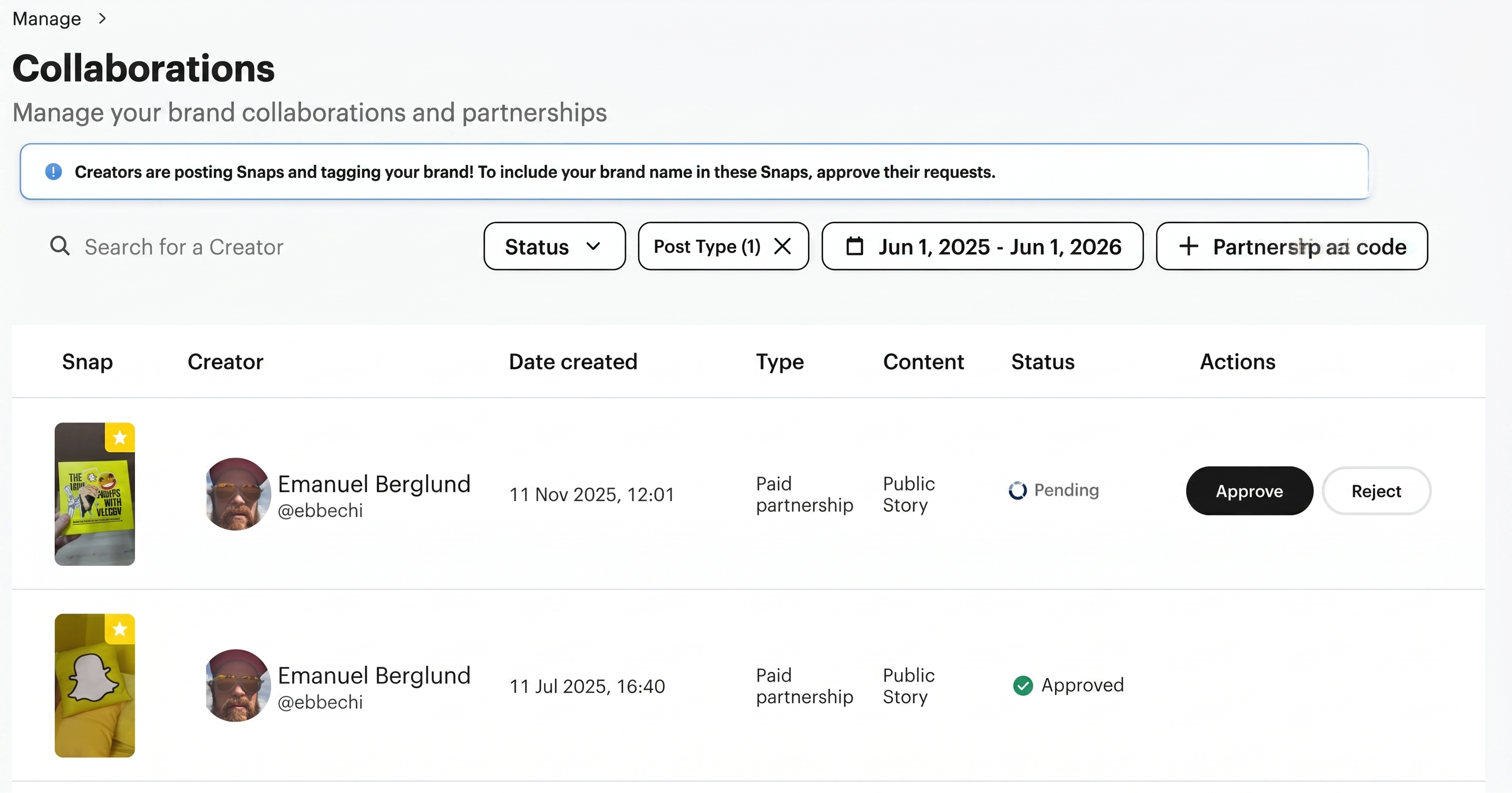
Once approved, the creator's content appears in your Collaborations Manager and can be boosted following the same steps in Part II: Boost the Content.
Developer Track
The Brand Partnership workflow orchestrates multiple APIs to convert organic creator content into paid ads. This guide focuses on when and why to call each endpoint—for full parameter details, see the linked API references.
✅ Complete Partnership Setup — You must have an active BRAND_LEVEL partnership before proceeding
APIs Used:
- Shared Snaps — Discover tagged content
- Claim Media — Convert organic content to ad assets
- Creatives — Create partnership ads
Step 1: Discover Tagged Content
Once the partnership is active, listen for organic posts where the creator tagged your brand using the "Paid Partnership" label.
What to do:
- Call Retrieve Collaboration Snaps to poll for tagged posts
- Response includes
snap_id, metadata, and creator info for each tagged post - Filter by
story_type(e.g.,SAVED_STORY) andsponsor_statusto identify eligible content
Only posts using the "Paid Partnership" label tool appear here. Simple @mentions in text overlays are not detected.
API Reference: Retrieve Collaboration Snaps
Converting URLs to Snap IDs
If a creator sends you a Snapchat URL instead of a snap_id, extract the ID first:
GET /v1/tools/extract_snap_id?short_url_code=iR7tFNNh
API Reference: Extract Snap ID
Step 2: Claim the Content
Convert the organic Snap into an ad-ready media asset in your Ad Account's library.
What to do:
- Call
POST /v1/adaccounts/{ad_account_id}/claim_media_by_snap_referencewith thesnap_id - Response returns a
media_entity_idwithmedia_status: "PENDING_UPLOAD" - Poll
GET /v1/media/{media_entity_id}until status isREADY(typically 1-5 minutes)
If media isn't READY after 60 minutes, treat as failed and retry or investigate.
API Reference: Claim Media by Snap ID
Combining Multi-Snap Stories
Stories longer than 10 seconds span multiple Snaps. Combine them into a single video:
POST /v1/adaccounts/{ad_account_id}/combine_snaps?tagged_profile_id={profile_id}&snap_ids={snap_id}
API Reference: Combine Snaps
Step 3: Create the Ad
With your media_entity_id ready, create a partnership ad that displays the "Paid Partnership with [Brand]" label.
What to do:
- Call
POST /v1/adaccounts/{ad_account_id}/creatives - Set
creator_partnership_type: "BRAND_PARTNERSHIP"← Required for disclosure - Include
profile_properties(your brand) and optionallycreator_profile_properties(the creator)
You must set creator_partnership_type to BRAND_PARTNERSHIP. Omitting this creates a generic ad without the partnership label, which may violate disclosure regulations.
API Reference: Create Partnership Ad Creative
If claim_media returns "Not Found," the Story likely expired before the creator saved it.
Metrics & Reporting
Brand Partnership ads provide blended metrics combining organic and paid performance:
| Metric | Description |
|---|---|
impressions | Total impressions (organic + paid) |
paid_impressions | Paid-only impressions |
| Organic Impressions | Calculated as impressions - paid_impressions |
shares | Often higher on collaborative ads—include in reports |
saves | User saves of the content |
Next Steps
- Ad Partnerships — Run ads directly as a creator's profile
- Ad Codes — Quick boosting without formal partnership setup
- Technical Reference — Detailed schemas and validation rules
- Troubleshooting — Common errors and solutions