Establishing Creator Partnerships
Set up formal partnerships with creators to unlock Brand Partnerships, Ad Partnerships, and Audience Targeting features.
Overview
Before you can collaborate with creators through the Marketing API, you need to establish a formal partnership. This is a two-way approval process: you invite the creator, and they accept in their Snapchat app.
This prerequisite applies to:
- Brand Partnerships — Boost creator's organic tagged content
- Ad Partnerships — Run ads appearing as the creator's profile
- Audience Targeting — Target the creator's followers
Not required for:
- Ad Codes — Uses shareable codes instead of formal partnerships
Permission Levels
The two permission levels that previously existed have now been replaced with a model where the AD_LEVEL permission covers both levels, the Creator is also prompted to set a number of permissions at the point of accepting the partnership.
| Permission Level | Name | What It Unlocks |
|---|---|---|
BRAND_LEVEL | ||
AD_LEVEL | Ad Partner | Run ads as the creator's profile + target their audience. Includes all BRAND_LEVEL capabilities. |
Workflow Summary
This guide provides two tracks for establishing partnerships:
- Business Manager — Step-by-step walkthrough using Snapchat Business Manager (no code required)
- Developer API — Programmatic workflow for automated integrations
Switch between tracks using the tabs below to see the approach that fits your needs.
- Business Manager
- Developer API
Marketing Track: Business Manager Setup
Use Snapchat Business Manager to invite creators and manage partnerships manually.
Step 1: Send Partnership invitation to Creator
- Navigate to Business Manager → Public Profiles → Settings
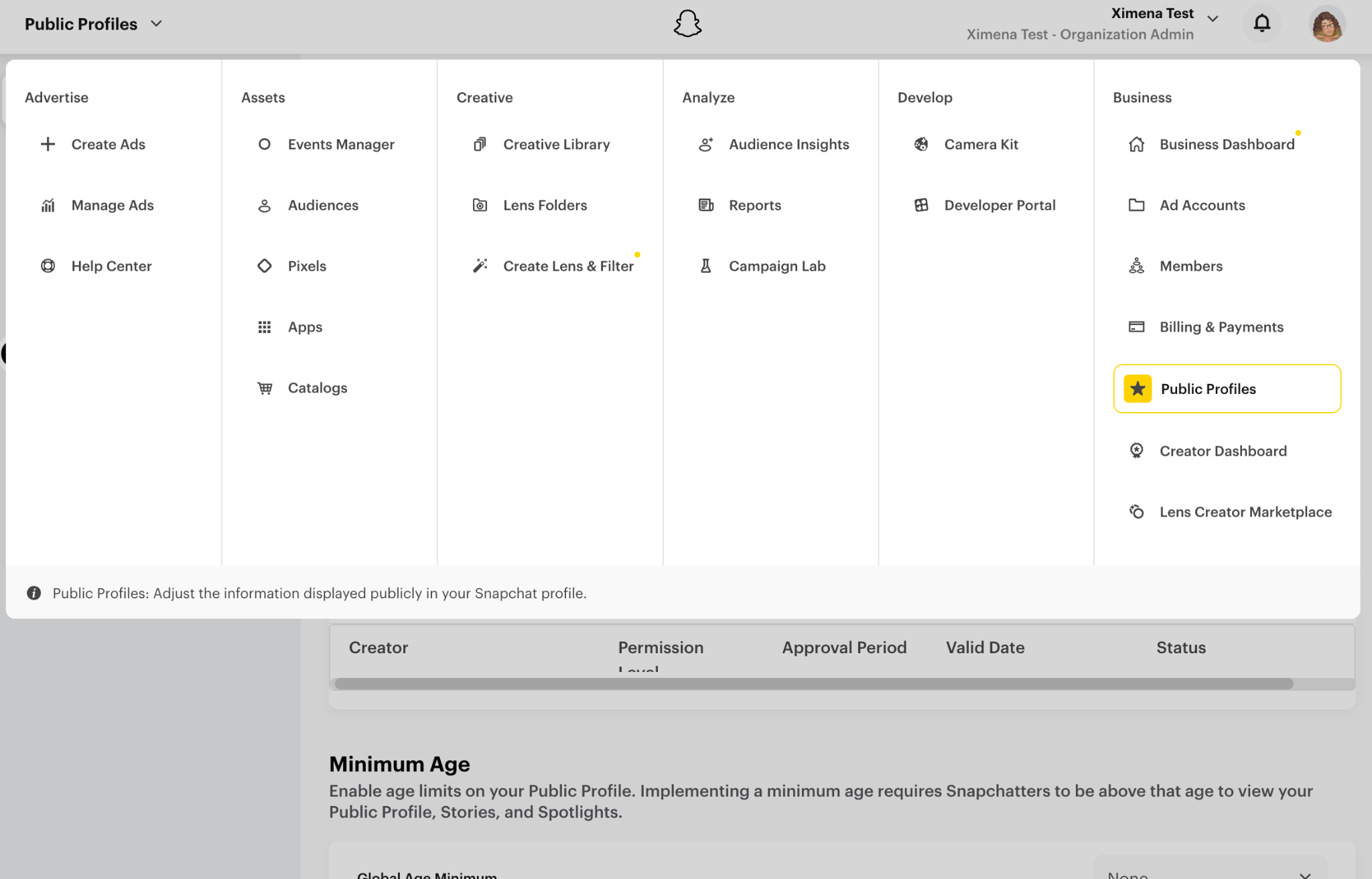
- Click on the Ad Accounts section
- Find the Pre-Approved Creators area and click "Add Creator"
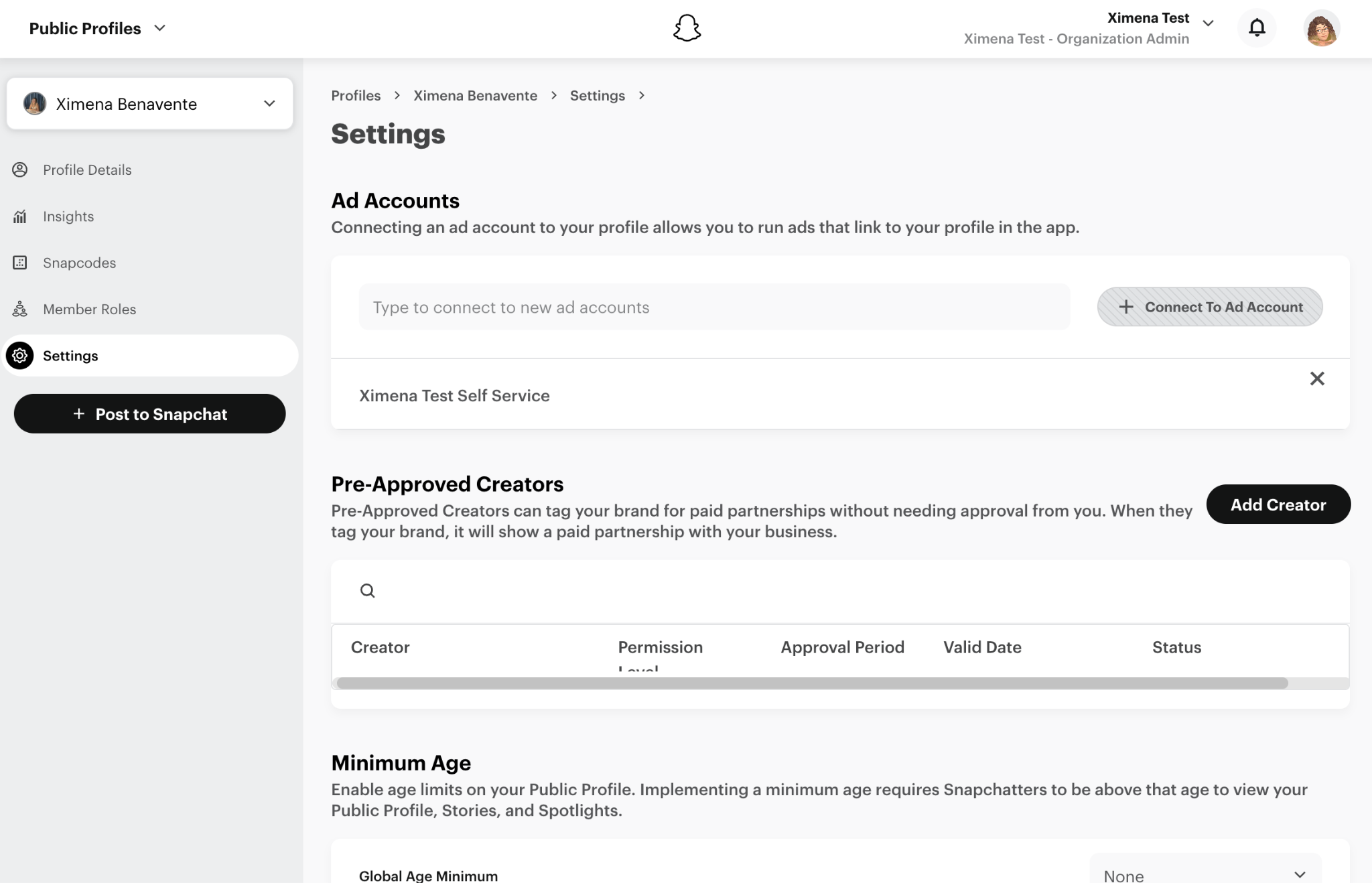
- In the modal, search for the creator's Snapchat username
Step 2: Set the partnership expiration
The options are:
- 7 days — Short-term campaigns
- 30 days — Standard collaborations
- 90 days — Seasonal campaigns
- Permanent — Long-term ambassadorships
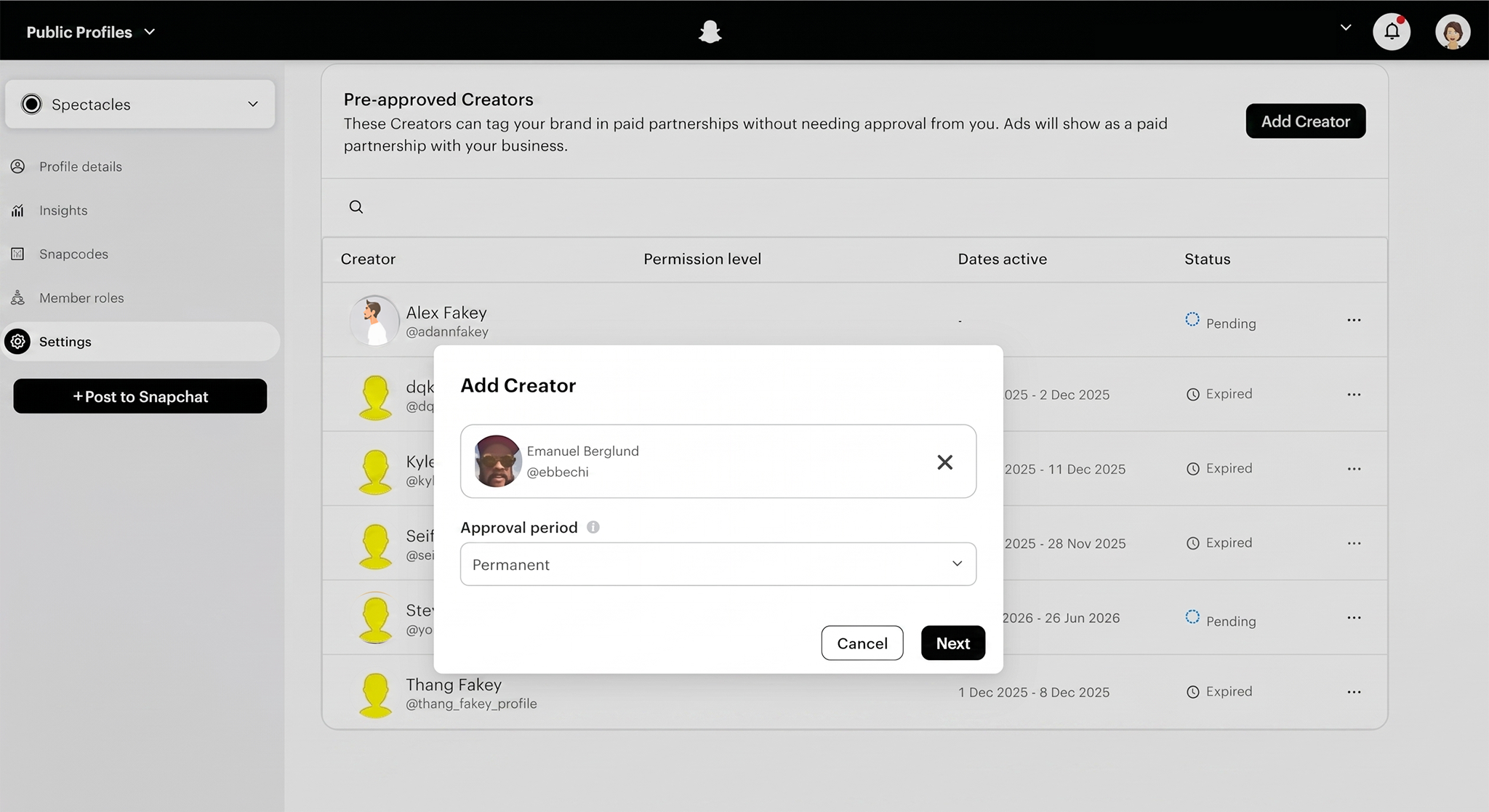
- Click Send Request
The creator receives a push notification on their device and must approve the request in their Snapchat app and choose the permissions they allow the Brand before the partnership becomes active.
Step 3: Creator Receives Notification
The creator will receive a push notification that looks like this:
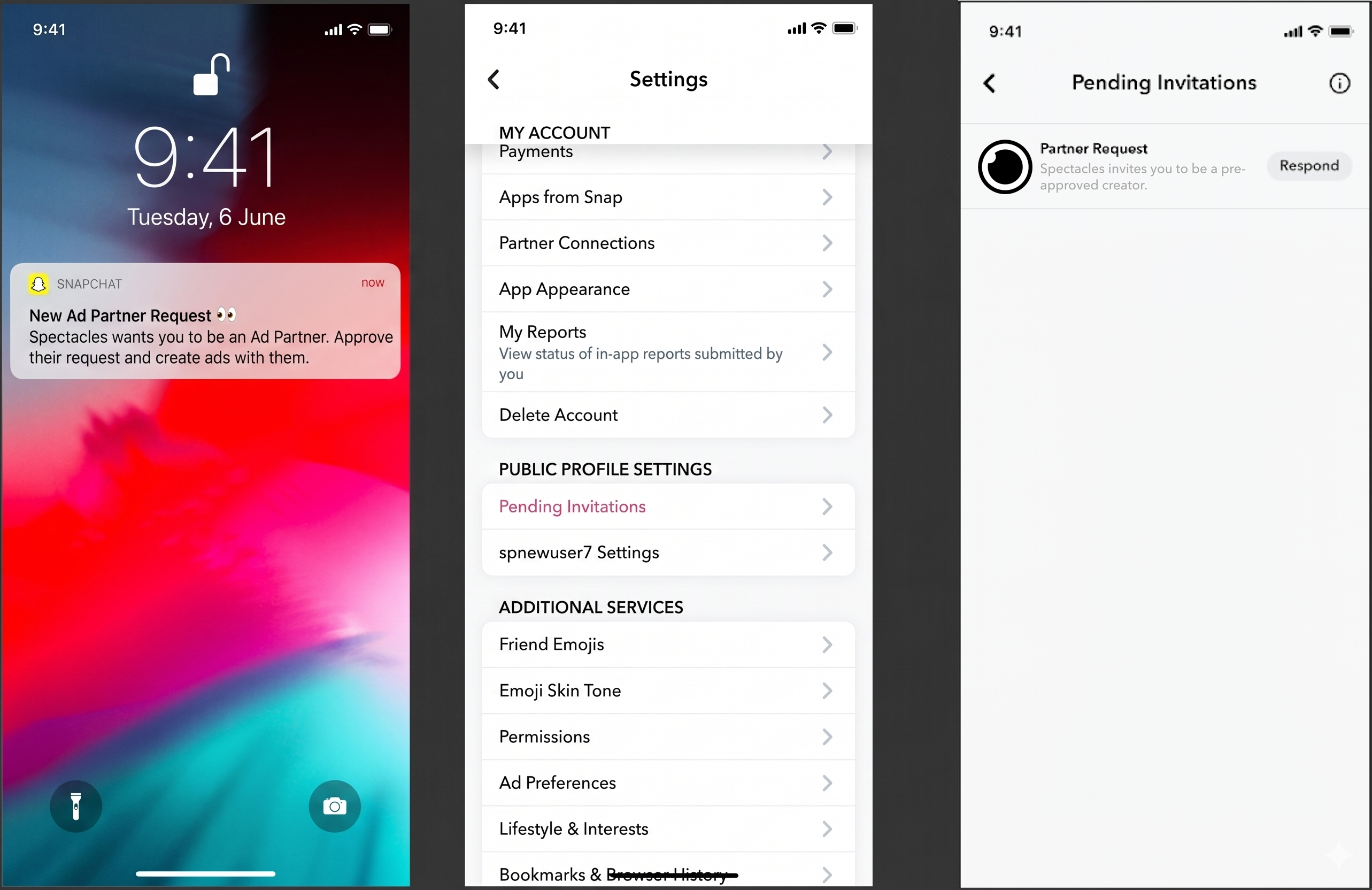
The creator then:
- Opens Snapchat
- Navigates to Profile → Settings → Pending Invitations
- Reviews your brand's partnership request
Step 4: Creator Approves
The creator sees your invitation and must take action:
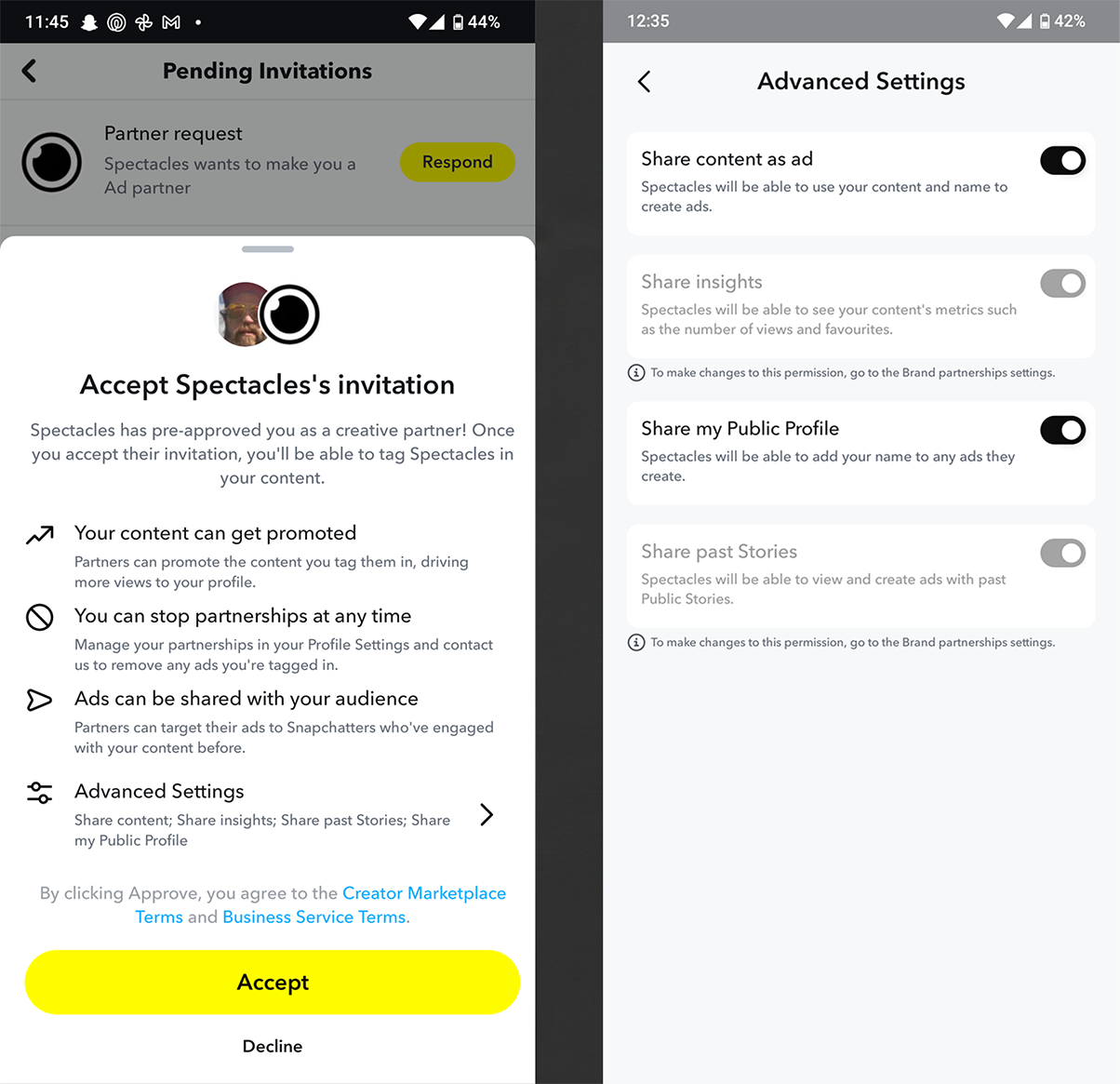
By accepting the invitation, the creator agrees to share post data, targeting of their audience and public profile usage, the creator can modify these in the 'Advanced Settings section':
- Share content as Ad: — Share their asset with the advertiser to be used for paid campaigns
- Share Insights: — Share organic metrics from posts that came from their account and are shared with the advertiser.
- Share My Public Profile: — Share their handle to be used in paid campaigns
- Share past Stories: — Allows advertiser to list the Creators Stories even after their live 24-hour window has expired
The creator taps Accept to finalize the partnership.
Step 5: Verify Partnership is Active
Once the creator approves, verify the partnership in Business Manager:
- Navigate to Business Manager → Public Profiles → Settings
- Scroll to Pre-Approved Creators
- The creator should appear in your roster with status Active
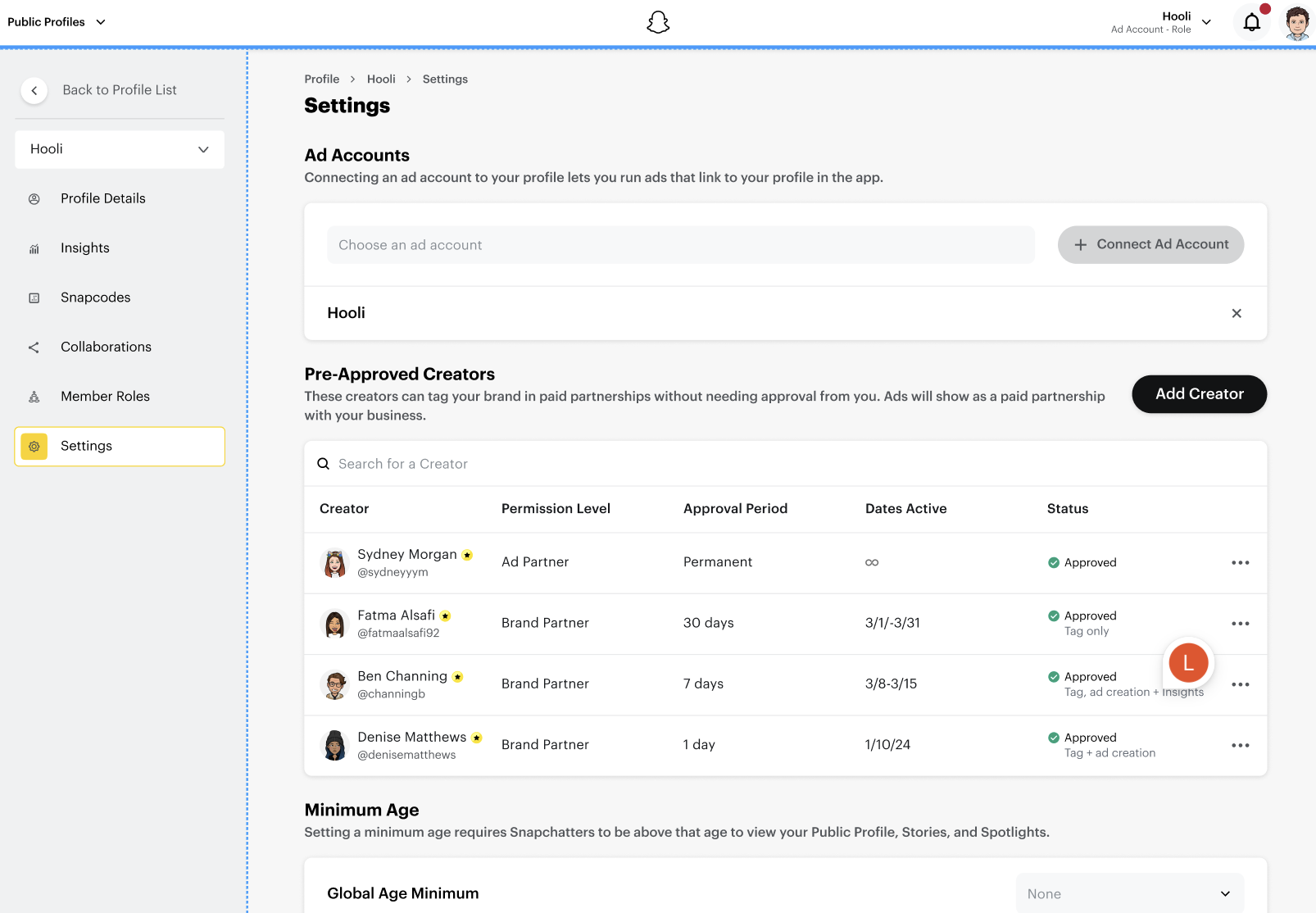
You're now ready to:
- Brand Partner → Start monitoring for tagged content
- Ad Partner → Create ads using their profile
Managing Partnerships
Viewing Active Partnerships
View all active creator partnerships:
- Business Manager → Public Profiles → Settings → Pre-Approved Creators
Removing a Partnership
To end a partnership:
- Find the creator in your Pre-Approved Creators list
- Click the remove icon next to their name
- Confirm removal
- Removing a creator immediately revokes all permissions
- Active ads using their content or profile may pause
- You cannot claim new content from them until re-approved
Partnership Expiration
Partnerships automatically expire based on the duration you set:
| Status During Expiration | Impact |
|---|---|
| 7 days before expiration | Consider sending renewal request |
| On expiration date | Partnership status changes to Expired |
| After expiration | Cannot create new ads; existing ads may pause |
Renewal: Send a new invitation before expiration to maintain continuity.
Developer Track: API Implementation
The partnership setup workflow uses the Public Profile API to establish creator relationships. This guide focuses on when and why to call each endpoint—for full parameter details and schemas, see the linked API references.
Primary API: Partnership Roles
Step 1: Find the Creator's Public Profile ID
To collaborate with a Creator, you need to know their Snapchat username. If you already know the username of the Creator you want to work with, you can proceed directly to Step 2.
If you don't know which specific Creator you want to work with, you can search Creator profiles to identify suitable candidates.
What to do:
- Call
GET https://businessapi.snapchat.com/public/v1/public_profiles/search?query={snapchat_username}to look up a Creator by username - Note the
snap_user_namefrom the response — this is the username you will pass to the invite endpoint in Step 2
API Reference: Search For Profiles | Discover Creators
Step 2: Send Partnership Invitation
Before creators can collaborate with a brand, an invitation must be sent from the brand to the creator.
What to do:
- Call Invite Creator for Collaboration —
POST https://businessapi.snapchat.com/v1/public_profiles/{profile_id}/roleswith the creator'sinvitee_username - The response returns
role_status: "PENDING" - Creator receives a push notification in their Snapchat app
Key parameters:
- Required:
invitee_username: The Creator's Snapchat username - Optional:
approvalTimeInDays:7,30,90, or omit for permanent
API Reference: Invite Creator for Collaboration
Step 3: Poll for Approval status and list active partnerships
The API does not send webhooks when creators approve. You must poll the Check status of creators endpoint to detect when the status changes from PENDING to APPROVED.
What to do:
- Call
GET https://businessapi.snapchat.com/v1/public_profiles/{brand_profile_id}/roles?role_type=business_account_story_contributor(see Check status of Creators) - Find the entry matching the
invitee_usernameyou invited - Check
role_statusfield in that entry - Repeat until status is
APPROVEDorREJECTED
Polling strategy:
- Wait at least 5 minutes before first poll (creator needs time to open app)
- Poll every 5–10 minutes thereafter
- Implement a timeout after 24 hours if no response
API Reference: Check status of Creators
Step 4: List Active Partnerships
Once approved, verify the creator appears in your partnership roster. You can use the same endpoint to populate a "Select Creator" dropdown in your application.
What to do:
Check status of Creators:
GET https://businessapi.snapchat.com/v1/public_profiles/{profile_id}/roles?role_type=business_account_story_contributor
If you want to display only those Creators that are available you should build a menu out of the ones with the role_status value APPROVED, other options include PENDING, EXPIRED and REJECTED.
API References: Check status of Creators
Step 5: Monitor and Renew Expirations
Partnerships expire based on approvalTimeInDays. Active ads may pause if permissions expire, so monitor expiration dates and renew proactively.
What to do:
- Check the
expires_attimestamp from the list endpoint - Your application should set an internal alert for 7 days before the expiration date if you want to be reminded to renew
- Re-send the invitation using the Invite Creator for collaboration before expiration
Renewal is the same as the initial invitation—the creator must approve again in their app. Send renewal requests before expiration to avoid gaps.
Partnership Status Reference
| Status | Meaning | Can You Proceed? |
|---|---|---|
PENDING | Invitation sent, waiting for creator | No — wait for approval |
APPROVED | Creator approved, partnership active | Yes — proceed |
REJECTED | Creator rejected the invitation | No — invite rejected |
EXPIRED | Time limit reached without renewal | No — must re-invite |
REVOKED | Brand or creator ended partnership early | No — re-invite needed |
Next Steps
Now that your partnership is established, choose your workflow:
If you selected BRAND_LEVEL (Brand Partner):
→ Brand Partnerships — Monitor for creator-tagged content and boost it
If you selected AD_LEVEL (Ad Partner):
→ Ad Partnerships — Create ads that appear from the creator's profile
→ Audience Targeting — Target the creator's followers with your campaigns
Troubleshooting
"Creator not showing in my Pre-Approved list"
- Check that
roleStatusisAPPROVED(notPENDING) - Verify you're checking the correct Public Profile (not Ad Account)
- Refresh Business Manager or re-fetch via API
"Invitation stuck in PENDING for days"
- Creator likely hasn't opened Snapchat or checked notifications
- Send a direct message reminding them to check Profile → Settings → Pending Invitations
- Consider re-sending if no response after 48 hours
"Cannot send invitation (400 error)"
- Verify you're passing the creator's Snapchat
invitee_username(not a UUID — the server resolves the user ID automatically) - Confirm you have Admin access on the Public Profile (not just Ad Account)
- Check that
partnership_levelis exactlyBRAND_LEVELorAD_LEVEL(case-sensitive)
For more detailed error handling, see Troubleshooting.
Related Documentation
- Brand Partnerships — Boost organic creator content
- Ad Partnerships — Run ads as creator's profile
- Audience Targeting — Target creator followers
- Partnership Roles API Reference