Get Started with UI Kit
Spectacles UI Kit (SUIK) is a collection of components, utilities, and assets designed to help developers create interactive AR user interfaces for the Spectacles platform. It provides a cohesive design across the system and also interfaces seemlessly with Spectacles Interaction Kit, our package that handles inputs. It is designed to be easy to use for both beginners and extensible for advanced users.
- Designers: Use the Snap OS 2.0 Design Kit (Figma) to create UI mockups with official tokens, styles, and components
- Developers: Use Spectacles UI Kit (this package) to implement those designs in Lens Studio
Both resources share the same design language, ensuring consistency from design to development.
Spectacles UI Kit frequently updates so please refer to the release notes for the latest changes.
Adding UI Kit to Your Spectacles Project
If you don't have a Spectacles project yet, create one by following our Spectacles Lens setup guide.
Install the UI Kit Package
-
In Lens Studio, go to Window → Asset Library
-
In the search bar, type "Spectacles UI Kit"
-
Click Install on the SpectaclesUIKit package
Explore the Example Components
The UI Kit includes pre-built example components to help you get started:
-
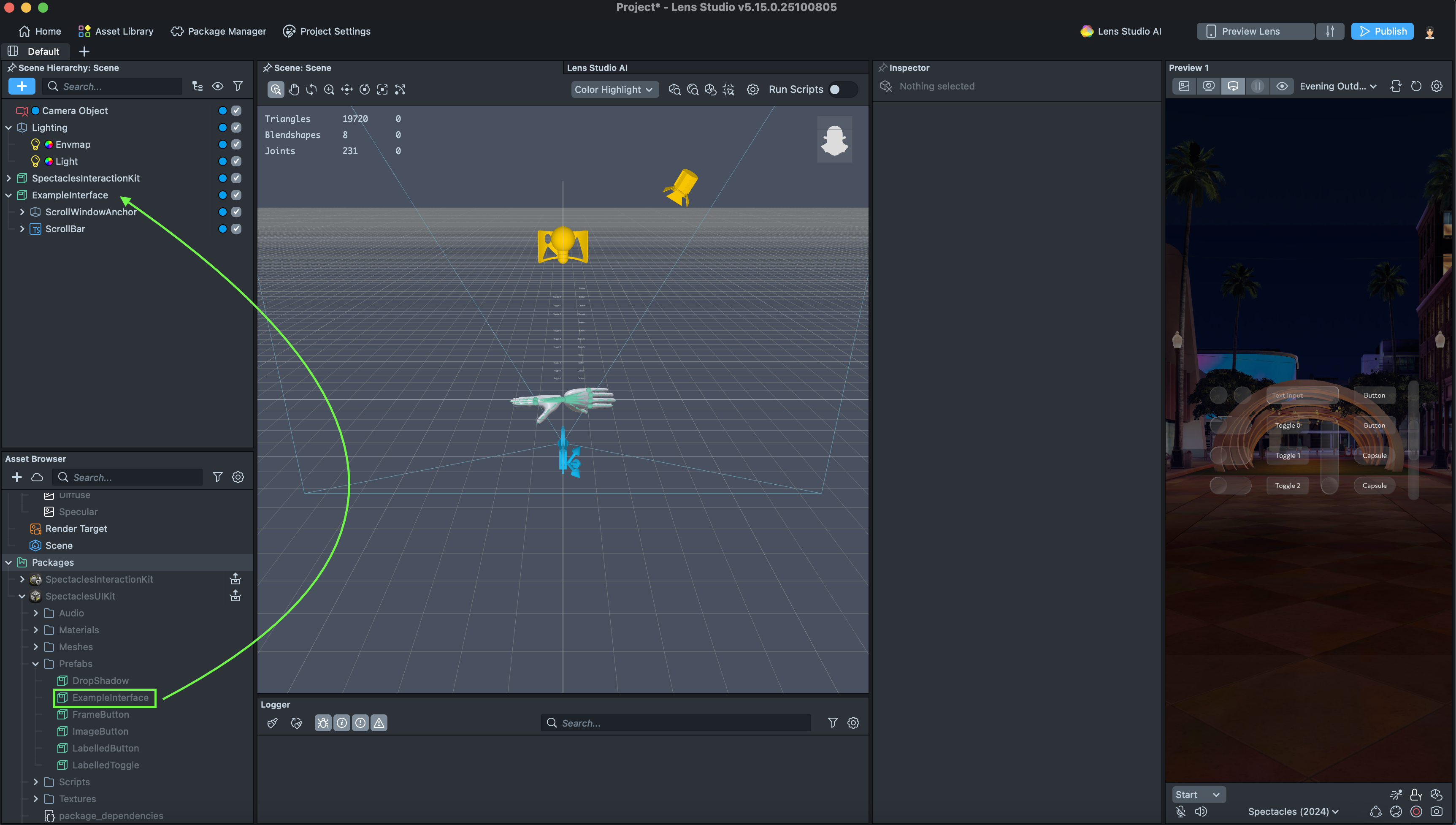
In your Resources Panel, find the SpectaclesUIKit package
-
Drag the ExampleInterface prefab into your Scene Hierarchy
-
Go to your Preview Panel to see the UI components in action and understand how they work
Next Steps
- Check out the Components section for detailed usage examples
- Explore how you can customize your visuals and extend components
Upgrading Spectacles UI Kit within a Project
Open your project. After TypeScript compilation is complete, right-click the SpectaclesUIKit package in the Asset Browser. If Pull Update from Library is available, select it.
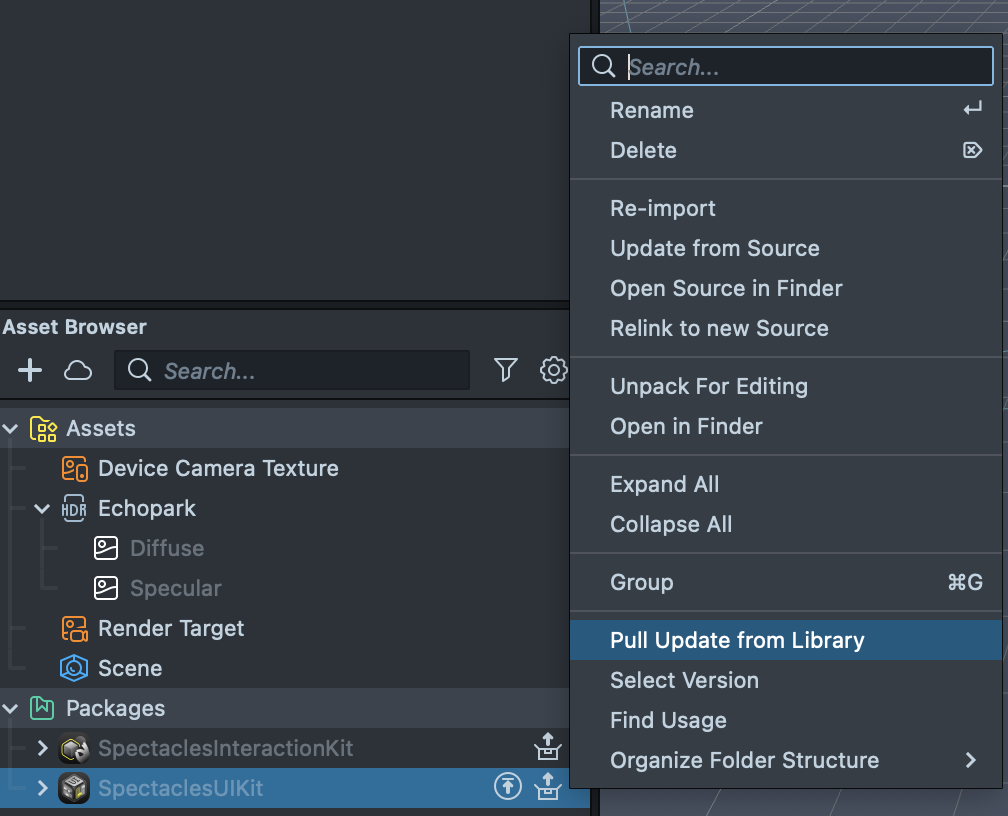
To manually check for updates, navigate to Asset Library > Spectacles > SpectaclesUIKit and verify if a new version is available for installation. You can also select a specific version to install. After updating, right-click the SpectaclesUIKit package in the Asset Browser and select Pull Update from Library.
Now your project is updated!
Compilation errors may result after updates from changes in the API. Review the release notes for any updates on new APIs and make the necessary edits.