Sync Kit Overview
Prerequisites
- Lens Studio v.5.4 or later
- Spectacles SnapOS v.5.59 or later
About Spectacles Sync Kit
Spectacles Sync Kit is a Lens Studio package that enables the development of Connected Lenses for Spectacles. The package includes scripts and components that can be used to sync data among Spectacles users in shared experiences.
To start building Connected Lenses using Spectacles Sync Kit, follow the instructions below to start a new project or update an existing project in Lens Studio.
Key Features
This list outlined key features to be familiar with when building Connected Lenses with Spectacles Sync Kit.
- SessionController: Access information about the current session using SessionController APIs.
- SyncEntity: Turn any script into an entity that can synchronize data using the SyncEntity class.
- Storage Properties: Add storage properties to SyncEntities to store data and notify the network of state changes.
- Networked Events: Add networked events to SyncEntities to send one-time messages across the network.
- Instantiator: Instantiate prefabs across the network.
- Lifecycle: Understand the setup flow of a Connected Lens session and when features are ready to use.
Package Resources
The Spectacles Sync Kit package includes the following resources when imported into your Asset Browser:
- Spectacles Interaction Kit: Included in the package, does not need to be installed separately.
- Spectacles UI Kit: Included in the package, does not need to be installed separately.
- Connected Lens Module: Required to connect to the Connected Lenses backend.
- Location Cloud Storage Module: Required for colocated mapping.
- Core: TypeScript files required for Connected Lenses to function.
- Components: TypeScript components and helpers to aid Lens development.
- Examples: Resources that demonstrate features and components, including TypeScript and JavaScript files.
Starting a New project
Option 1: Starting a New Connected Lenses Project
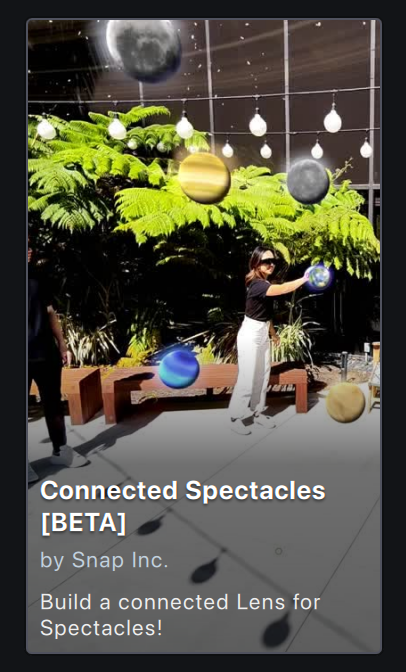
- In the Lens Studio home under Sample Projects, open the Spectacles Sync Kit project. This project already includes the Spectacles Sync Kit package and is configured for Spectacles development.
-
Check that you are logged in to Lens Studio. If not, log in.
-
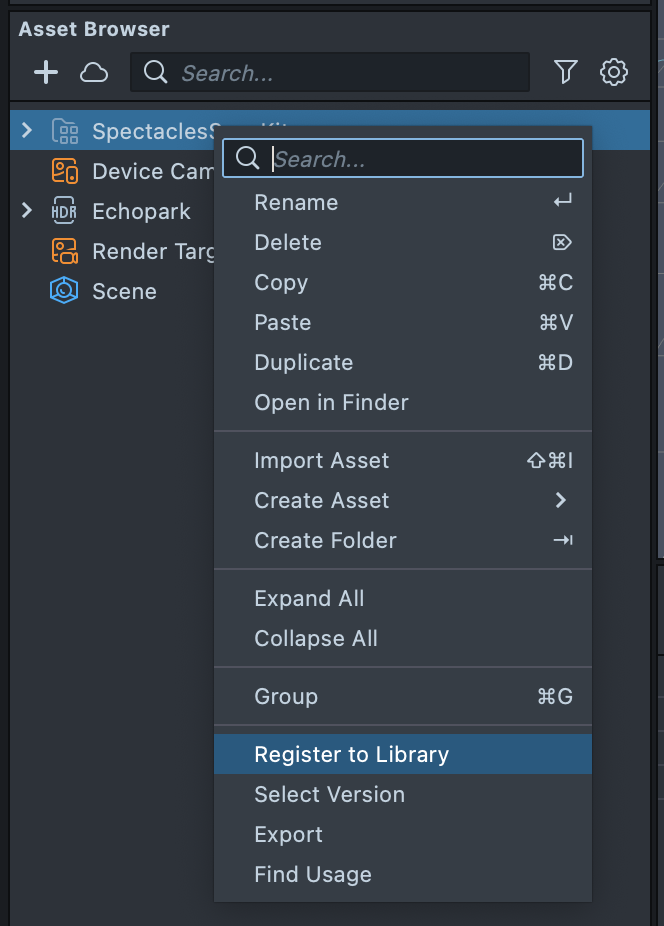
In the Asset Browser, right click on the Spectacles Sync Kit package and select Register to Library. Registering the package to your library ensures that future updates can be detected. If you already have the package registered to your library, this option will not be available.
Option 2: Importing Spectacles Sync Kit into a New Lens Studio Project
To start building a Connected Lenses project for Spectacles from scratch, follow these steps:
- Install the latest Spectacles Sync Kit version from the Asset Library via Window > Asset Library > Spectacles > Spectacles Sync Kit.
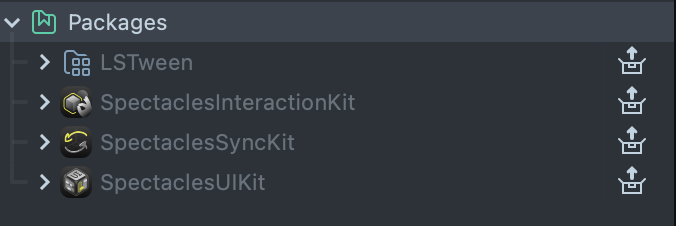
- All the associated packages will be installed automatically into Asset > Packages.
- After the TypeScript Status panel confirms that compilation is complete, click the Refresh button on the Preview panel.

You can also unpack the Spectacles Sync Kit package by right-clicking and selecting Unpack. Unpacking enables direct editing of Spectacles Sync Kit but may complicate future upgrades to newer versions. Additionally, when unpacked, import components and modules in your TypeScript files using SpectaclesSyncKit rather than SpectaclesSyncKit.lspkg in your import path.
- From the Asset Browser, first, drag
Assets/SpectaclesInteractionKit/Prefabs/SpectaclesInteractionKit.prefabinto the Scene Hierarchy and then dragAssets/SpectaclesSyncKit/SpectaclesSyncKit.prefabinto the Scene Hierarchy.
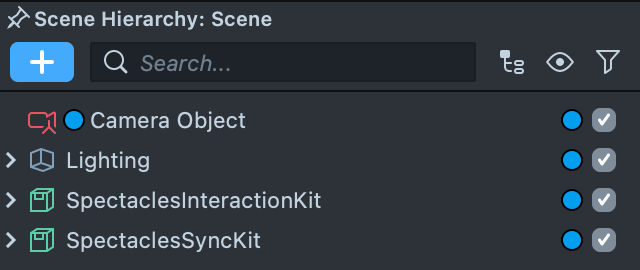
Instantiating the prefab before TypeScript compilation is complete may result in a corrupt prefab with missing links to TypeScript script components. Ensure that TypeScript compilation is fully complete before adding a prefab instance to the scene hierarchy.
-
If the Examples included in the SpectaclesSyncKit prefab are no longer needed, disable or delete them from the Scene Hierarchy.
-
The import is complete. Save your project.
Updating an Existing Project
To import Spectacles Sync Kit into an existing project that already contains Spectacles Interaction Kit, follow these steps:
Importing Spectacles Sync Kit into an Existing Lens Studio Project that Contains SIK
To import Spectacles Sync Kit to an existing project that already contains Spectacles Interaction Kit (SIK), follow these steps:
- Check if there is any update available for Spectacles Interaction Kit. If there is, update it first by right click on the package > Pull Update from Library. See Upgrading Spectacles Interaction Kit Guide
- Install the latest Spectacles Sync Kit version from the Asset Library via Window > Asset Library > Spectacles > Spectacles Sync Kit.
- All the associated packages will be installed automatically into Asset > Packages.
- Follow the steps above under Starting a New Project > Option 2: Importing Spectacles Sync Kit into a New Lens Studio Project.
- The Spectacles Interaction Kit references in your project (for example, in the scene hierarchy and prefabs) should automatically relink to the SpectaclesInteractionKit included in the imported SpectaclesSyncKit package.
Importing Spectacles Sync Kit before deleting Spectacles Interaction Kit may cause Lens Studio 5.4 to freeze. This issue will be resolved.
Updating Spectacles Sync Kit Within a Project
To upgrade Spectacles Sync Kit in a project that already includes the package, follow these steps:
-
Open your project in Lens Studio.
-
Log in to Lens Studio.
-
In the Asset Browser panel, right click on the
SpectaclesSyncKitpackage folder. Select Pull Update from Library. If this option is not available in the context menu, check that you are logged in to Lens Studio.
In the Asset Library, the Spectacles Sync Kit package thumbnail will show if an update is available. The method outlined above is the recommended way to update your package, rather than selecting Update on the Asset Library thumbnail.
Upgrading from Sync Framework
Previous versions of Sync Framework for Spectacles and for mobile are incompatible with Spectacles Sync Kit. To upgrade a project from Sync Framework to Spectacles Sync Kit, follow these steps:
-
In the Scene Hierarchy, pull out any colocated Lens content that you may have within the Sync Framework hierarchy.
-
Delete the Sync Framework root scene object from the Scene Hierarchy. Note: If you are using Sync Framework for Spectacles, which includes Spectacles Interaction Kit, this will also delete Spectacles Interaction Kit from your scene.
-
Delete the Sync Framework package or resources from the Asset Browser. Note: If you are using Sync Framework for Spectacles, which includes Spectacles Interaction Kit, this will also delete Spectacles Interaction Kit resources from your Asset Browser.
-
Import Spectacles Sync Kit into your project from the Asset Library and add the Spectacles Sync Kit prefab to your scene.
-
Update Spectacles Interaction Kit and Spectacles Sync Kit components throughout your project, for example, components on scene objects, references in your scene, prefabs, etc.
-
Move any colocated Lens content from Step 1 back into the Spectacles Sync Kit hierarchy.
See Also
Building Connected Lenses
More information about building and testing Connected Lenses in Lens Studio and on Spectacles.
Sample Projects
Examples demonstrating Spectacles Sync Kit features and components.