Interactable Helper
Overview
Interactable Helper allows you to achieve low to medium fidelity prototyping – controlling core components via Spectacles Interaction Kit Interactable Component events without code.
Getting Started
Prerequisites
- Lens Studio v5.12.1 or higher
Setup Instructions
Project Setup
Start with Spectacles → Base Template or your current project with Spectacles Interaction Kit
Import Interactable Helper
-
Download the latest Interactable Helper package from the Asset Library.
-
(Optional) Drag the Examples prefab into your scene to explore usage examples.
Basic Setup Flow
- Create a SceneObject and add any visual component (e.g., RenderMesh, Image, Text).
- Create a child SceneObject. Add a PhysicsCollider and InteractableHelper component to that child.
- If you don't add an Interactable and/or PhysicsCollider components, Interactable Helper adds them automatically during runtime.
- In the Interactable Helper inspector, click Add Value for each Interactable Event you want to handle.
- Assign a target SceneObject for the Event Response.
- Configure the desired Event Response in Interactable Helper.
Types of Event Responses Deep Dive
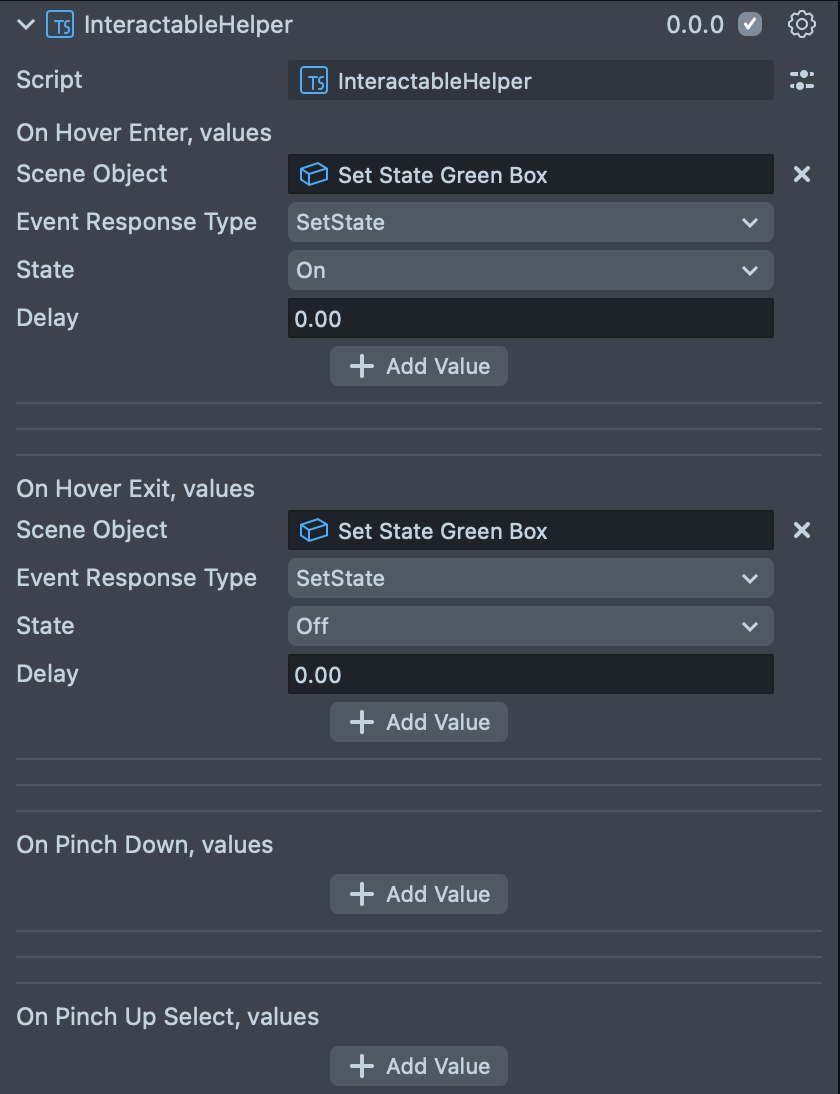
Set State
Use Set State to enable or disable the specified SceneObject. Optionally add a delay before the state change.
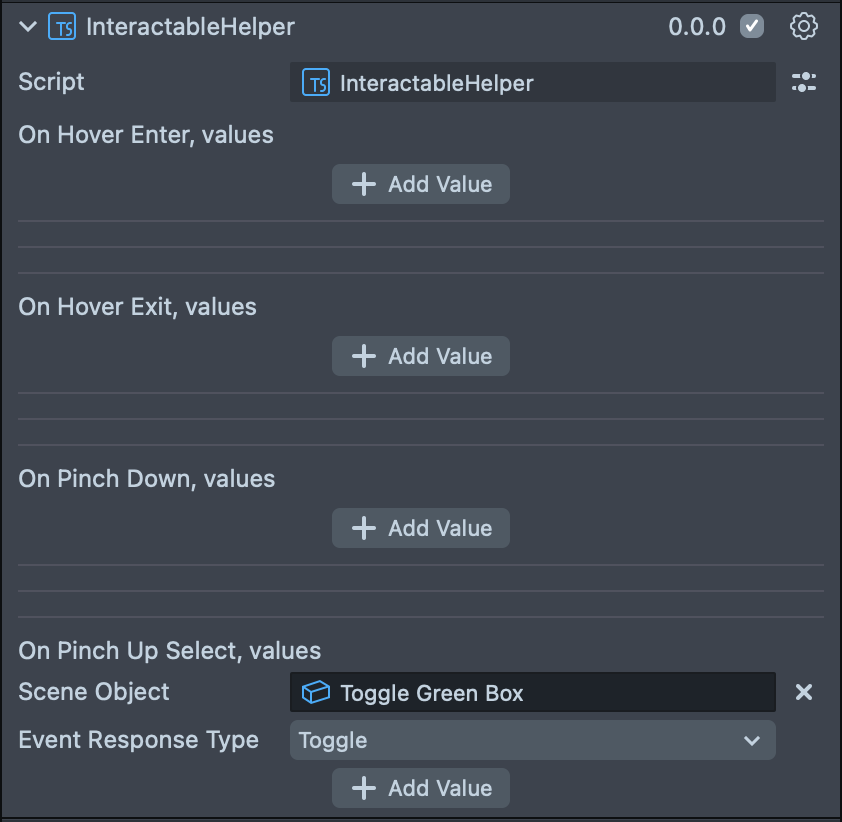
Toggle State
Use Toggle State to switch the enabled state of the specified SceneObject when the event triggers.
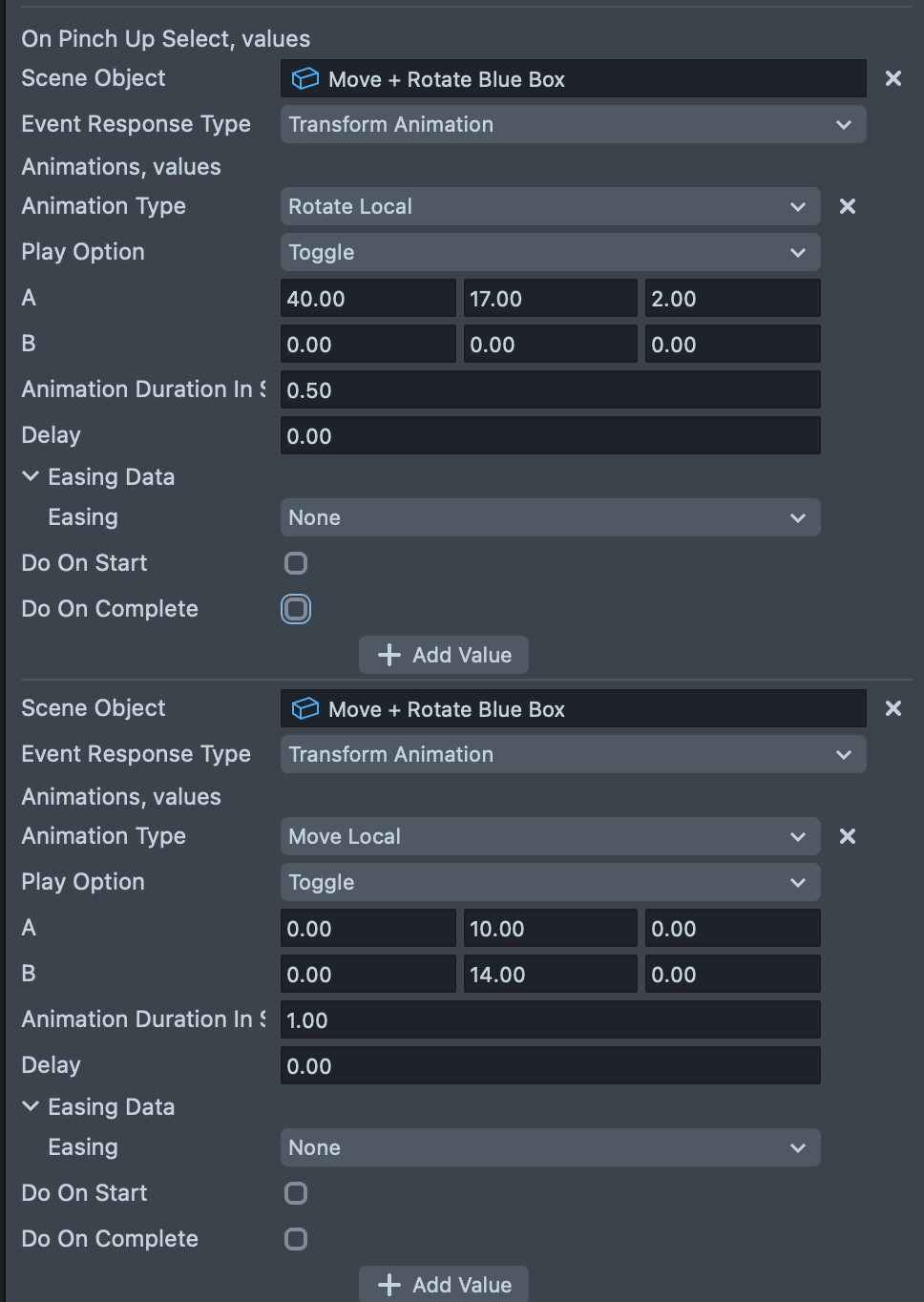
Transform Animation
Configure Tween Animation to animate a SceneObject's scale, rotation, or position. Specify:
-
Play Option:
- Play from current value
- Play everytime
- Toggle
-
End Value (target transform)
-
Animation Duration (seconds)
-
Delay (optional)
-
Easing (optional)
You can also hook into animation start and end events and choose from these options:
-
Reference a script and function name to invoke a callback.
-
Enable or disable one or more SceneObjects at animation start or end.
Custom Animation
Use Custom Animation to play clips on an AnimationPlayer component. You may:
-
Iterate through all clips in the referenced AnimationPlayer.
-
Specify a single clip to play when the Interactable Event triggers.
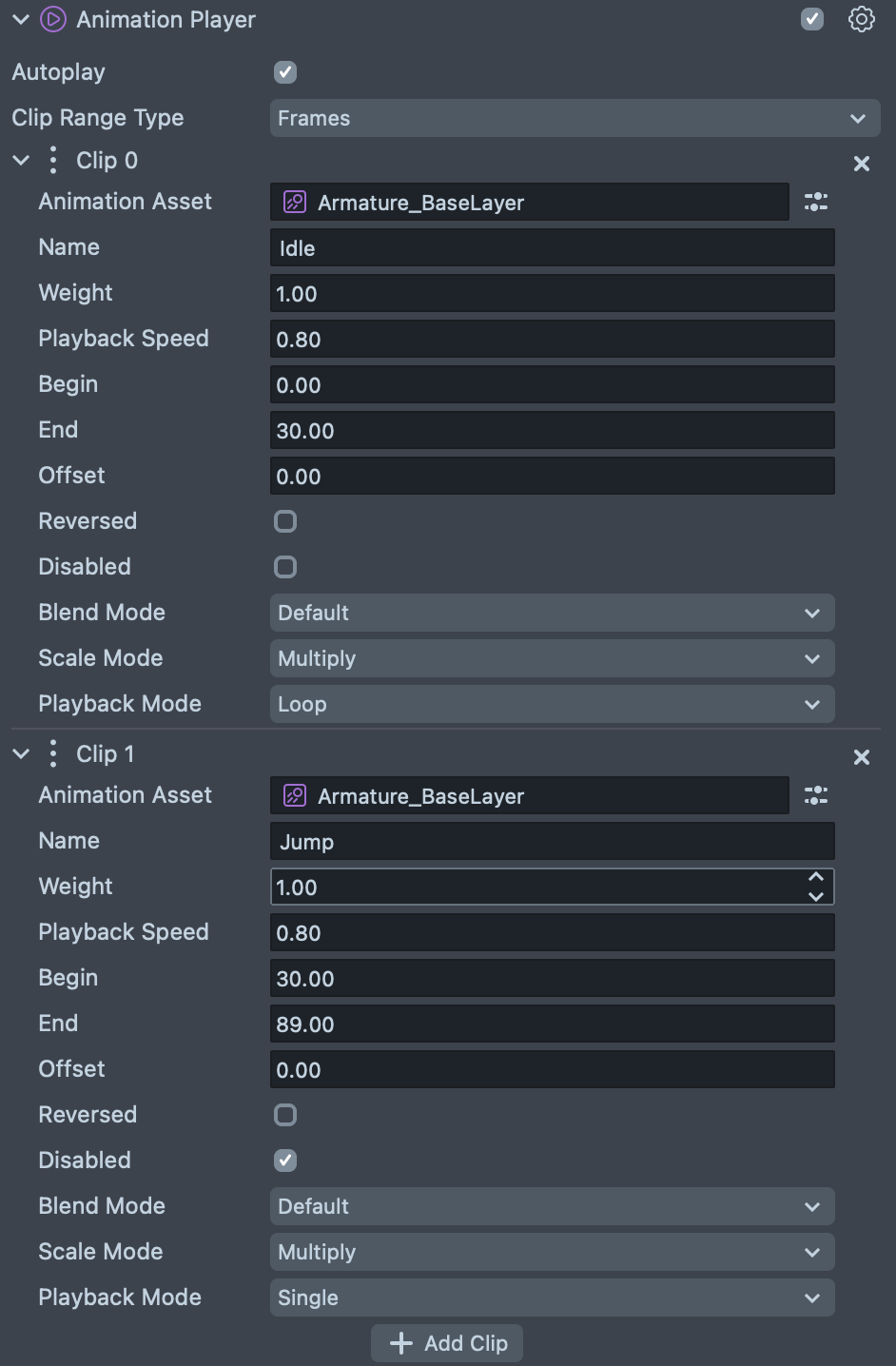
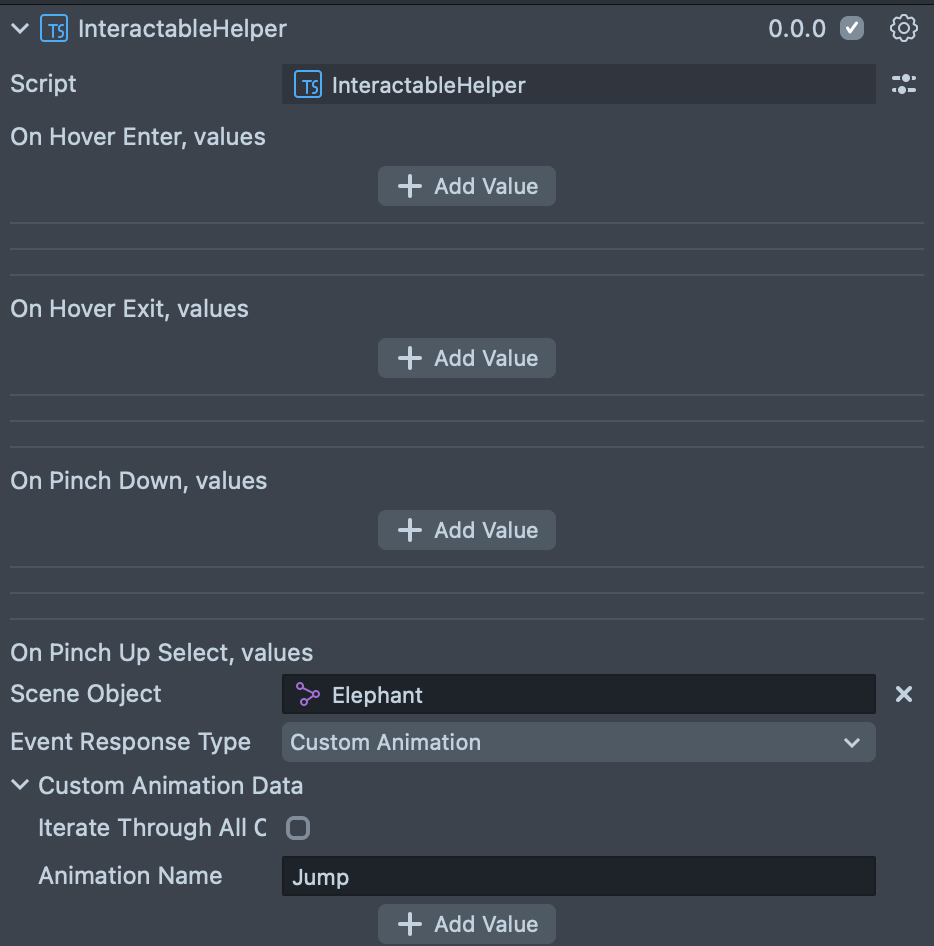
Iteration
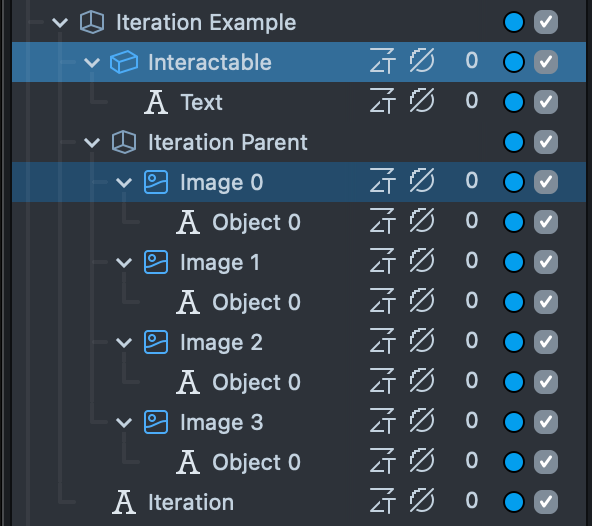
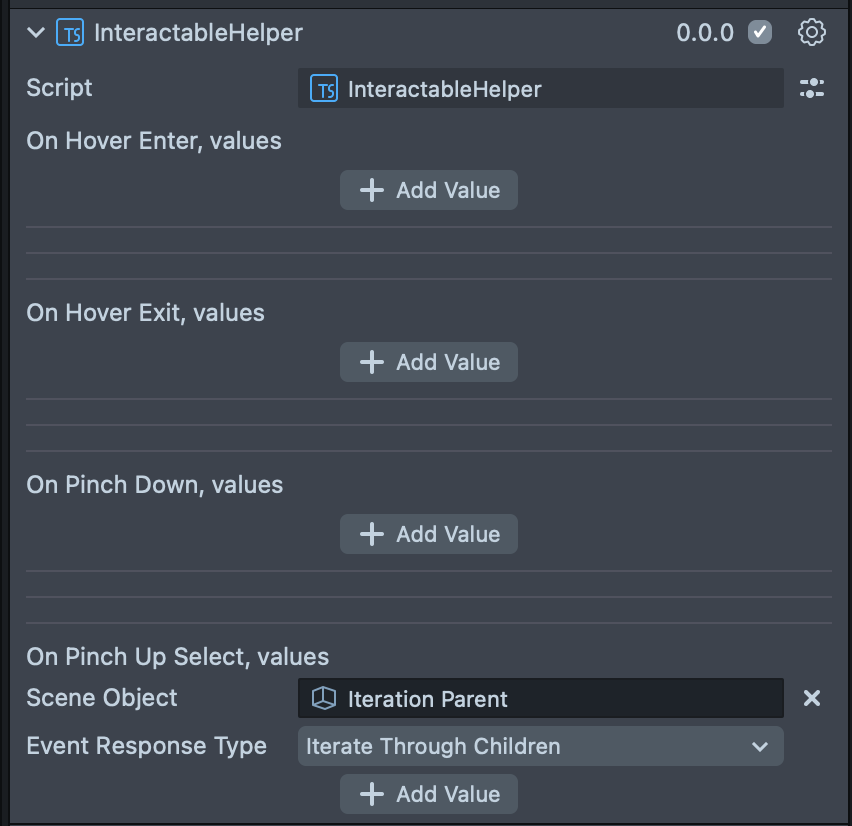
Assign a parent SceneObject whose children will serve as items to iterate. Each time the chosen Interactable Event triggers, Interactable Helper advances to the next child.
Material Property
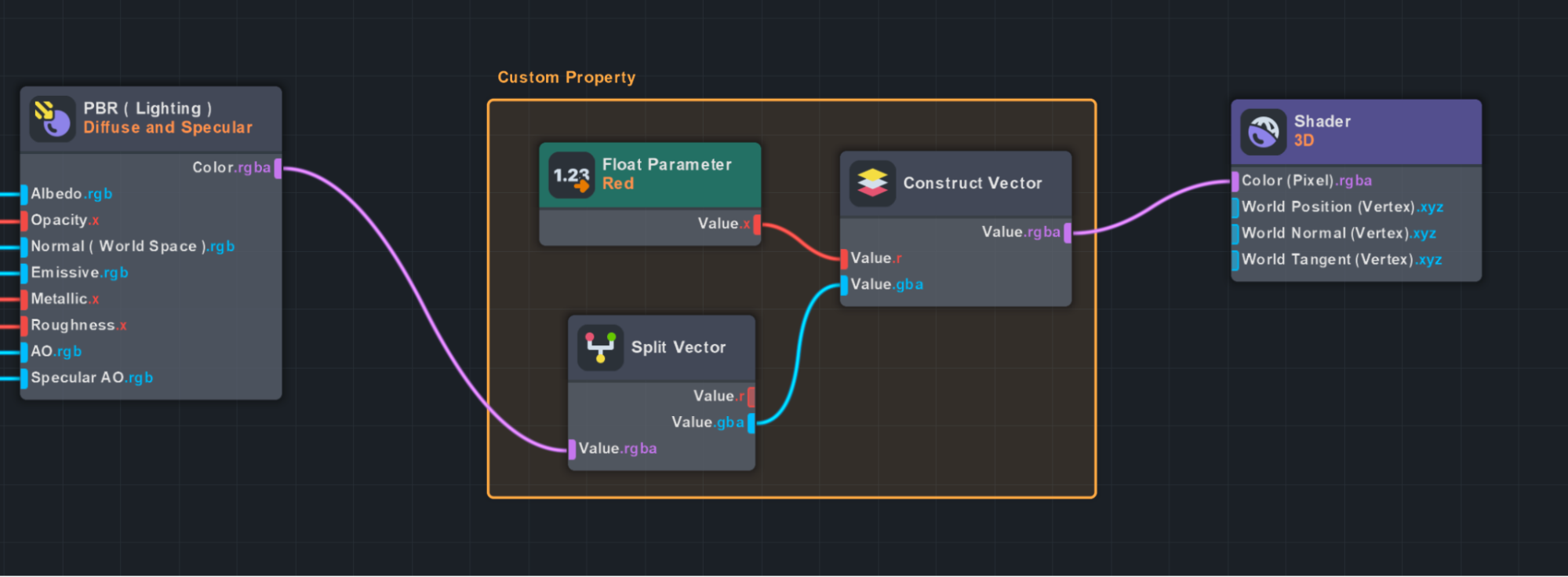
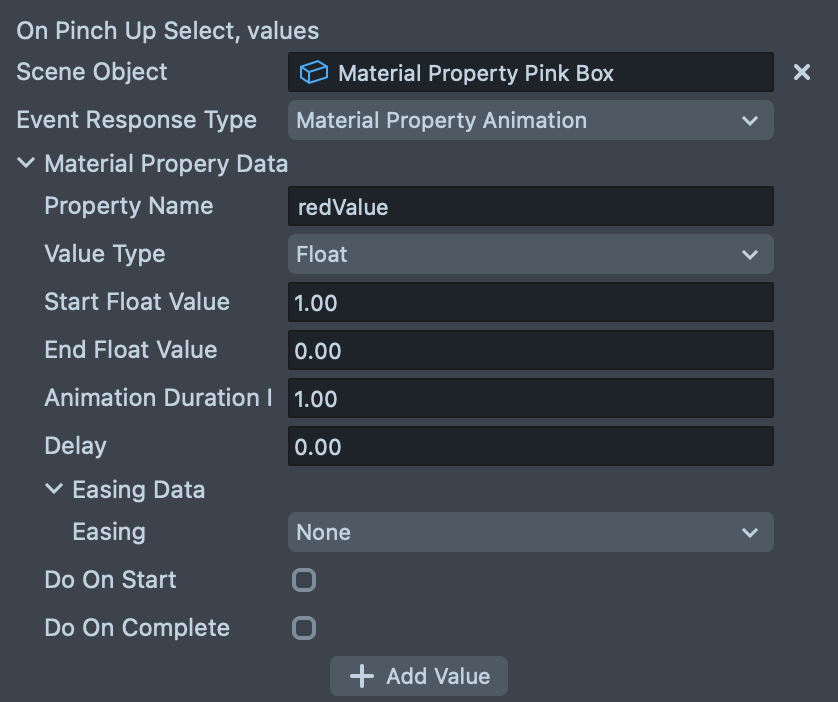
Animate a shader property on the referenced SceneObject's RenderMeshVisual material. Specify the property name, type start and end values.
Material BaseColor
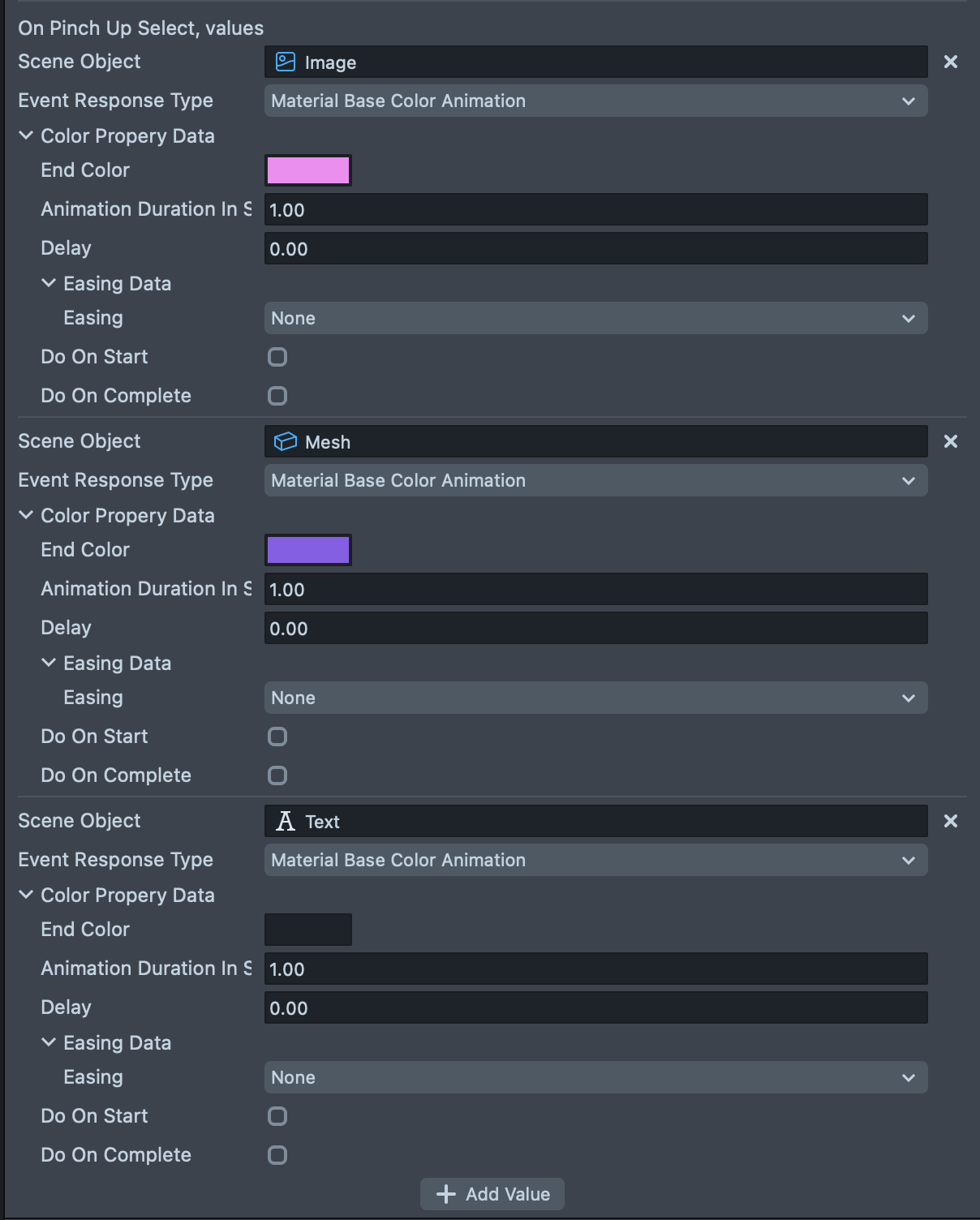
Animate the baseColor property on Image, RenderMeshVisual, or Text components.
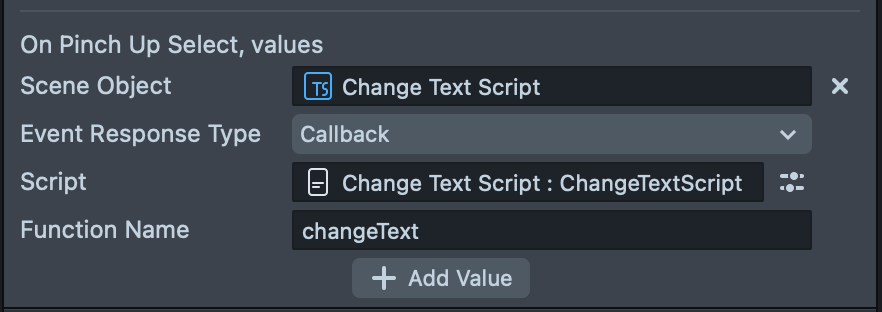
Callbacks
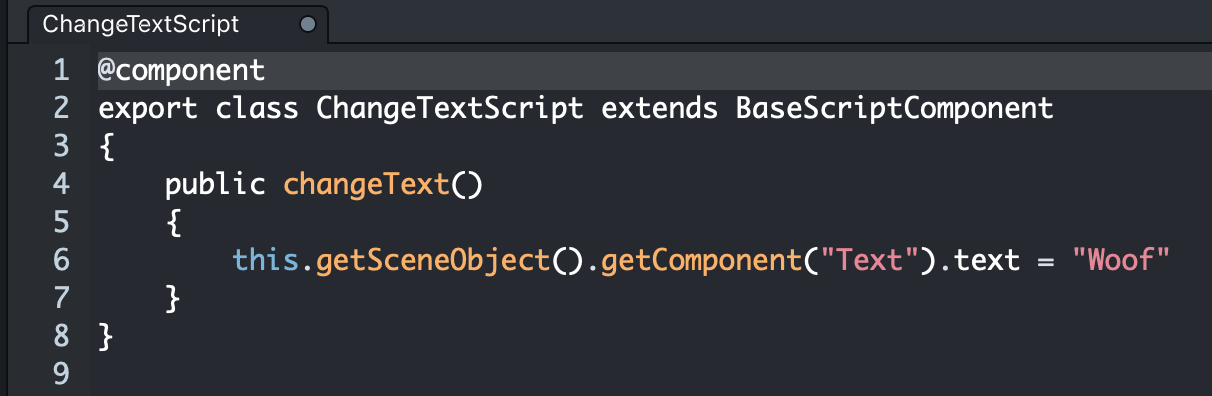
Use Callback option to invoke a function in a referenced script when the chosen Interactable Event triggers. Specify the script and method name.
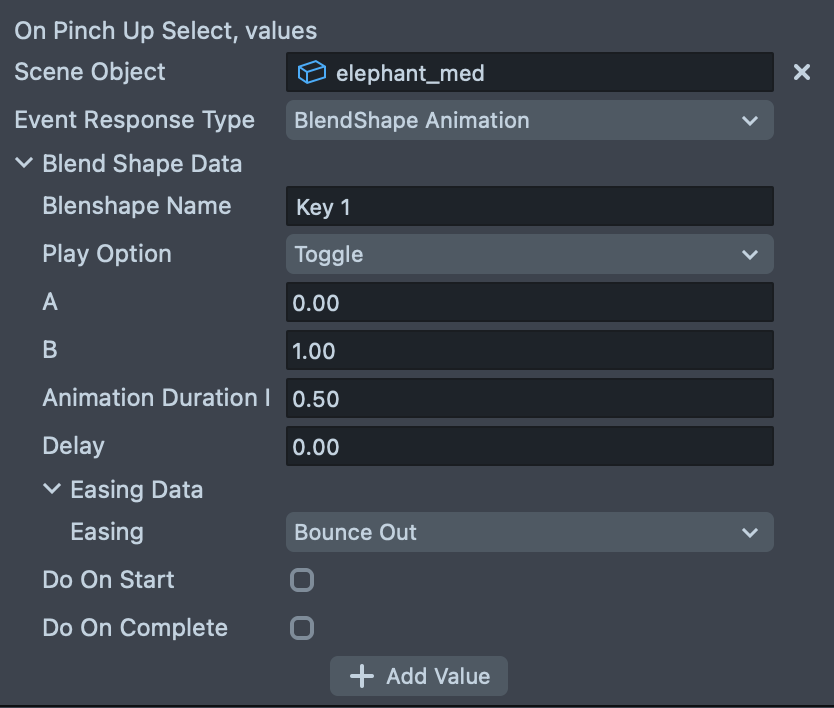
Animate BlendShape
Use Animate BlendShape option to control BlendShape value of a mesh. Configure animation parameters.
Audio Control
Use Play Audio Clip option to play an AudioClip of an AudioComponent.
Audio Control Behavior options:
- Play (Plays audio clip from start each time Interactable event is triggered)
- Play / Stop (The same Interactable alternates between playing and stopping AudioComponent (provided as SceneObject) each time Interactable event is triggered)
- Play / Pause (The same Interactable alternates between playing and pausing AudioComponent (provided as SceneObject) each time Interactable event is triggered)
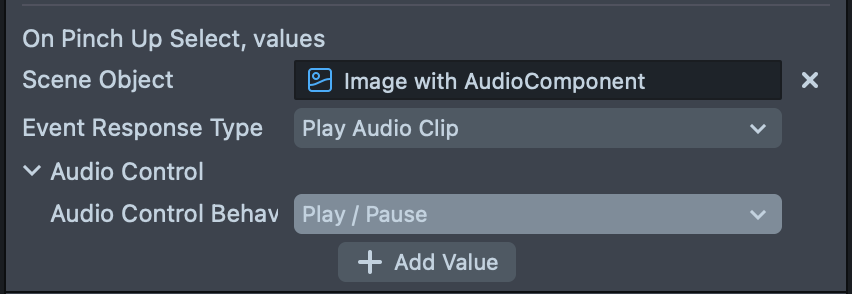
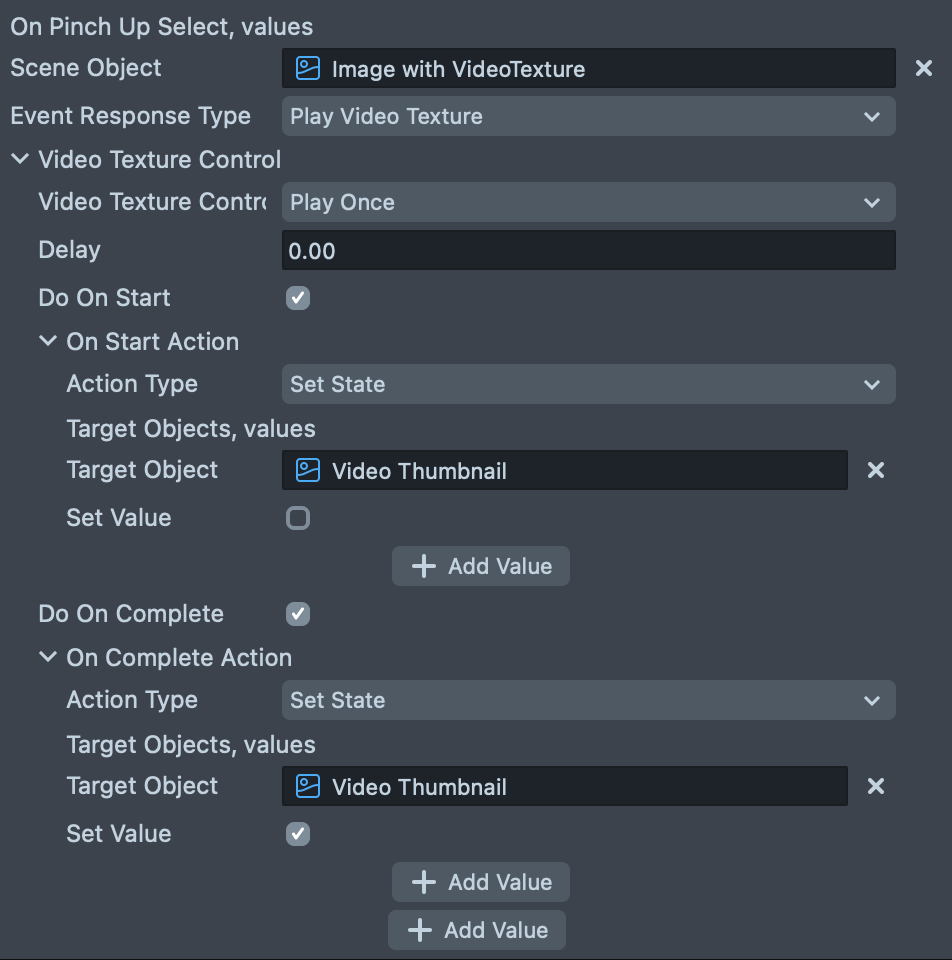
Image Video Texture Control
Use Video Texture Control to play videos. Assign a video file as texture to an Image Component. Choose play behavior: play once or play and loop.