Transform Sync Server Plugin and Client Asset
A server plugin and Lens Studio client asset for Spectacles Lens creators. This tool lets you manipulate 3D objects directly on Spectacles (grab, move, rotate, scale) and sync those transforms back to Lens Studio, either automatically when interaction ends or manually via an Apply button.
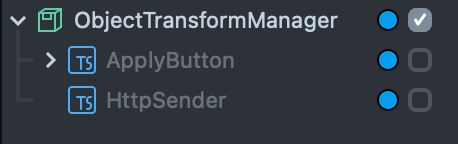
Development-Only Tool: This plugin and client asset are intended for development and iteration only, and must not be shipped in a production Lens. Before publishing, creators should remove the Client scene objects (ObjectTransformManager, HttpSender, Apply Button UI) or disable them.
Purpose
Designed to help Spectacles Lens creators iterate faster by enabling:
- Hands-on editing in AR; grab, move, rotate, and scale objects directly on Spectacles.
- Two sync modes:
Auto Sync: transforms send on interaction end.Manual: review changes first, then tap Apply.
- Multi-object workflow; one manager, many target objects.
- Reduced manual entry. Tweak in AR; precise values apply to the editor.
- Local network communication. Spectacles and your computer must be on the same Wi-Fi / local network.
Reference Implementation:
This tool also serves as an example of sending data from Spectacles to Lens Studio using HTTP.
Developers can use the server plugin and HttpSender setup as a reference for custom device-to-editor communication during development.
Components
Transform Sync Server Plugin
Runs a local server inside Lens Studio. It receives transform JSON from the Spectacles device.
Client Package
Includes the following elements:
ObjectTransformManager: Manages target objects and handles sync mode.- In Auto Sync mode, transforms are applied (sent to Lens Studio) automatically when an interaction ends.
- In Manual mode, changes are sent only when the Apply button is tapped.
HttpSender: Sends position, rotation (Euler), and scale to the server via POST.- UI button: Used when in Manual sync mode.
How to Use
1. Add the Server Plugin to Lens Studio
-
Install Transform Sync Server plugin from the Asset Library.
2. Add the Client Package to your Project
-
Import the Client package from the Asset Library.
-
Drag ObjectTransformManager prefab into your scene.
-
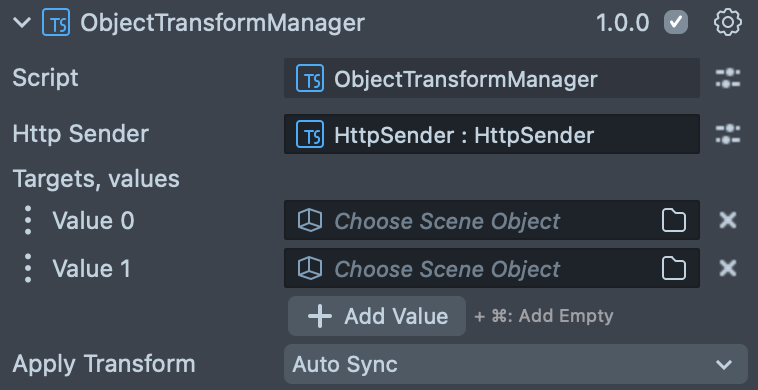
In the Manager’s Inspector:
- targets: assign every
SceneObjectyou want to sync. - mode: choose Auto Sync or Manual.
- targets: assign every
3. Configure HttpSender
-
Under the ObjectTransformManager scene object you will find HttpSender scene object.
-
In the
Inspectorpanel, enter your computer’s local IPv4 address (e.g., 192.168.1.23). -
The client sends to port
3434by default; this is an arbitrary/dev port. If your server uses a different port, update the client to match.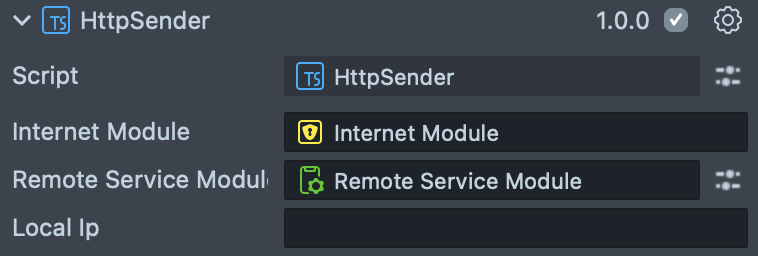
4. Push the Lens to Spectacles
Send your Lens to the Spectacles device.
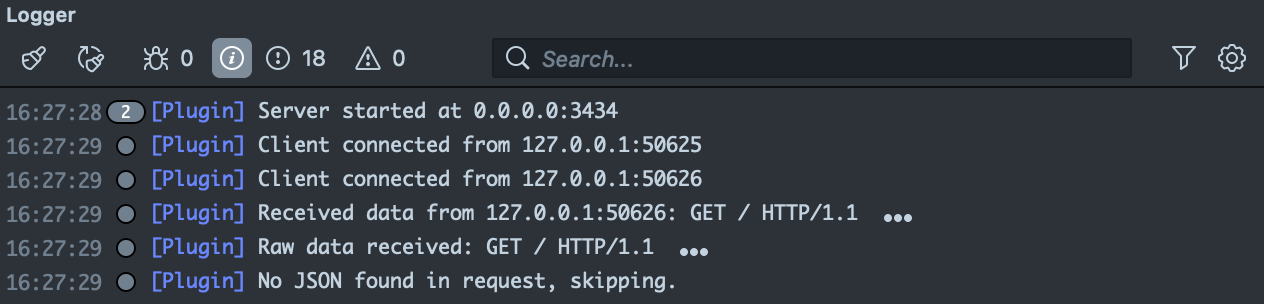
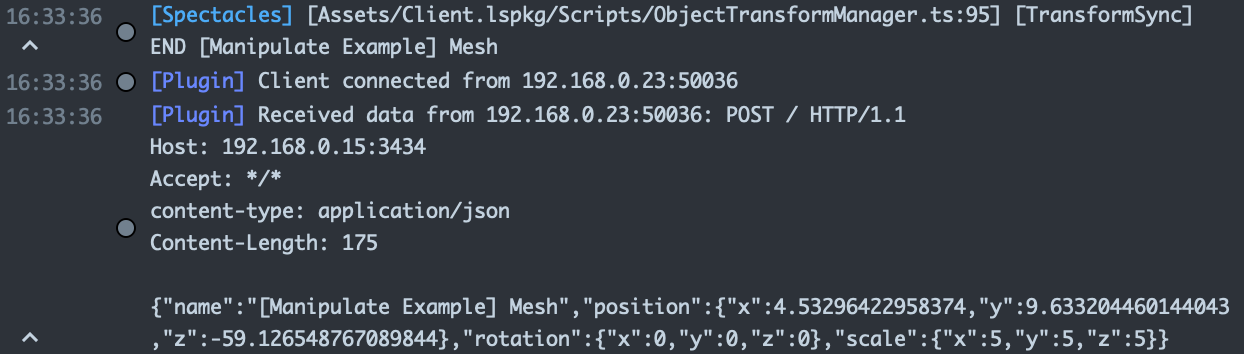
In Lens Studio, verify via the Logger panel:
-
The TCP server is running and listening.
-
Spectacles client connects successfully.

-
Transform data (position, scale and rotation) is being received:
- automatically when an interaction ends in Auto Sync mode, or
- when the Apply button is tapped in Manual mode.
-
The corresponding scene objects update correctly in the editor.