Interactive Tap
This template was originally released as part of Lens Studio 1.0. Since then, significant improvement has been made to Lens Studio to provide better ways of achieving the same result as this template. Take a look at the updated Animated Objects Template to achieve the same effect as this template! Alternatively, you can download the legacy template from the Asset Library.
Building off of the Animated Object Template, the Interactive Tap Template allows you to add 3D animated content to the world. When the user taps the object, it plays an additional animation. The template gives you access to manipulation control which allows the user to move, scale and rotate the object.
Tutorial
Guide
Exporting 3D Content
The Interactive Tap Template assumes that you have a 3D animated object which you'll be importing into Lens Studio. First you must export your object to be Lens Studio ready. To do this, follow the 3D Object Export guide.
The Interactive Tap Template needs two layers of animation in the exported FBX. To learn more about how to prepare multiple animation layers, follow the Maya Export guide. If your 3D tool does not support animation layers, you can create Animation Clips inside Lens Studio. Follow the Playing 3D Animation guide's Animation Clip section for information on how to create Animation Clips.
Importing 3D Content
Once you have your 3D object exported, follow the 3D Object Import guide to import your 3D object into Lens Studio.
Linking the World Object
After importing, the 3D object will be automatically included in the Objects panel and should also be visible in the Scene panel. Next, you'll want to drag your newly imported object to be a child of the WorldObjectController object. You can now delete the template's placeholder object labeled with [REPLACE_ME].
Linking the Animation
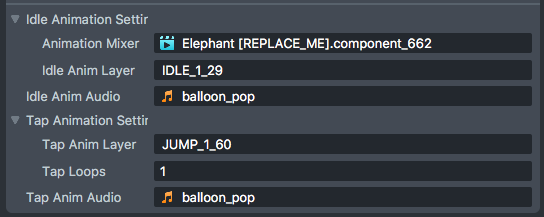
Next, we need to link the imported object's AnimationMixer component to the IdleAnim script. Select the WorldObjectController object and open the Inspector panel. Find the IdleAnim script and link the Animation Mixer field to your model's animation mixer.
Setting the Animation Names
When using multiple animations in a single FBX, they will be imported into Lens Studio as Animation Layers. These layers can be used to define the additional animations that will play on interaction. For the Interactive Tap Template, set the Idle Anim Layer field to the layer name of your looping idle animation. Then, set the Tap Anim Layer field to the layer name of your tap animation which will play when the object is tapped.
Tuning the Collision
The TouchCollision object represents the area the user must touch to manipulate (scale move and rotate) the object. In the Objects panel, select the TouchCollision object and scale it to roughly match the size of your 3D object.
Adding the Shadow
If you want to add a real-time shadow to your experience, first select your 3D object in the Objects panel. Find the object(s) with the Mesh Visual component. In the Inspector panel, set the Shadow Mode drop down to Caster. Here, you're also able to tune the shadow's intensity via the Shadow Density slider.
Audio
You can add audio to your animation by importing an audio file into the Resources panel and referencing it in the IdleAnim.js and TapAnim.js scripts (found on the WorldObjectController object). We recommend using a mono channel mp3 to keep the lens size low. For more information on Audio, see the Audio guide.
Previewing Your Lens
You're now ready to preview your world Lens. To preview your Lens in Snapchat, follow the Pairing to Snapchat guide.
Script Interface
WorldObjectController.js
-
Use Ground Grid (bool)- When enabled, a circular grid will appear underneath the world object when the user touches the object. This grid helps visualize the surface the content is attached to. Setting to false will disable the ground grid visualization -
Touch Collision Material (Asset.Material)- The material used by the touch collision mesh. In Lens Studio's scene panel, the mesh is visualized with a semi transparent material. When running in Lenses, this material is made invisible -
Ground Grid (SceneObject)- A reference to the ground grid object
IdleAnim.js
-
Animation Mixer (Component.AnimationMixer)- A reference to the world object's Animation Mixer component -
Idle Anim Layer (string)- The name of the anim layer that should be played for the idle animation. The anim layer name is configured in your external 3D editor. The anim layer name is also listed in the object's Animation Mixer component -
Anim Audio (Asset.AudioTrackAsset)- A reference to an Audio Track Asset in your resources. If set, the inputted audio will play alongside your animation
TapAnim.js
-
Tap Anim Layer (string)- The name of the anim layer that should be played for the tap interaction. The anim layer name is configured in your external 3D editor. The anim layer name is also listed in the object's Animation Mixer component -
Tap Loops (int)- This is the number of times the tap animation will play before returning the idle animation -
Tap Anim Audio (Asset.AudioTrackAsset)- A reference to an Audio component in your scene. If set, the inputted audio will play alongside your animation. It will loop the same number of times the tap animation is set to loop
Related Guides
Please refer to the guides below for additional information: