WKD - Lens Setup Guide
You can find this project in Lens Studio Home Page under Spectacles Sample Projects.
This Sample Project demonstrates how a Spectacles experience can send structured data to a database and how the same data can be displayed both inside the Lens and in an external web application.
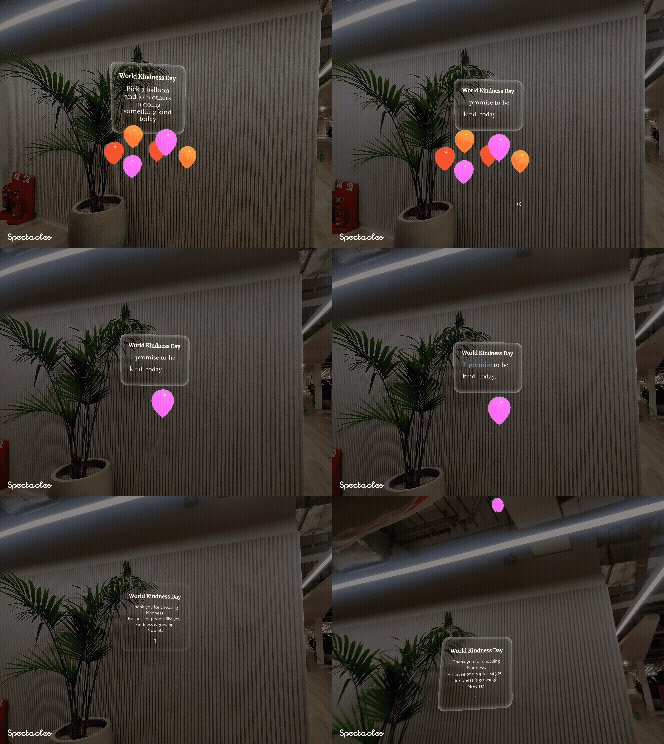
As an example, this project invites users to choose a balloon and speak a kindness pledge. When they do, the Lens writes a record to the database, and the global pledge counter updates instantly.
NOTE: This project will only work for the Spectacles platform. You must set the simulation mode on Lens Studio Preview to
Spectacles (2024). This project also requires you to create your own Snap Cloud / Supabase project. Without a backend configured, the Lens will not function. Please follow the WKD - Supabase Setup Guide before continuing.
Prerequisites
- Lens Studio: v5.15.0+
- Spectacles OS Version: v5.64+
- Spectacles App iOS/Android: v0.64+
To update your Spectacles device and mobile app, please refer to this guide.
You can download the latest version of Lens Studio from here.
Project Overview
Scene Objects
- Start Screen Root - Balloon selection screen:
- Description Frame: contains Title and Description texts.
- Pledge Frame: contains pledge texts.
- Multiple interactable balloons.
- End Screen Root - Thank-you message and global pledge count:
- Thank-You Frame: contains Title text, Thank-You text, and global pledge count text.
- Balloons Container: Parent for instanced balloons in the “sky”.
- MainManager:
- All scripts components are in the parent scene object.
- ReminderHint: A reminder to set up Supabase account to use the sample project.
Scripts
KindnessCounter.ts: Handles Supabase integration, pledge logic, totals, UI state.BalloonsManager.ts: Manages balloon interactions and triggers the pledge event.ASR Voice Trigger Script: Detects the spoken pledge phrase.
Assets
SpectaclesInteractionKitpackage.SupabaseClientpackage.SupabaseProjectcredentials (imported via plugin).- Prefabs (3 balloon variants).
- Materials, Textures, Scripts, Fonts, LSTween package .. etc.
Initial Project Setup
Set Up Your Snap Cloud Project
You will need a Snap Cloud project containing the same tables and RPC functions used in this Lens.
Please follow the WKD - Supabase Setup Guide, which walks you through:
- Creating your Supabase project.
- Adding the required tables (
kindness_pledges,kindness_totals). - Creating the RPC functions (
pledge_and_total_once,get_kindness_total_all, etc.). - Setting the correct permissions.
- (Optional) Adding test data to verify your setup.
You must complete the Supabase setup before the Lens can successfully read or write any data.
Add Supabase Plugin Into Your Lens Project
- Install
Supabase PluginandSupabaseClientpackage from the Asset Library. - Log in using your Snapchat account.
- In the Supabase panel (Window -> Supabase), create a new project or link an existing one.
- Click
Import Credentials, this generates a Supabase Project asset in your Lens. - Drag this asset into the
KindnessCounterscript’s Supabase Project input field.
All required objects and scripts are already set up in this project, but you should double-check that the correct inputs are assigned:
- Balloon prefabs: Make sure the balloon prefab array is populated in the
KindnessCounterscript inputs. - Start and End Screen roots: Confirm
Start RootandEnd Rootare assigned to the correct scene object groups. - UI Text component: Ensure the
Total Textis linked to its corresponding Text component in the scene.
These references must be correctly assigned for the Lens to run without missing-input errors.
How the System Works
Lens → Supabase
- User selects a balloon.
- User speaks: “I promise to be kind today”.
- Lens calls
pledge_and_total_once(). - Supabase:
- Inserts user record once.
- Trigger increments total once.
- Returns new global total.
Supabase → Lens
- Lens receives the updated total.
- Displays end-screen.
- Spawns balloon prefabs (up to configured maximum).
Web App → Supabase
- Web app listens for changes and requests
get_kindness_total_all(). - Updates the UI instantly when the total changes.
To set up the web app separately, see the WKD - Web App Setup Guide.
Key Scripts
KindnessCounter.ts
This script manages all interactions with Supabase. It authenticates the user, checks whether they have already pledged, calls the pledge_and_total_once RPC, retrieves the global total, and updates the Lens UI accordingly. It also controls whether the user sees the start screen or end screen and instantiates the balloon prefabs based on the total number of global pledges.
BalloonsManager.ts
Handles all balloon interaction logic. Each balloon has an Interactable component that detects pinch gestures. When a user selects a balloon, this script triggers the pledge flow by calling PledgeReadInOrder.init() when pledge is done the changeTransform function in this script will be called which plays the balloon lift animation and calls KindnessCounter.onBalloonSelected().
PledgeReadInOrder.ts
Coordinates the voice interaction flow. After the user selects a balloon, this script activates the on-device ASR module and listens for the pledge phrase (e.g., “I promise to be kind today”). Once detected, it calles BalloonsManager.changeTransform to finalize the pledge and submit it to Supabase.
Testing the Lens
In Lens Studio Editor
- Open the Preview panel in Lens Studio.
- Set Device Type Override to
Spectacles (2024). - Make sure your
SupabaseProjectcredentials are imported and correctly assigned in theKindnessCounterscript. - Use the Preview panel to test the flow:
- Balloon interactions.
- Voice pledge phrase.
- Transitions between start and end screens.
On Spectacles Device
- Build and deploy the project to your Spectacles device.
- Follow the Spectacles guide for device testing.
- Pinch a balloon to begin.
- Speak your pledge (“I promise to be kind today”).
- Watch your balloon float up.
- The Lens will send your pledge to Supabase and display the updated global total on the end screen.
Additional Resources
- WKD - Supabase Setup Guide (backend configuration)
- WKD - Web App Setup Guide (frontend configuration)
- Spectacles + Snap Cloud Overview
- Full Snap Cloud documentation site