WKD - Snap Cloud Setup Guide
This guide explains how to set up your own Snap Cloud backend so the World Kindness Day Lens and web app can read/write shared data.
This backend setup is shared by both the WKD Lens and the WKD Web App. You only create the Snap Cloud project, tables, and functions a single time, then both clients use it.
Why Do We Need Snap Cloud for This Project?
Most Lenses run entirely on-device and do not require a backend. However, this project must store and share data across all users, such as:
- Whether a user has already pledged.
- The global total number of pledges.
- Balloon counts shown in both the Lens and the Web App.
To make this possible, we use Snap Cloud, which is powered by Supabase for its database, authentication, and server-side logic.
Snap Cloud provides:
- A database that stores pledge records.
- RPC functions (SQL functions) that securely update and return totals.
- Authentication, so each Spectacles user has a unique
user_id. - Realtime events, which allow the Web App to update the counter instantly.
The Lens and Web App both read from and write to this same backend.
Where Do These Steps Happen?
All database setup; creating tables, writing SQL functions (RPCs), running queries, happens inside your Snap Cloud dashboard, not in Lens Studio.
In Supabase:
You create the tables, add functions, set permissions, and optionally insert test data.
In Lens Studio:
You import the Supabase project credentials (via the Supabase Plugin) and then call those RPCs from your Lens scripts, such as pledge_and_total_once or get_kindness_total_all.
In the Web App:
The Web App connects to Supabase using your project’s URL and anon (public) API key.
These credentials allow the app to call RPCs such as get_kindness_total_all and display the live global pledge total.
Both the Lens and Web App depend on this backend configuration. Once it is set up correctly, the entire system works seamlessly together.
Create a New Supabase Project
In Snap Cloud set up your project as per the Getting Started.
Open the SQL Editor
Inside Snap Cloud - Supabase dashboard, open SQL Editor from the left sidebar.

1. Create Table: kindness_pledges
This table will stores who have pledged. It stores one row per user.
We enforce this by making user_id the PRIMARY KEY, which ensures each user can appear only once. The RPC uses ON CONFLICT DO NOTHING, so repeat pledges are ignored.
If you prefer a different behavior, for example, allowing users to pledge multiple times, you can change the schema.
Instead of using user_id as the PRIMARY KEY, you could:
- Add a separate id column as the
PRIMARY KEY. - Keep
user_idas a normal column. - (Optional) Add
pledge_dateif you want daily or repeated pledges.
This makes the table accept unlimited pledges per user.
create table public.kindness_pledges (
  user_id uuid primary key,
  pledged_at timestamptz default now()
);

grant select, insert on public.kindness_pledges to anon, authenticated;
2. Create Table: kindness_totals
This table stores daily pledge totals, which are used by the RPC functions in this project. We maintain daily totals to allow fast total aggregation and to make the system easy to extend in the future; for example, adding charts, daily breakdowns, trends, or activity analytics without recalculating totals from raw pledge data each time.
create table public.kindness_totals (
  pledge_date date primary key,
  total bigint default 0
);

grant select, insert, update on public.kindness_totals to anon, authenticated;
3. Create Trigger: Increment Daily Totals
This trigger fires only when a new pledge row is created. It automatically increments the daily total inside the database.
A trigger is an automatic action the database performs whenever something happens; for example, when a row is inserted, updated, or deleted.
We use this trigger so that every time a new user pledges, the database updates the daily total without requiring the Lens or Web App to do anything extra.
If the user has already pledged, the INSERT does not occur, so the trigger does not fire.
You can read more about Postgres triggers here.
create or replace function public.bump_total_after_pledge()
returns trigger
language plpgsql
as $$
begin
  insert into public.kindness_totals (pledge_date, total)
  values (current_date, 1)
  on conflict (pledge_date)
  do update set total = public.kindness_totals.total + 1;
  return new;
end;
$$;

drop trigger if exists trg_bump_total on public.kindness_pledges;

create trigger trg_bump_total
after insert on public.kindness_pledges
for each row execute procedure bump_total_after_pledge();
4. RPC: pledge_and_total_once
This function inserts the user’s pledge only if not pledged before, and returns the total pledges (all time).
create or replace function public.pledge_and_total_once()
returns bigint
language plpgsql
as $$
declare
  t bigint := 0;
begin
  insert into public.kindness_pledges (user_id)
  values (auth.uid())
  on conflict (user_id) do nothing;

  -- Trigger increments daily total only on first pledge
  select coalesce(sum(total), 0) into t
  from public.kindness_totals;

  return t;
end;
$$;

grant execute on function public.pledge_and_total_once() to anon, authenticated;
5. RPC: get_kindness_total_all
Returns total pledges across all days.
create or replace function public.get_kindness_total_all()
returns bigint
language sql
stable
as $$
  select coalesce(sum(total), 0)
  from public.kindness_totals;
$$;

grant execute on function public.get_kindness_total_all() to anon, authenticated;
6. RPC: has_pledged_ever
Checks if the current user already pledged before.
create or replace function public.has_pledged_ever()
returns boolean
language sql
as $$
  select exists(
    select 1
    from public.kindness_pledges
    where user_id = auth.uid()
  );
$$;

grant execute on function public.has_pledged_ever() to anon, authenticated;
Get Your Project Keys for the Web App
The web app needs your Supabase Project URL and Public Anon Key to read the total pledge count from your database.
In the Supabase Dashboard, go to Project Settings:
- Data API to copy your project URL.
- API Keys to find the anon public key.
Open your web app folder and edit config.js. Replace the placeholders with your real values:
export const SUPABASE_URL = 'YOUR_SUPABASE_URL';
export const SUPABASE_ANON_KEY = 'YOUR_SUPABASE_PUBLIC_ANON_KEY';
and save the file.
Add Test Data Manually
Before running the web app or opening the Lens, it’s helpful to insert sample pledge data so you can verify that your setup is working correctly.
This ensures that when you load the web app or Lens for the first time, you will see balloons and a non-zero total, confirming everything is connected properly.
Insert a test user into kindness_pledges
In the Supabase SQL Editor, run:
insert into public.kindness_pledges (user_id)
values ('11111111-1111-1111-1111-111111111111');
What should happen?
-
A row is added to
kindness_pledges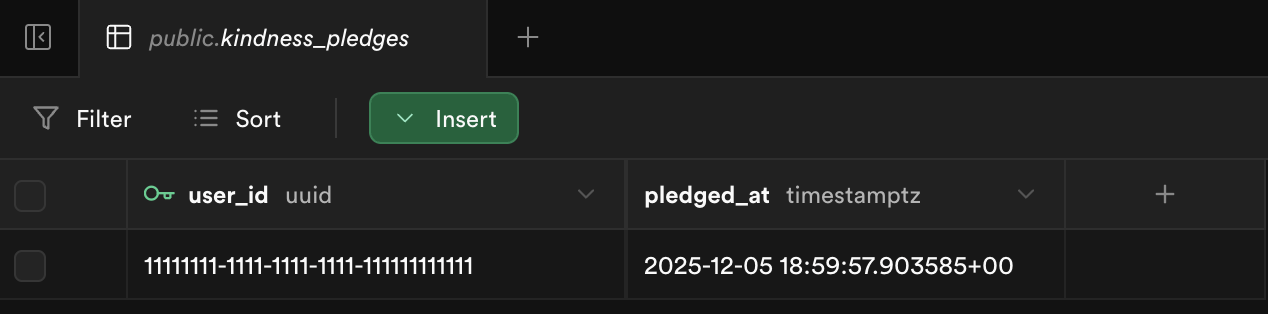
-
The trigger
bump_total_after_pledgeautomatically increments today's count inkindness_totals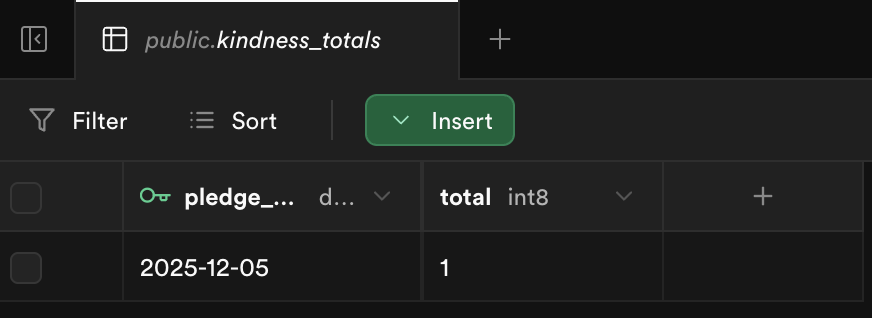
Why this step is important?
Once test data exists:
- The web app will immediately display the correct number of balloons.
- You can confirm your
config.jskeys are correct. - You can confirm your RPCs return real numbers.
- When you open the Lens, the end screen will show balloons if the user already pledged.
This avoids confusion and makes debugging far easier.