Zoom Component
The Zoom Component adds dynamic motion to your Lens by smoothly zooming in or out on the screen. It helps bring energy and focus to static scenes, adding a sense of depth and movement with minimal setup.
Getting Started
-
Navigate to the
Asset Libraryoption in the top left corner of the Lens Studio.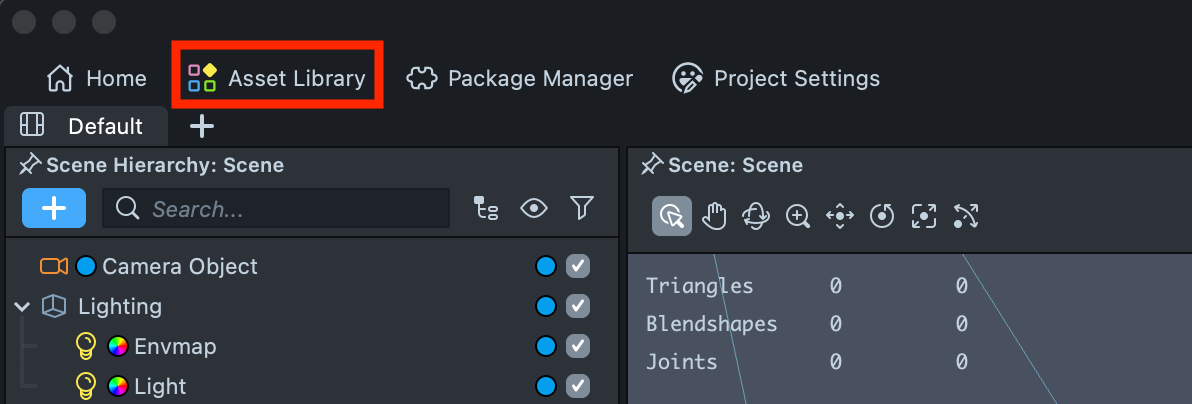
-
In the search field, type Zoom Component, then click
Install.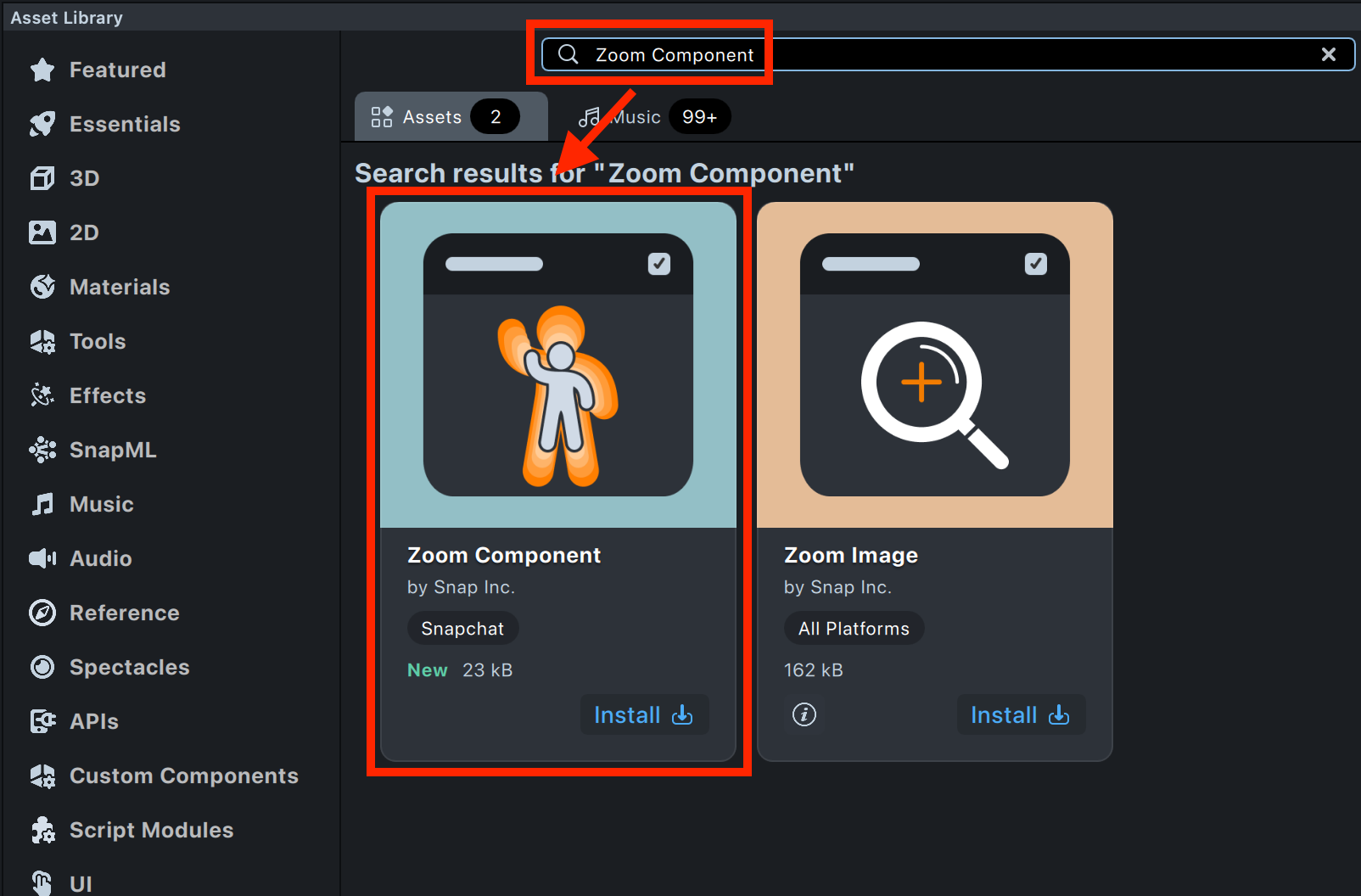
-
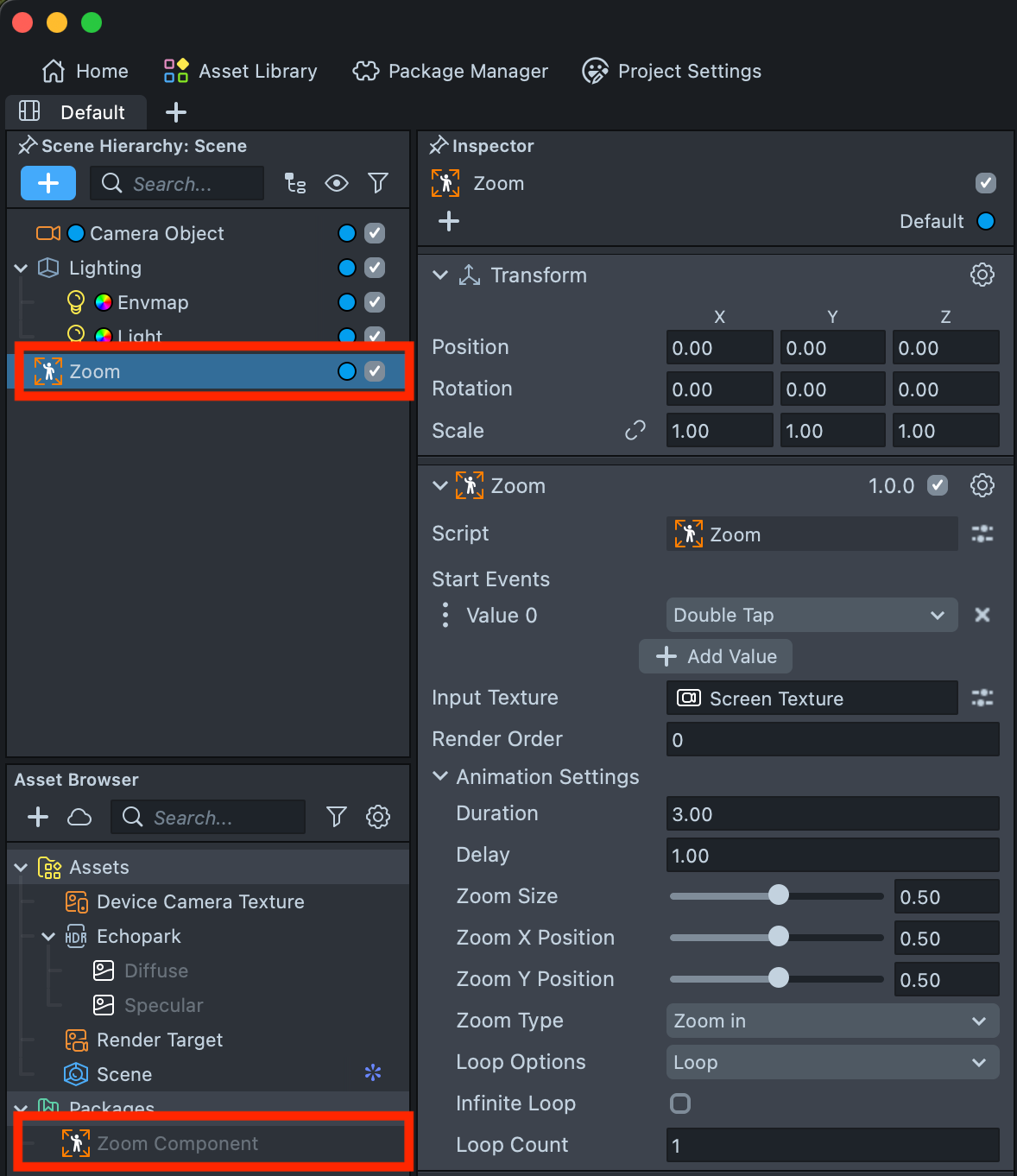
The Zoom Component will automatically appear in both the Scene Hierarchy and the Asset Browser.
-
After installation, you can always find the Zoom Component in the Asset Browser by clicking
+and typing Zoom into the search field.
Setting Up the Zoom Effect
The Zoom Component starts working as soon as you add it to the Scene Hierarchy. Select it, and you’ll see all its settings in the Inspector panel.
By default, the Start Event is set to Double Tap, and the Delay is 1.0 seconds. This means you can double-tap on the Preview screen and see the effect in action after one second.
Let’s go through each setting to understand what it controls.
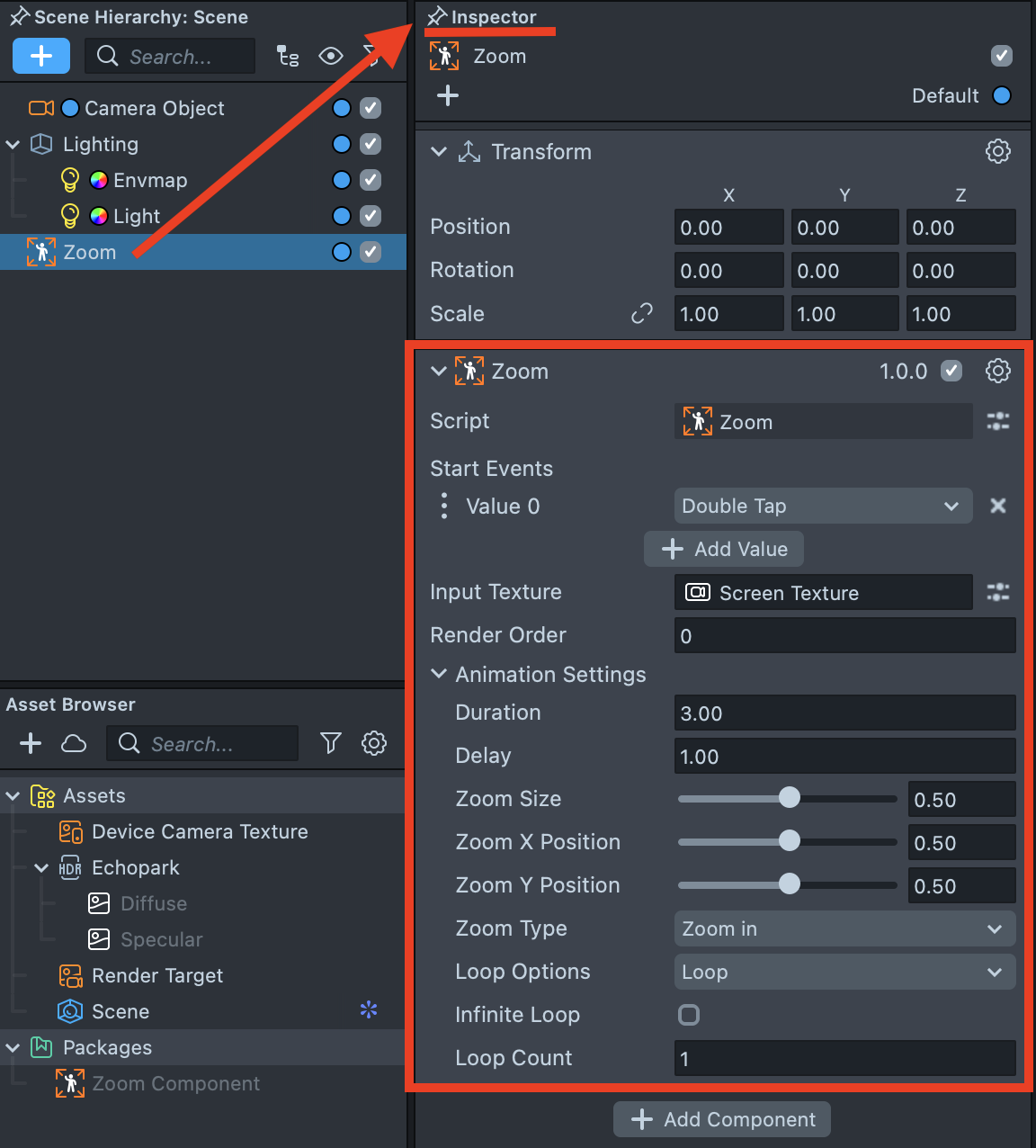
- Start Events – Defines one or more events that trigger the Zoom Effect.
- Input Texture – Defines the input texture used for the effect: screen texture, device camera texture, or an image.
- Render Order – Defines the rendering order of the effect.
- Duration - Defines the length of a single Zoom Effect loop.
- Delay – Defines the delay time before the Zoom Effect starts playing.
- Zoom Size - Defines the final size of the Zoom Effect.
- Zoom X/Y Position - Defines the focus point of the Zoom Effect, determining where the zoom is centered.
| Screen Coordinate Axes | x=0.0; y=0.0 | x=1.0; y=1.0 | x=0.5; y=0.25 |
|---|---|---|---|
 |
- Zoom Type - Defines whether the effect uses
Zoom InorZoom Outmode. WhenZoom Outis selected, the image initially appears at the size specified inZoom Sizeand zooms back to its default state when triggered. - Loop Options - Defines how the Zoom Effect repeats, using
Loop(continuous playback) orPing Pong(plays forward and then backward). - Infinite Loop - When enabled, the Zoom Effect will play continuously without stopping.
- Loop Count - Defines the number of times the Zoom Effect repeats.