Custom Text2D Materials
Custom Text2D materials let you apply custom shader effects to a 2D Text component.
Default Text2D Material
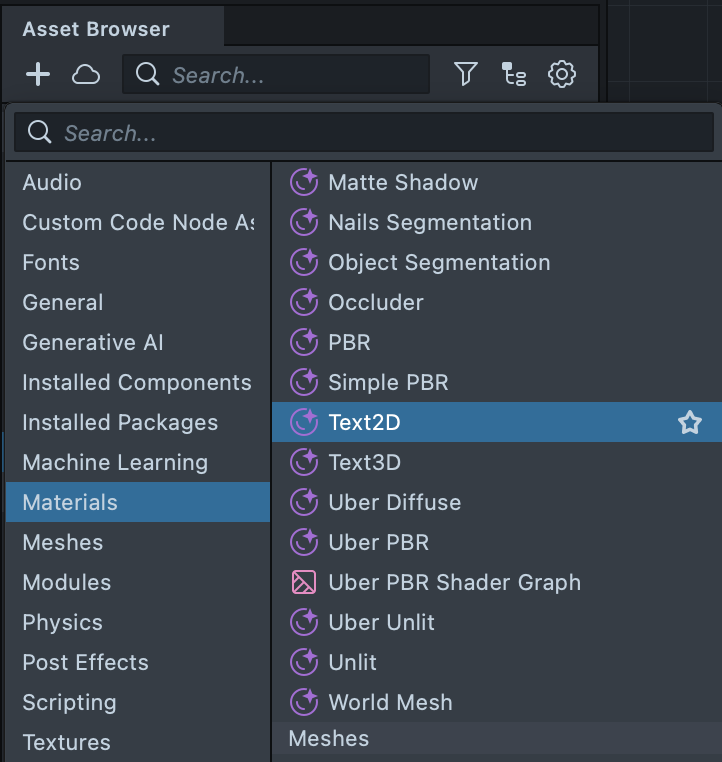
To get started, create a new Text2D material from Asset Browser ➜ + ➜ Materials ➜ Text2D.
The default shader graph will include a Text Data node and a Surface Position (World) node wired into a Mesh3D shader node.
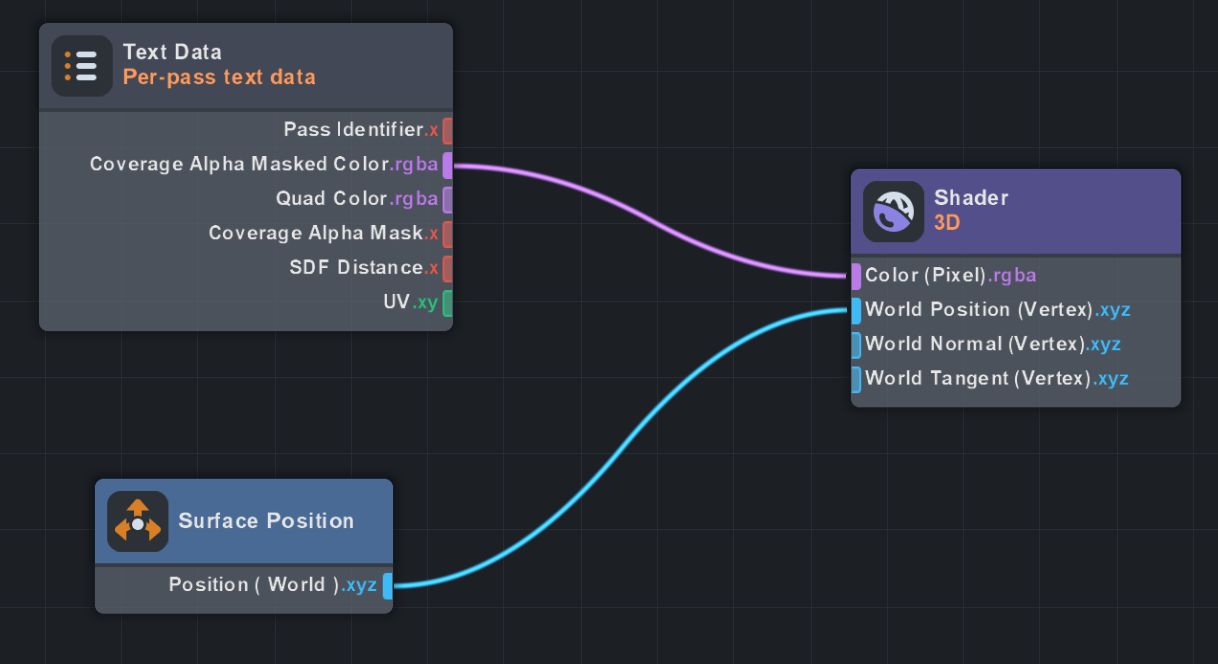
Important: make sure that "Batching Enabled" is enabled on the Shader node.

The material has default values set to its parameters to match that of the built-in text material. Importantly, the default blend mode of the material is set to Normal.
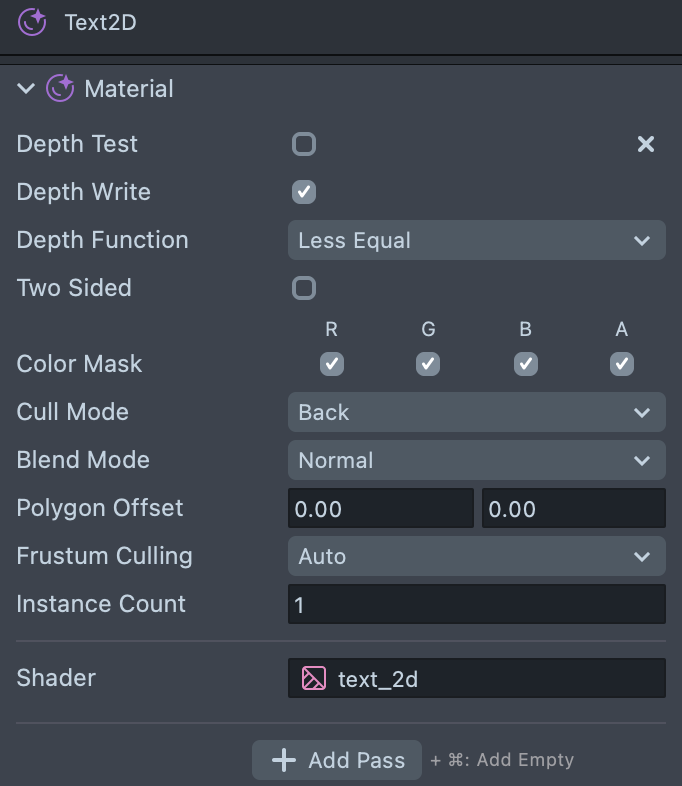
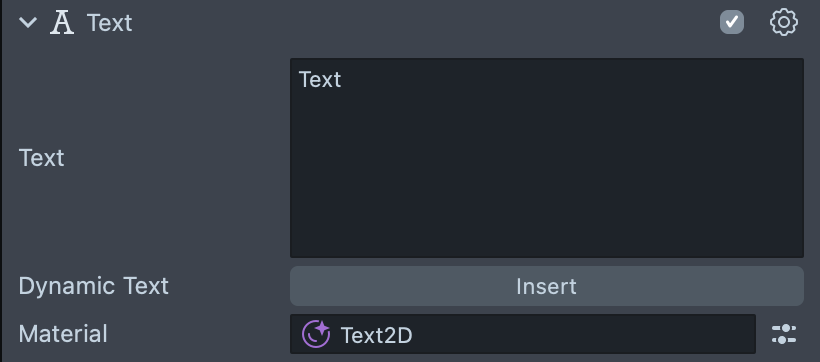
Assign this material as-is to the "Material" field on a Text component for it to render the same as the built-in text material.
Text Data Node
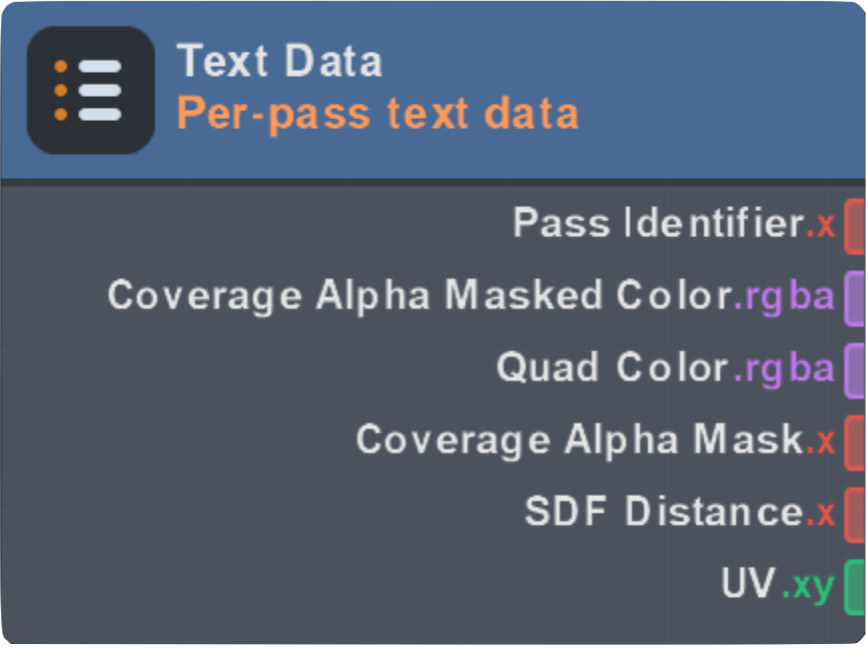
| Port | Type | Applicable To | Description |
|---|---|---|---|
| Pass Identifier | Float (integer-valued) | Vertex and Fragment All passes | Which text pass this quad belongs to:
|
| Coverage Alpha Masked Color | vec4 | Fragment only All passes | The resolved Quad Color with the per-pass Coverage Alpha Mask multiplied into alpha. Equivalent to vec4(quadColor.rgb, quadColor.a * coverageAlphaMask).Wire this directly into the Color port on the Mesh3D master node to get correctly shaped passes with the proper fill color from the text component. |
| Quad Color | vec4 | Fragment only All passes | Per-pass fill color without the alpha coverage mask. Takes into account fill color, rich-text color and opacity tags, emoji textures, fill textures, and color tint. |
| Coverage Alpha Mask | Float [0,1] | Fragment only All passes | Per-pass coverage alpha/opacity mask:
|
| SDF Distance | float | Fragment only SDF passes only: Main, Outline, and Shadow | Spread-normalized signed distance to the glyph edge:
|
| UV | Vec2 | Fragment only All passes | If FillMode:Color: per-quad UV normalized with (0,0) at the bottom-left corner and (1,1) at the top-right corner. If FillMode:Texture: the component's per-pass fill UV, driven by that pass's Tile Count / Tile Zone / Stretch Mode. Sample your own Texture 2D with it for textured fills, or make screen/layout-rect-spanning effects. |
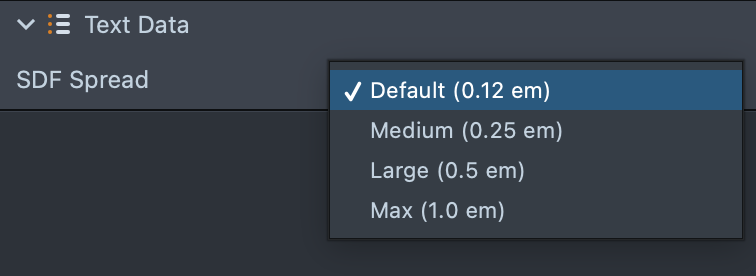
SDF Spread determines how far, in em units, the signed distance field extends outward from the glyph edge before it saturates, which increases the mesh size of the glyph quads. This lets larger effects like glow extend past the default quad size allocated for glyphs.
Custom Code Node Accessors
| Accessor | Corresponding Port |
|---|---|
system.getTextPassIdentifier(); | Pass Identifier |
system.getTextCoverageAlphaMaskedColor(); | Coverage Alpha Masked Color |
system.getTextQuadColor(); | Quad Color |
system.getTextCoverageAlphaMask(); | Coverage Alpha Mask |
system.getTextSdfDistance(); | SDF Distance |
system.getTextUv(); | UV |
system.setTextSdfSpreadDefault(); | Setting SDF Spread to Default |
system.setTextSdfSpreadMedium(); | Setting SDF Spread to Medium |
system.setTextSdfSpreadLarge(); | Setting SDF Spread to Large |
system.setTextSdfSpreadMax(); | Setting SDF Spread to Max |
Examples
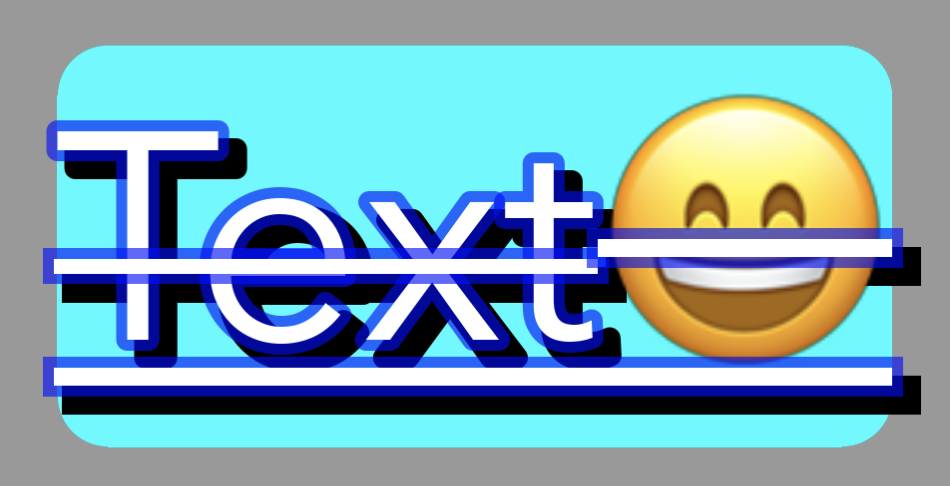
For all of the following examples the following Text component parameters are used:
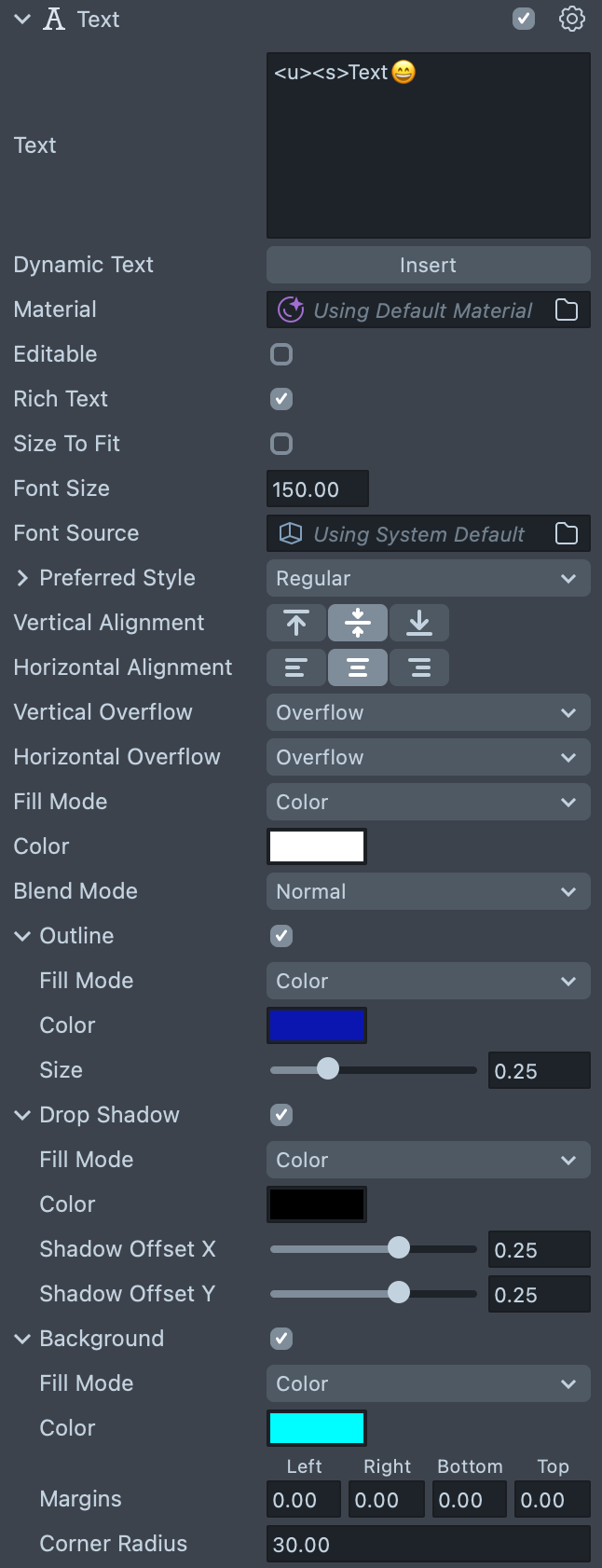
Without any custom material it looks like the following:
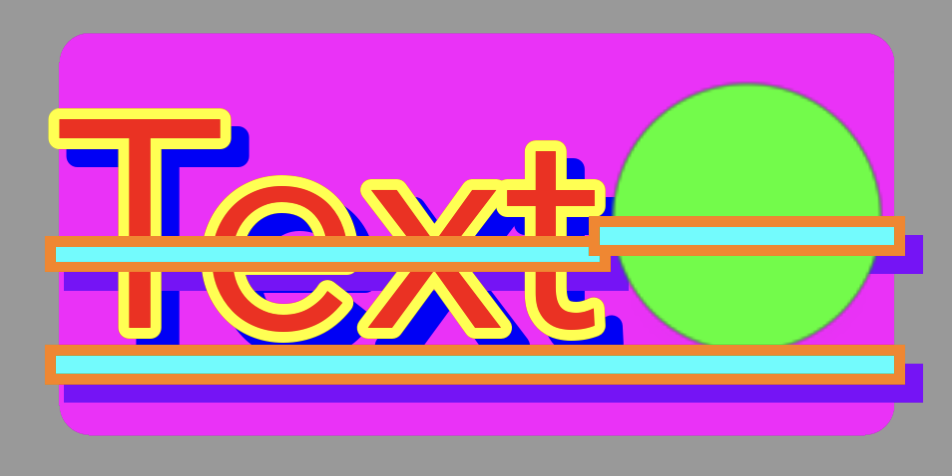
Pass Identifier
Use Pass Identifier to customize different behavior for each of the text passes.
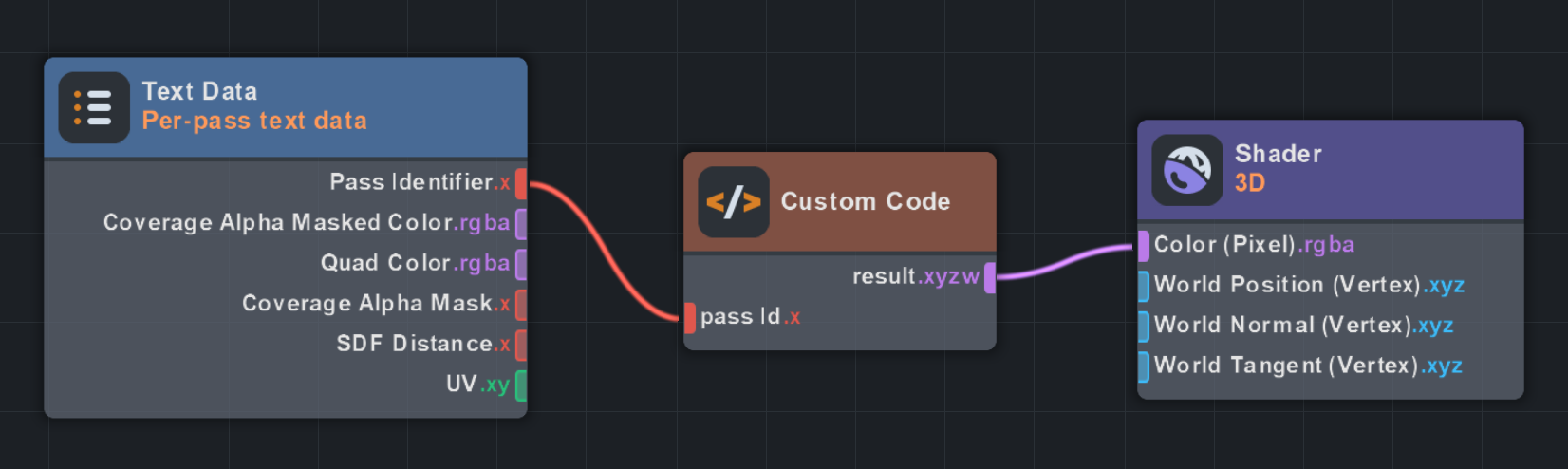
Add the following code to the Custom Code node:
input_float passId;
output_vec4 result;
void main()
{
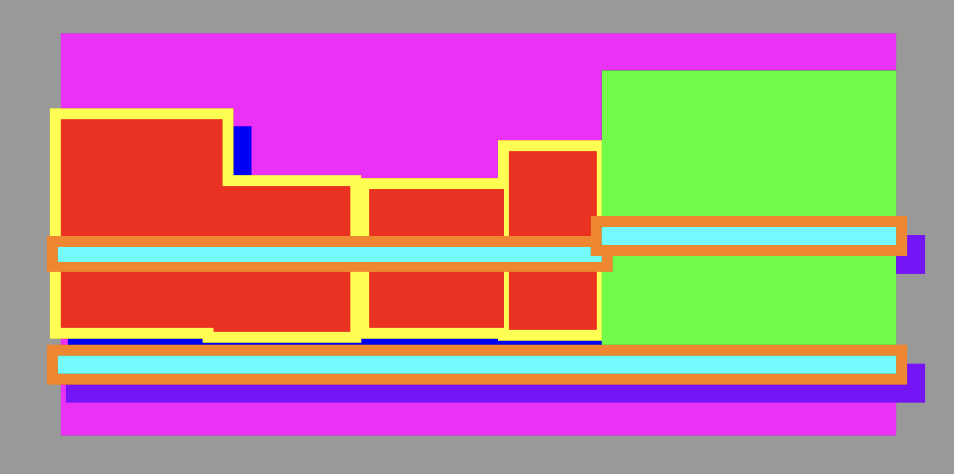
    vec3 rgb = vec3(1.0, 1.0, 1.0);                     // fallback (unknown pass) = white
    if (passId == 0.0) rgb = vec3(1.0, 0.0, 0.0);       // MAIN_PASS - red
    else if (passId == 1.0) rgb = vec3(0.0, 1.0, 0.0);  // COLOR_PASS - green
    else if (passId == 2.0) rgb = vec3(0.0, 0.0, 1.0);  // SHADOW_PASS - blue
    else if (passId == 3.0) rgb = vec3(1.0, 1.0, 0.0);  // OUTLINE_PASS - yellow
    else if (passId == 4.0) rgb = vec3(1.0, 0.0, 1.0);  // BACKGROUND_PASS - magenta
    else if (passId == 5.0) rgb = vec3(0.0, 1.0, 1.0);  // DECORATION_PASS - cyan
    else if (passId == 6.0) rgb = vec3(1.0, 0.5, 0.0);  // DECORATION_OUTLINE_PASS - orange
    else if (passId == 7.0) rgb = vec3(0.5, 0.0, 1.0);  // DECORATION_SHADOW_PASS - purple
    result = vec4(rgb, 1.0);
}
Result:
Coverage Alpha Masked Color
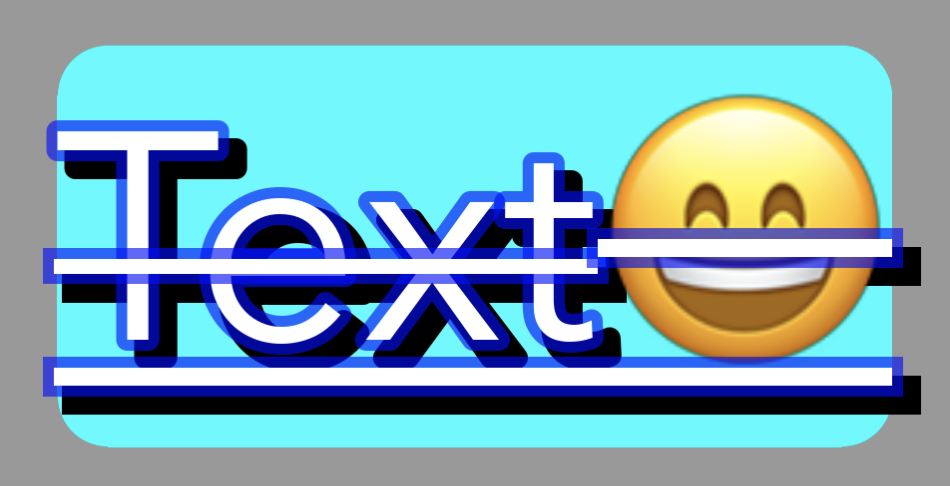
Use Coverage Alpha Masked Color to use the colors set on the Text component with the proper coverage alpha mask.
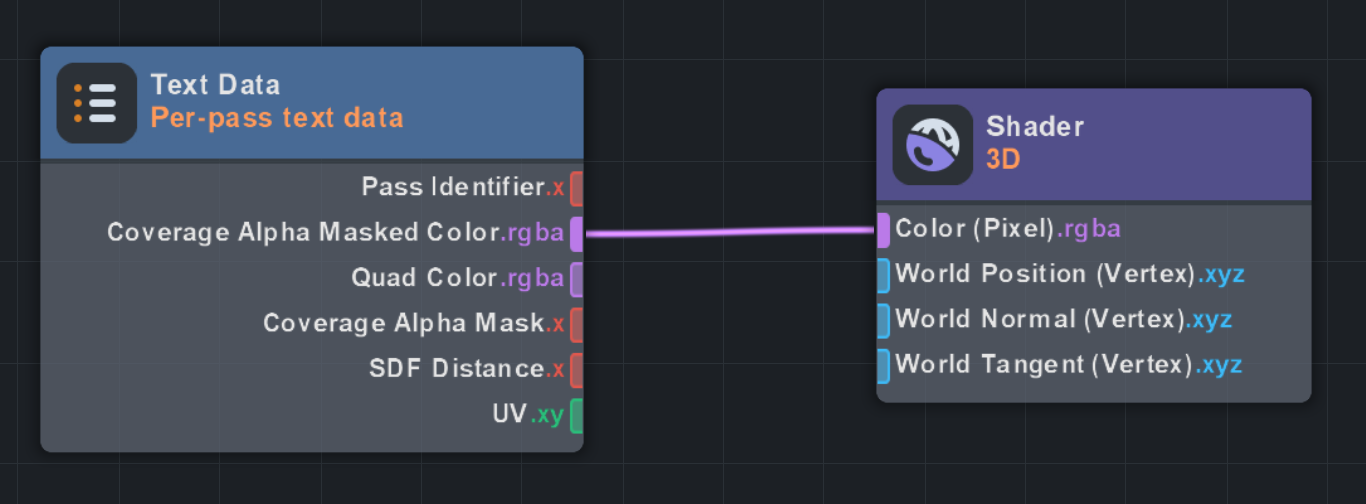
The result will look the same as using the built-in Text material:
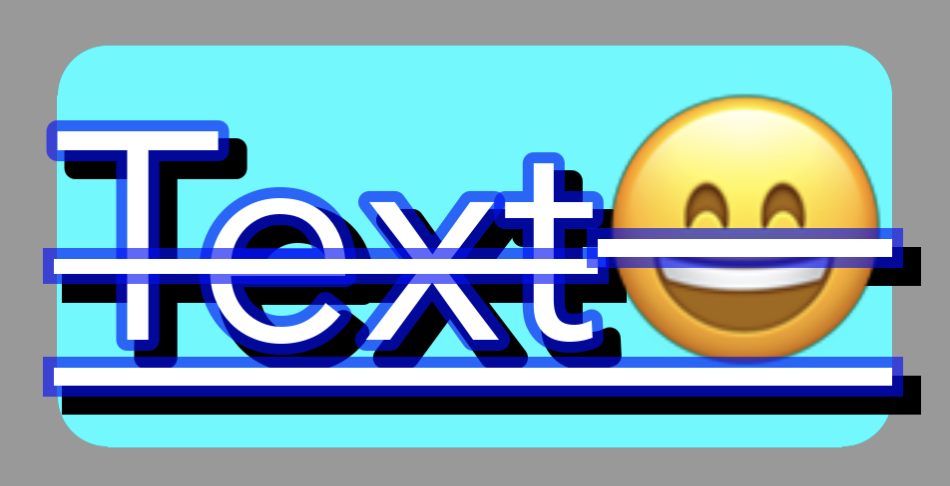
Quad Color and Coverage Alpha Mask
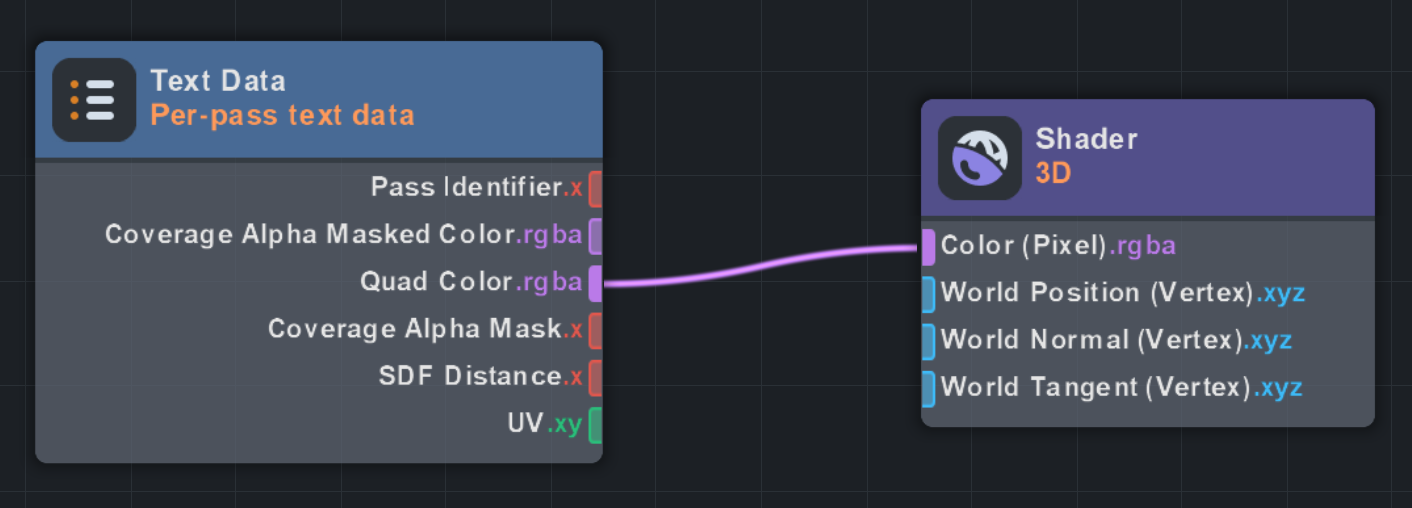
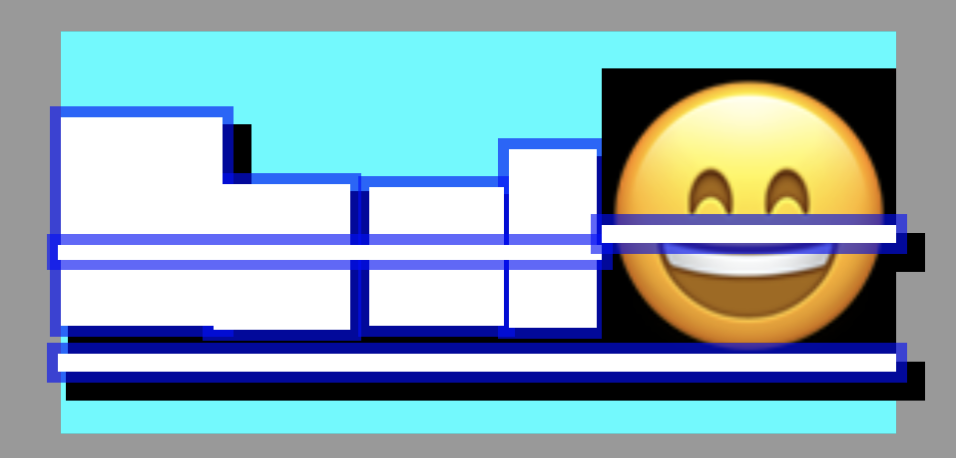
Use Quad Color to get the per-pass color without a coverage alpha mask.
Result:
Use Coverage Alpha Mask by multiplying it into the opacity of the desired pixel color in order to get the proper coverage alpha mask.
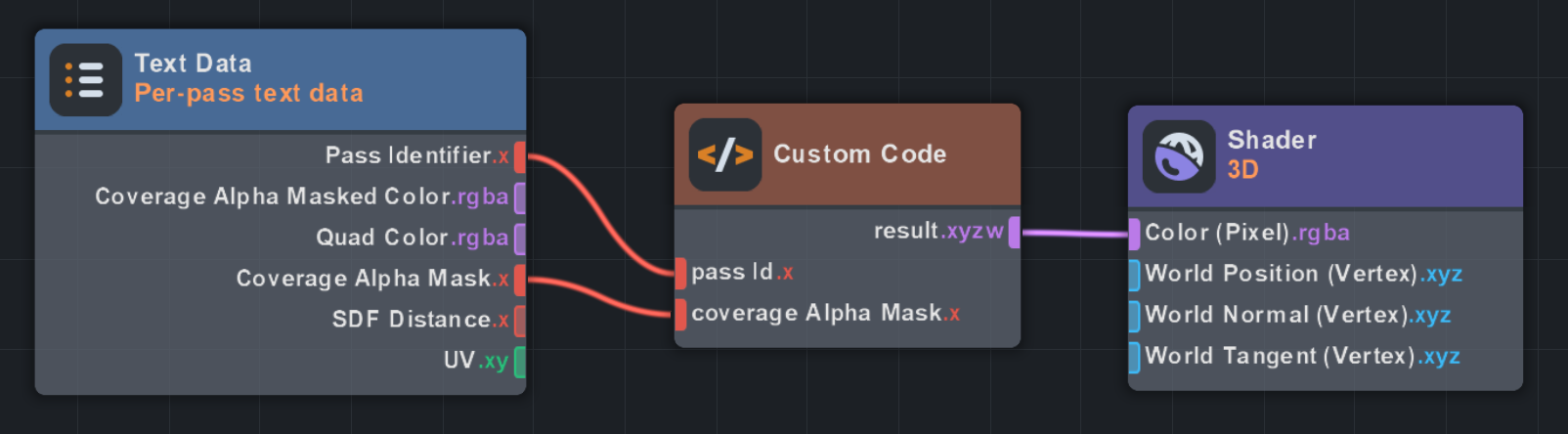
Add the following code to the Custom Code node:
input_float passId;
input_float coverageAlphaMask;
output_vec4 result;
void main()
{
    vec3 rgb = vec3(1.0, 1.0, 1.0);                     // fallback (unknown pass) = white
    if (passId == 0.0) rgb = vec3(1.0, 0.0, 0.0);       // MAIN_PASS - red
    else if (passId == 1.0) rgb = vec3(0.0, 1.0, 0.0);  // COLOR_PASS - green
    else if (passId == 2.0) rgb = vec3(0.0, 0.0, 1.0);  // SHADOW_PASS - blue
    else if (passId == 3.0) rgb = vec3(1.0, 1.0, 0.0);  // OUTLINE_PASS - yellow
    else if (passId == 4.0) rgb = vec3(1.0, 0.0, 1.0);  // BACKGROUND_PASS - magenta
    else if (passId == 5.0) rgb = vec3(0.0, 1.0, 1.0);  // DECORATION_PASS - cyan
    else if (passId == 6.0) rgb = vec3(1.0, 0.5, 0.0);  // DECORATION_OUTLINE_PASS - orange
    else if (passId == 7.0) rgb = vec3(0.5, 0.0, 1.0);  // DECORATION_SHADOW_PASS - purple
    result = vec4(rgb, coverageAlphaMask);
}
Result:
Multiplying Coverage Alpha Mask into the alpha value of Quad Color will result in Coverage Alpha Masked Color.
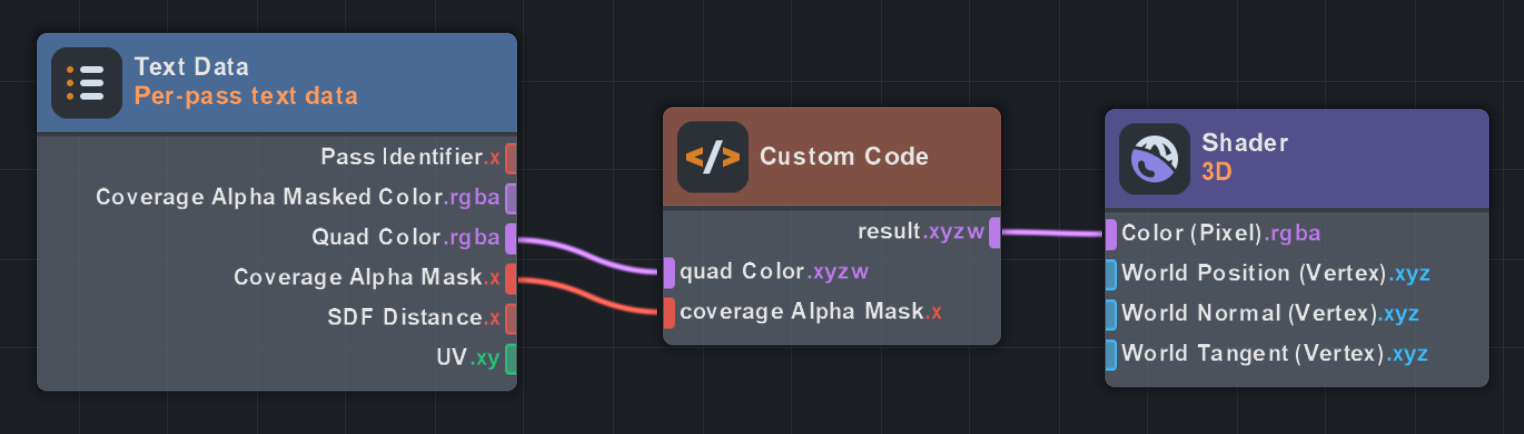
Add the following code to the Custom Code node:
input_vec4 quadColor;
input_float coverageAlphaMask;
output_vec4 result;
void main()
{
    result = vec4(quadColor.rgb, quadColor.a * coverageAlphaMask);
}
Result:
SDF Distance
Use SDF Distance to do effects that rely on the distance away from the glyphs. This is only applicable to the main, outline, and drop shadow passes on world space text or large screen space text.
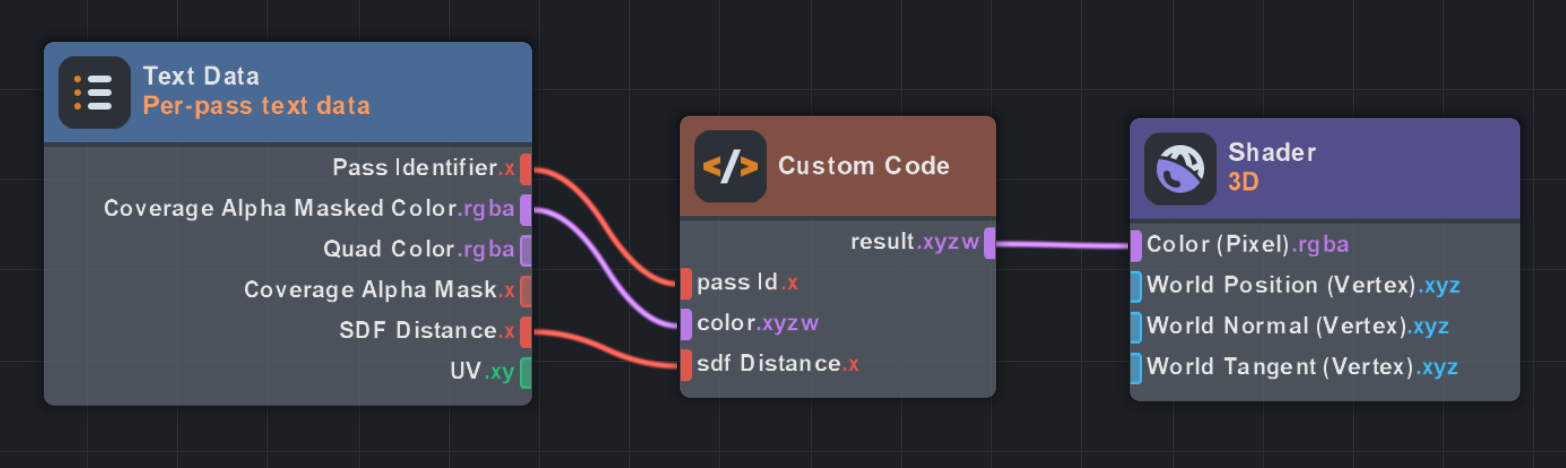
Add the following code to the Custom Code node:
input_float passId;
input_vec4  color;
input_float sdfDistance;
output_vec4 result;
void main()
{
    // Outer glow only on the glyph passes: MAIN (0), SHADOW/dropshadow (2), OUTLINE (3).
    // Every other pass (color-glyph 1, background 4, decoration 5-7) passes through untouched.
    if (passId != 0.0 && passId != 2.0 && passId != 3.0)
    {
        result = color;
        return;
    }
    const vec3  glowColor = vec3(0.6, 0.1, 0.9);   // glow tint (change to taste)
    const float glowWidth = 0.35;                  // outward reach in SDF units (0.0 .. 0.5)

    // Screen-space antialiasing width from the SDF gradient, so the glyph edge stays crisp at any scale.
    float aa = fwidth(sdfDistance);
    // Glyph coverage: 1 inside, 0 outside, smoothly AA'd across the edge at sdfDistance == 0.
    float glyph = smoothstep(-aa, aa, sdfDistance);
    // Outer glow halo: brightest at the edge, fading to 0 by glowWidth outside; restricted to
    // outside the glyph (1 - glyph) so it never overwrites the fill.
    float glow = smoothstep(-glowWidth, 0.0, sdfDistance) * (1.0 - glyph);

    // Glyph fill composited over the glow halo.
    result.rgb = mix(glowColor, color.rgb, color.a);
    result.a   = max(color.a, glow);
}
Result:
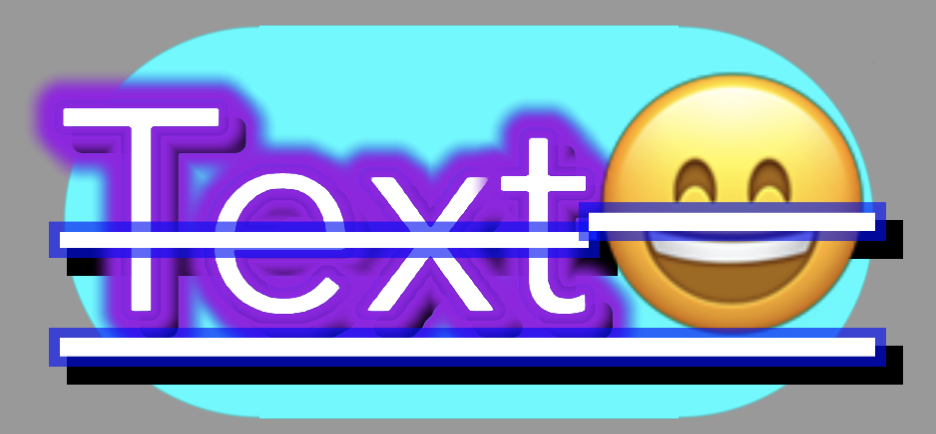
SDF Spread
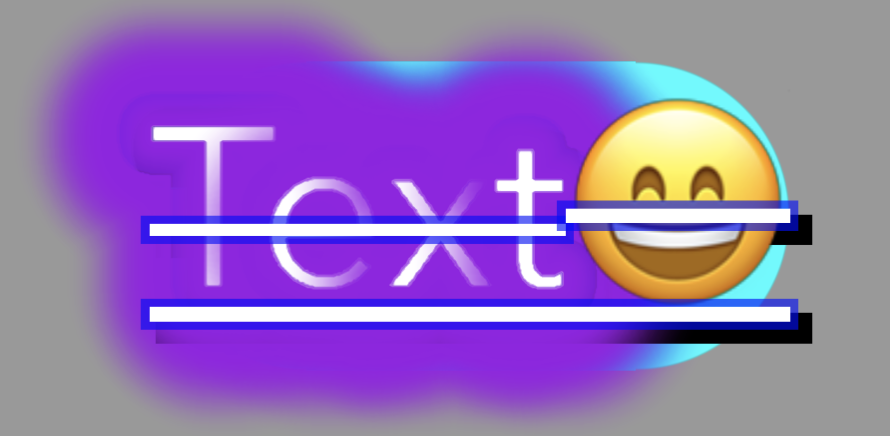
Use SDF Spread to expand the size of your SDF distance effects past the default quad size.
For example, setting SDF Spread to Large (0.5 em) for the example above results in:
UV
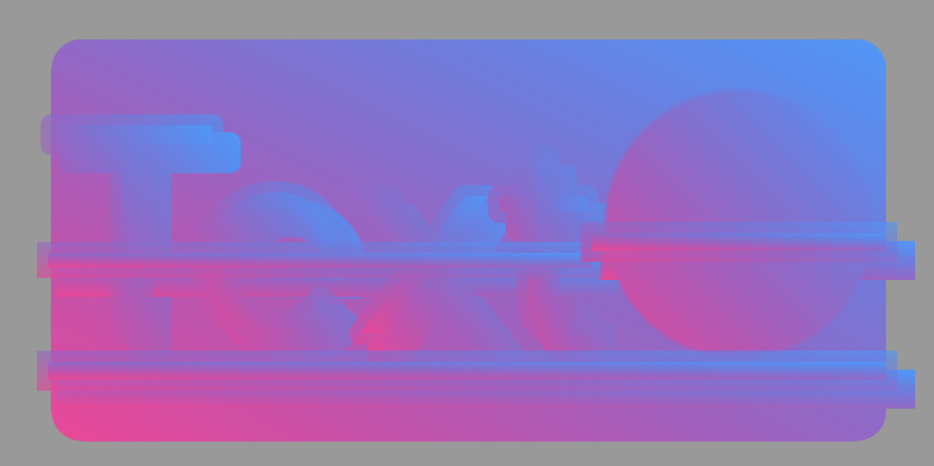
Use UV to do UV effects. When a pass is not set to the Texture fill mode, UV will output per-quad UV.
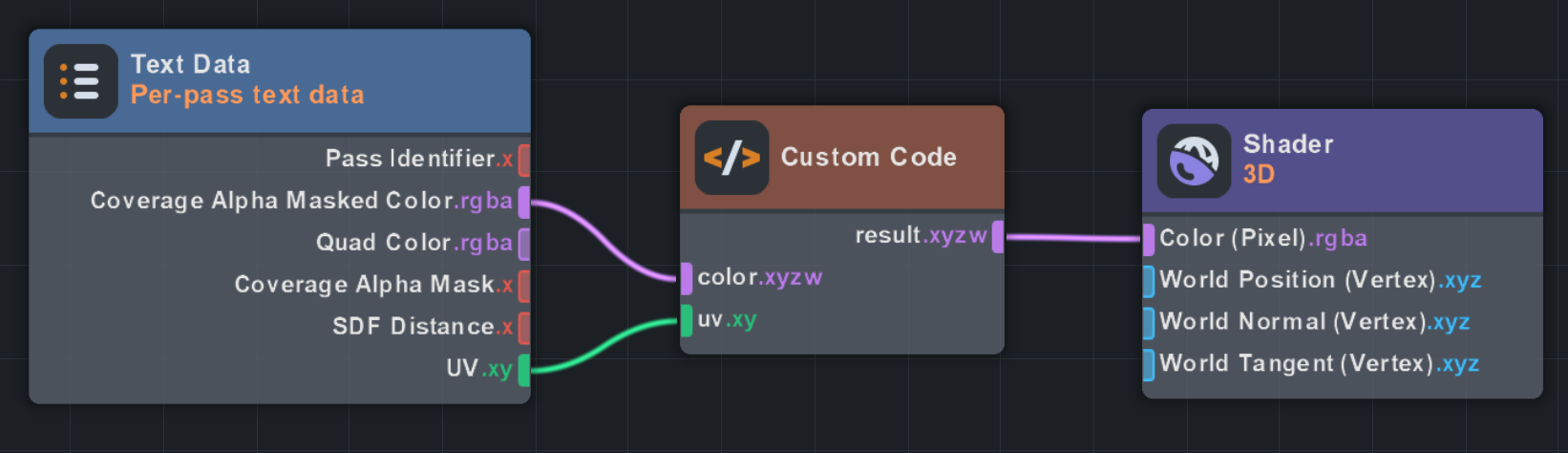
Add the following code to the Custom Code node:
input_vec4  color;
input_vec2  uv;
output_vec4 result;
void main()
{
    // --- UV effect: diagonal two-color gradient across the glyph's UV ---
    vec3 colorA = vec3(1.0, 0.2, 0.6);   // color at uv (0,0)
    vec3 colorB = vec3(0.2, 0.6, 1.0);   // color at uv (1,1)
    float t = clamp((uv.x + uv.y) * 0.5, 0.0, 1.0);
    vec3 grad = mix(colorA, colorB, t);
    // Keep the glyph shape from the coverage-masked alpha; drive the RGB from the UV gradient.
    result = vec4(grad, color.a);
}
Result: