Text3D Animator
Use Text3D Animator in Lens Studio to animate groups of objects with curves: scale, rotation, position, and optional material properties. It can drive 3D Text, prefabs, child objects, or any list of SceneObjects you assign, all controlled from one component in the Inspector with presets or custom curves.
New to Text3D Animator? Leave Use Presets on. Pick a preset and Target Type, preview your Lens, then change direction, duration, and offset. Turn off Use Presets under Advanced setup when you need full control over each curve.
Getting Started
Installation
-
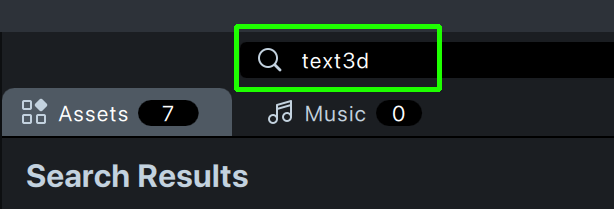
Open the Asset Library in the upper left of Lens Studio. In the search field, type text3d or Text3D Animator.

-
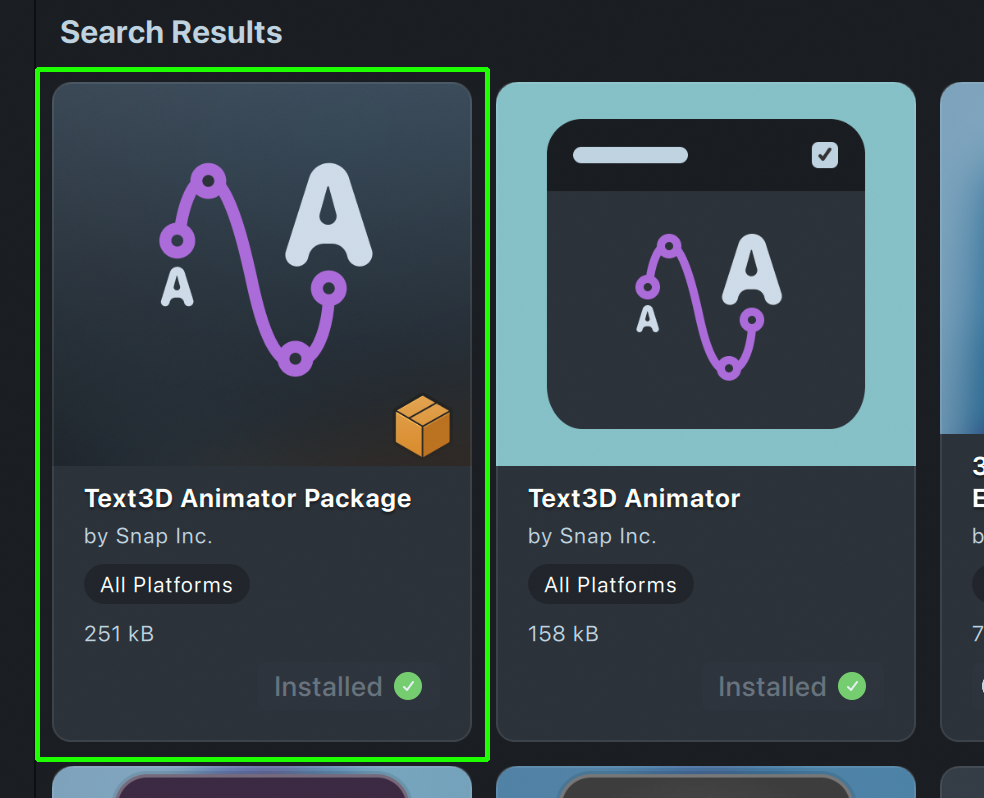
Install the Text3D Animator component and its package.
Target Settings
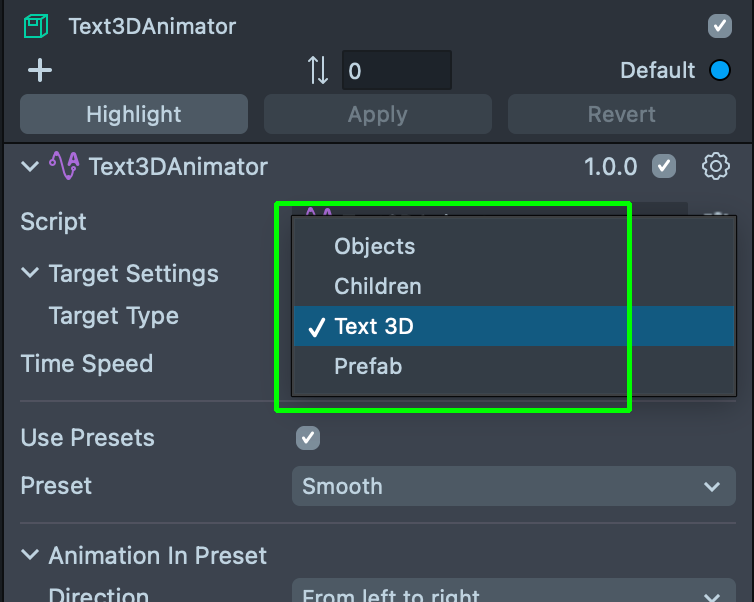
Target Type chooses how the component builds the list of objects to animate:
| Type | Description |
|---|---|
| Objects | Uses the Targets array. Add the SceneObjects you want, in the order they should run. |
| Children | Uses every direct child of the SceneObject that has Text3D Animator. You don't fill Targets. |
| Text 3D | Splits 3D Text on the same object into per-character meshes, then animates those pieces in order. |
| Prefab | Spawns an instance of Prefab under this object. Set Prefab Content Type to Children to animate that instance's children, or Text 3D to split and animate it. |
In/Out Preset Parameters
Pick a preset from the Preset dropdown to set the curves for the In and Out phases.
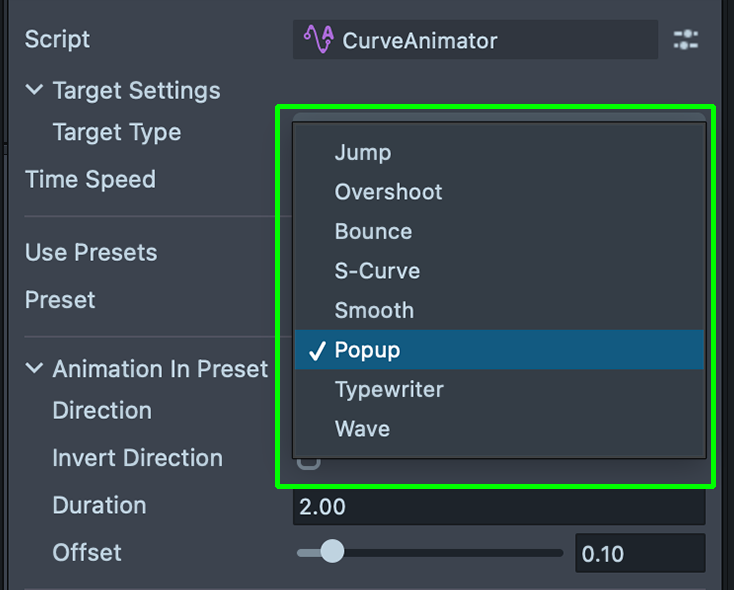
A full animation runs in three phases: an In entrance, an optional Idle loop, and an Out exit. The chosen preset drives the In and Out curves; Idle is configured separately.
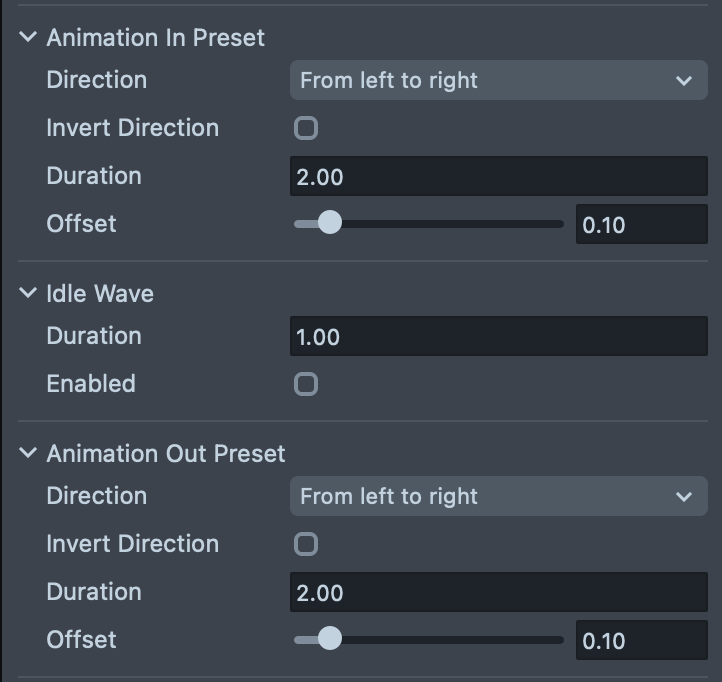
When you turn on Use Presets, you can adjust:
| Parameter | Type | Description |
|---|---|---|
| Direction | enum | How motion runs along text or through a list of objects. • Left to Right • From Center • Random |
| Invert Direction | boolean | Reverses Direction. Available for all modes except Random. |
| Duration | number | Length of the animation in seconds. |
| Offset | number | Delay between each object's start time. Sets the phase. |
Idle Parameters
Turn on Idle with the Enabled checkbox. Then set:
| Parameter | Type | Description |
|---|---|---|
| Duration | number | Length of the idle phase in seconds. |
| Wave Type | enum | Shape of the looping wave. • Sine • Triangle • Square • Sawtooth |
| Wave Length | number | Frequency of the wave across the target list. |
| Speed | number | Wave speed multiplier. |
| Rotation Strength | vec3 | How much objects rotate on each axis. |
| Position Strength | vec3 | How much objects move on each axis. |
Advanced Setup
Manual Curves
Turn off Use Presets to edit by hand. Turn on Scale, Rotation, and Position one by one.
For Position, use Invert Position Alternate to swap direction for each object. Set 1 on an axis to flip motion on that axis for every other object.
Custom Property
Turn on Custom Property. Type your material Property Name. Control how objects show or hide with the material or your own effects.
Callbacks
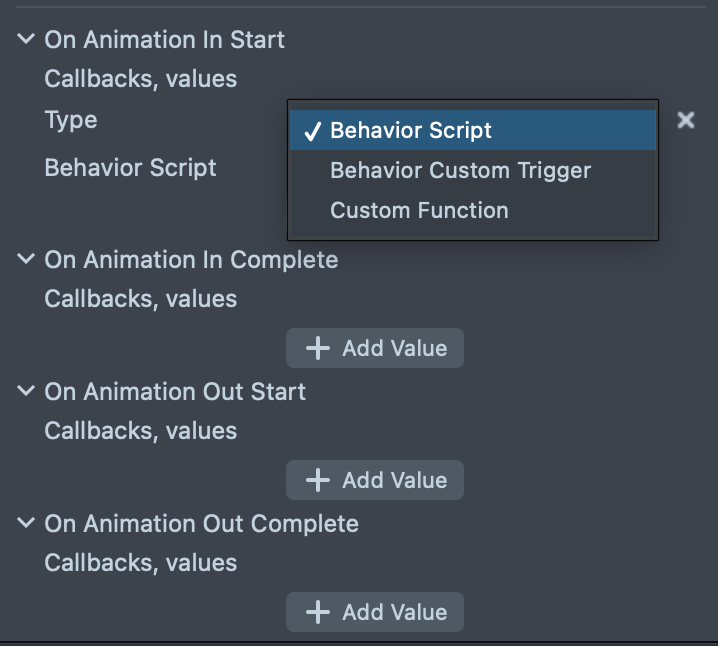
The component adds four EventCallbackSettings lists in the Inspector: Animation In Start, Animation In Complete, Animation Out Start, and Animation Out Complete. Each list runs its items in order at the matching event.
For each callback item, pick one of these:
| Type | Description |
|---|---|
| Behavior Script | Calls trigger() on a Behavior script you pick. |
| Behavior Custom Trigger | Sends a named custom trigger with behaviorSystem. |
| Custom Function | Calls a named function on another script. You can pass extra data on this path. |
Scripting API
You can control Text3D Animator from script. The Asset Library package exports the Text3DAnimator TypeScript class. Reference it with an @input, then call methods or subscribe to events.
Methods
| Method | Description |
|---|---|
show(): void | Plays the full sequence: animation in, idle wave (if enabled), then animation out after the combined in + idle duration ends. |
playIn(): void | Resets all targets to their off state and plays only the in animation. Does not auto-trigger out. |
playOut(): void | Plays only the out animation from the current state. |
stop(): void | Stops the update loop immediately and cancels any pending auto playOut scheduled by show(). |
Triggering from Behavior
You can call any of these methods from a Behavior script without writing code.
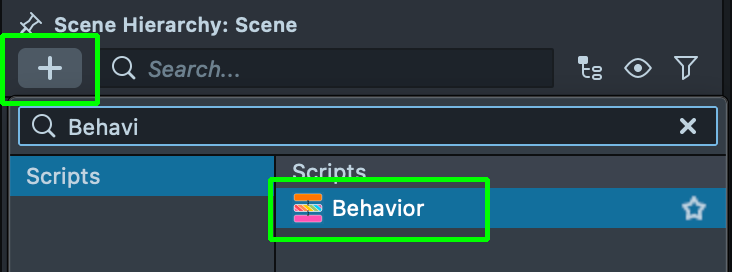
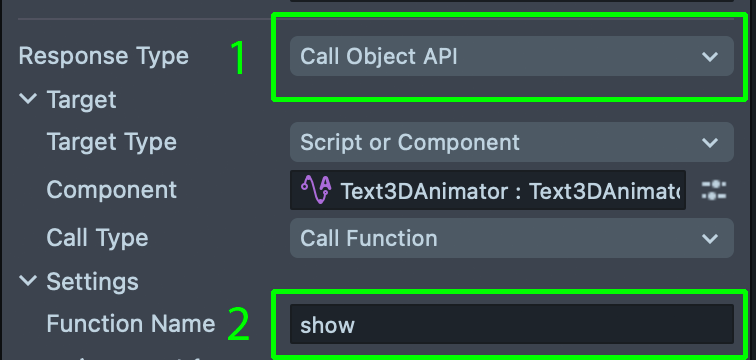
In Scene Hierarchy, add a new object. Add a Behavior script. Set Response Type to Call Object API. For Function name, type a method name such as show. Test in the Preview panel with Tap, for example.
Events
Text3DAnimator exposes four EventSubscription events you can subscribe to. For the Inspector-only equivalent, see Callbacks.
| Event | Payload | Fires when |
|---|---|---|
animationInStart | void | The in animation begins (first frame of playIn() or show()). |
animationInComplete | void | The in timeline reaches its full duration. |
animationOutStart | void | The out animation begins (first frame of playOut() or the auto-out from show()). |
animationOutComplete | void | The out timeline reaches its full duration. |
Each event supports add(), addOnce(), and remove() for managing listeners.
Example: Play and Listen to Events
- TypeScript
- JavaScript
import { Text3DAnimator } from 'Text3D Animator.lsc/Text3D Animator Resources/Text3DAnimator';

@component
export class Text3DAnimatorExample extends BaseScriptComponent {
  @input
  text3dAnimator: Text3DAnimator;

  onAwake() {
    // Subscribe to animation events
    this.text3dAnimator.animationInStart.add(() => {
      print('Animation IN started');
    });

    this.text3dAnimator.animationOutComplete.add(() => {
      print('Animation OUT complete');
    });

    // Play the full show sequence
    this.text3dAnimator.show();
  }
}
//@input Component.ScriptComponent text3dAnimator

function onAwake() {
  // Subscribe to animation events
  script.text3dAnimator.animationInStart.add(function () {
    print('Animation IN started');
  });

  script.text3dAnimator.animationOutComplete.add(function () {
    print('Animation OUT complete');
  });

  // Play the full show sequence
  script.text3dAnimator.show();
}

onAwake();