Developer Mode Using Cursor IDE
This guide will walk you through setting up Lens Studio's MCP server with Cursor IDE, allowing you to use AI-powered tools to control Lens Studio directly from your code editor.
Agents and skills can accelerate your AI's ability to build a Lens. Take a look at CLAD for an example. These agents and skills are optimized for SPECS, but some of the core skills and agents will apply to any Lens Studio workflow (for example, scene building, scripting, and assets generation)
This guide is provided to support developers using Cursor IDE, as we've seen its growing popularity across our developer community. For official Cursor MCP documentation, please refer to Cursor's MCP Documentation.
Prerequisites
- Cursor IDE installed on your system
- Lens Studio installed on your system
- Chat Tool Package installed from Asset Library (see Adding Additional Tools)
Setup Steps
You can give Cursor access to the Lens Studio MCP server in two ways:
- Open the project directly: Open your Lens Studio project folder in Cursor. Lens Studio exposes the MCP server from that folder, so Cursor can connect automatically with no manual setup. See the Developer Mode overview for details.
- Copy the MCP config manually: Copy the configuration from Lens Studio and add it to Cursor yourself, as described below.
The MCP server is per Lens Studio window. You can open another Lens Studio window, save your project in a different location, and have your AI work on multiple projects simultaneously.
1. Access MCP Settings in Cursor
First, you need to access the MCP configuration in Cursor. You can do this by:
- Typing
>mcpin the command palette at the top bar - Clicking on "View MCP Settings"
Alternatively, navigate to Tools and MCP and click on Add Custom MCP.

2. Open the MCP Configuration File
You will be directed to a .json file (typically mcp_config.json) where you can configure your MCP servers. This file may be empty initially if you haven't configured any MCP servers yet.
3. Start the MCP Server in Lens Studio
Go back to Lens Studio and start the MCP server:
-
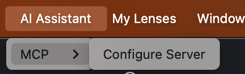
Open the Lens Studio menu bar
-
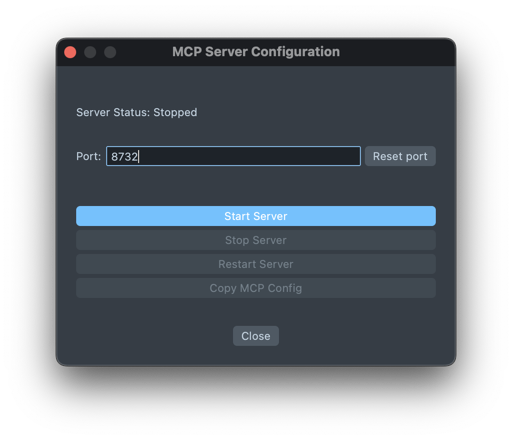
Click on AI Assistant > AI Model Context Protocol (MCP) > Configure Server
-
In the popup window, click Copy MCP Config
4. Copy the MCP Configuration
This will copy configuration details that look like this:
{
  "mcpServers": {
    "lens-studio": {
      "headers": {
        "Authorization": "Bearer [your-auth-token]"
      },
      "type": "http",
      "url": "http://localhost:50040/mcp"
    }
  }
}
5. Add Configuration to Cursor
Head back to Cursor and open the MCP configuration .json file.
If you already have other MCP servers configured:
Add the Lens Studio configuration to your existing mcpServers object:
{
  "mcpServers": {
    "existing-server": {
      "headers": {
        "Authorization": "Bearer your-existing-token"
      },
      "type": "http",
      "url": "your-existing-url"
    },
    "lens-studio": {
      "headers": {
        "Authorization": "Bearer [your-auth-token]"
      },
      "type": "http",
      "url": "http://localhost:50040/mcp"
    }
  }
}
If this is your first MCP server:
Your configuration will look like this:
{
  "mcpServers": {
    "lens-studio": {
      "headers": {
        "Authorization": "Bearer [your-auth-token]"
      },
      "type": "http",
      "url": "http://localhost:50040/mcp"
    }
  }
}
6. Enable the MCP Server in Cursor
Go back to Tools and MCP in Cursor. Your Lens Studio MCP server will now be available and ready to be enabled.
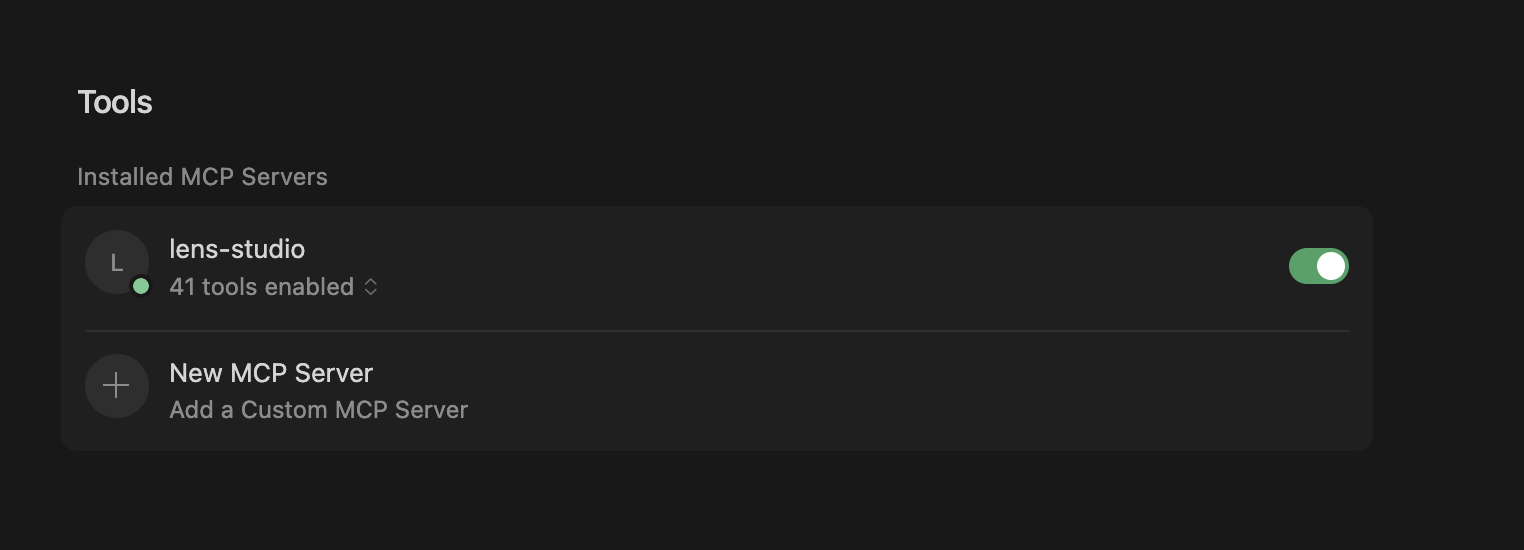
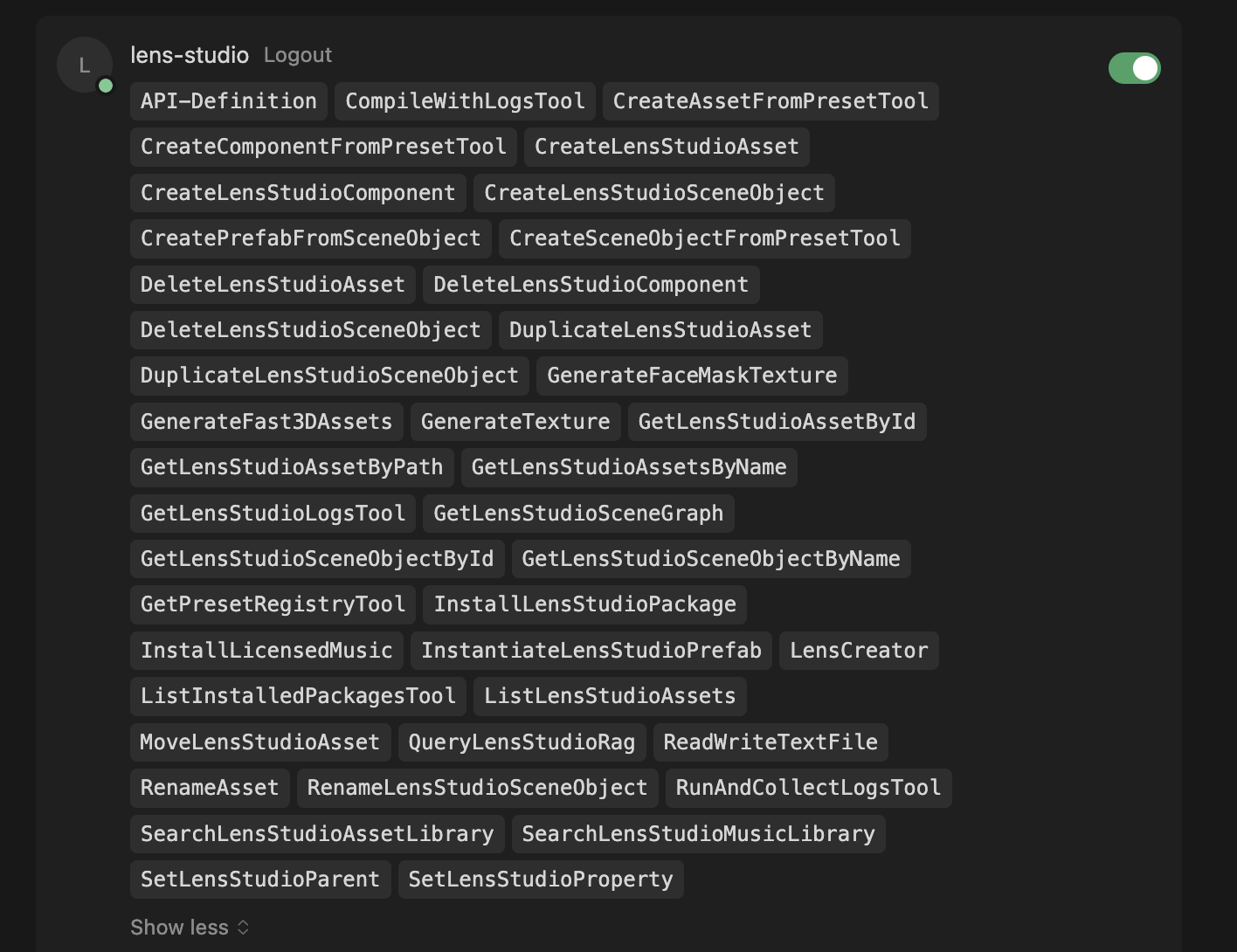
You can see all available tools by clicking on the tools count (for example, "xx tools enabled").
7. Start Using Lens Studio with Cursor
- Restart Cursor to ensure all changes take effect
- Start a new chat in Cursor
- Make sure your MCP server is still running in Lens Studio
- You can now use Cursor Chat to interact with and control your Lens Studio instance.
Here's an example of Cursor using the Lens Studio MCP tools. Notice how the AI assistant calls various tools like GetLensStudioSceneGraph and SetLensStudioProperty to interact with your Lens Studio project:
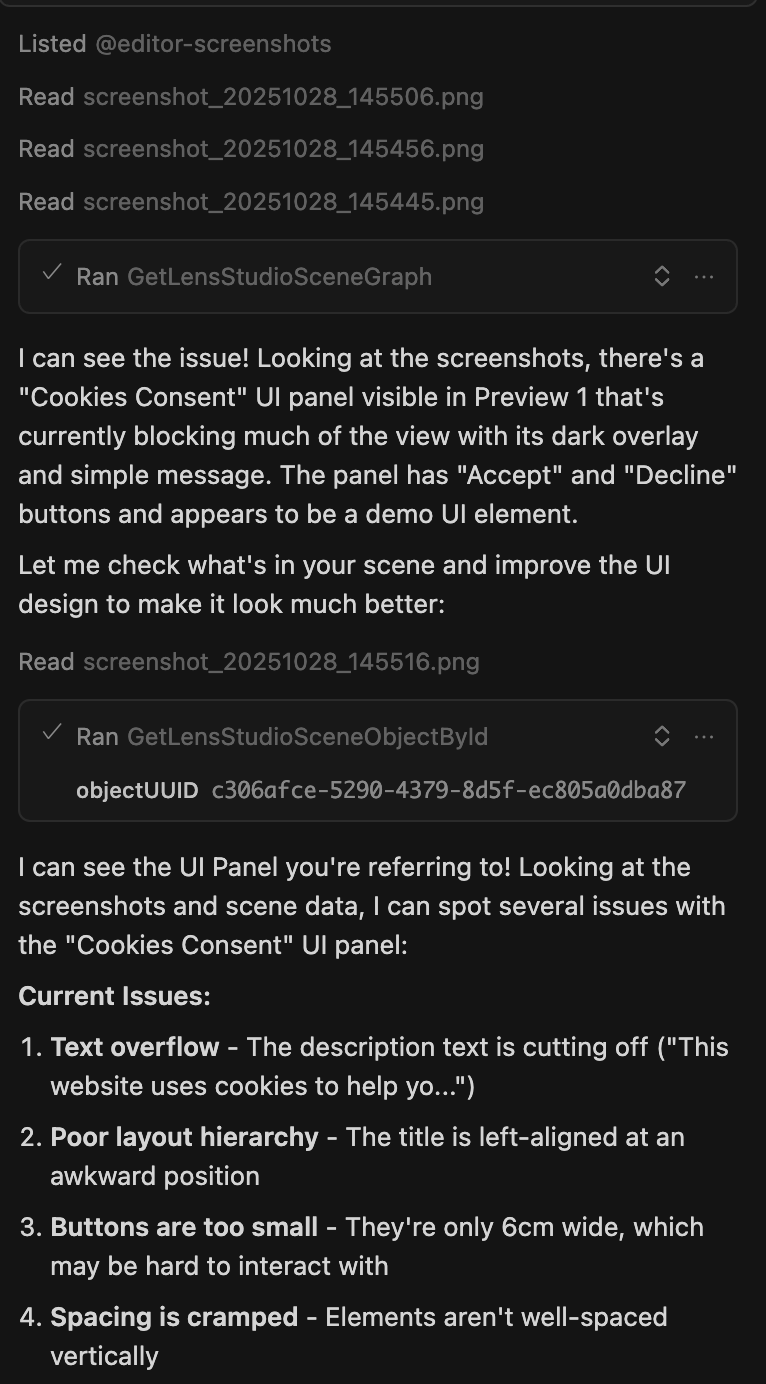
For optimal results, consider using the Example Prompt to help improve Cursor's performance with Lens Studio.
Using Cursor Rules for Better Results
Cursor Rules allow you to customize how the AI assistant behaves when working with your Lens Studio projects. By setting up rules, you can significantly improve the quality and relevance of the AI's responses.
What Are Cursor Rules?
Cursor Rules act as a system prompt that guides the AI assistant to:
- Follow specific workflows - Force the AI to go through certain tasks in a particular order
- Consider project context - Direct the AI to look across specific context folders for relevant information
- Adopt a specific style - Define how the AI should structure and format its answers
- Understand Lens Studio specifics - Inform the AI about Lens Studio conventions, APIs, and best practices
This knowledge helps the AI deliver more accurate and relevant results tailored to your Lens Studio development workflow.
Setting Up Cursor Rules
-
In Cursor, navigate to your project settings or create a
.cursorrulesfile in your project root.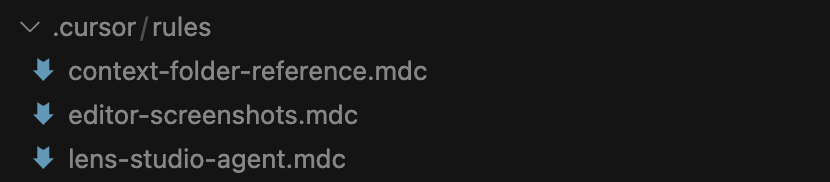
-
Add your custom rules that define how the AI should interact with your Lens Studio project. You can include information about:
- Lens Studio API conventions
- Your preferred coding style
- Common patterns in your project
- Specific workflows for Lens development
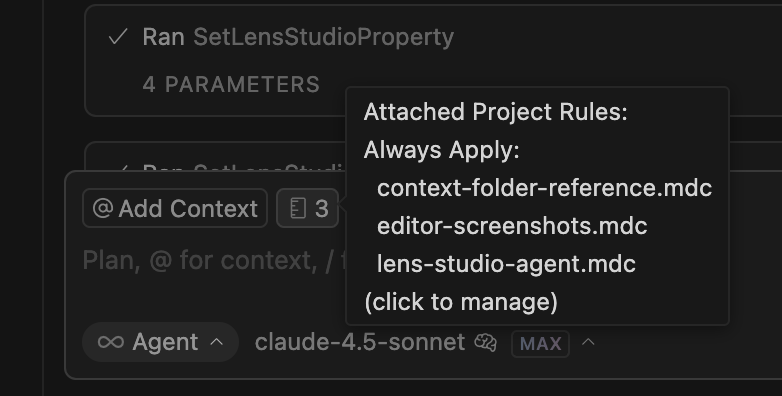
You can use the Example Prompt as a starting point for your Cursor Rules. This prompt includes comprehensive guidelines for working with Lens Studio's TypeScript API and MCP tools.
Next Steps
Now that you've connected Cursor to Lens Studio, you can:
- Ask questions about your scene structure
- Request modifications to objects and components
- Generate scripts and add interactivity
- Debug issues in your project
- Search and install assets from the Asset Library
The MCP server must be running in Lens Studio for the connection to work. If you close Lens Studio or stop the server, you'll need to restart it and potentially update the authorization token in your Cursor configuration.