Developer Mode
Developer mode in the Lens Studio AI allows you to use AI in the process of building your Lens. This mode incorporates small AI tools that allow you to perform various actions within Lens Studio (for example, list SceneObjects, setProperty, etc.). These tools are extendable (through plugins called ChatTools) and also accessible through the MCP server and can be utilized in the scripting editor of your choice.
Agents and skills can accelerate your AI's ability to build a Lens. Take a look at CLAD for an example. These agents and skills are optimized for SPECS, but some of the core skills and agents will apply to any Lens Studio workflow (for example, scene building, scripting, and assets generation)
Take a look at the Example Prompt to see an example prompt for your code editor / software that can help improve its performance with Lens Studio.
Launching Lens Studio AI
-
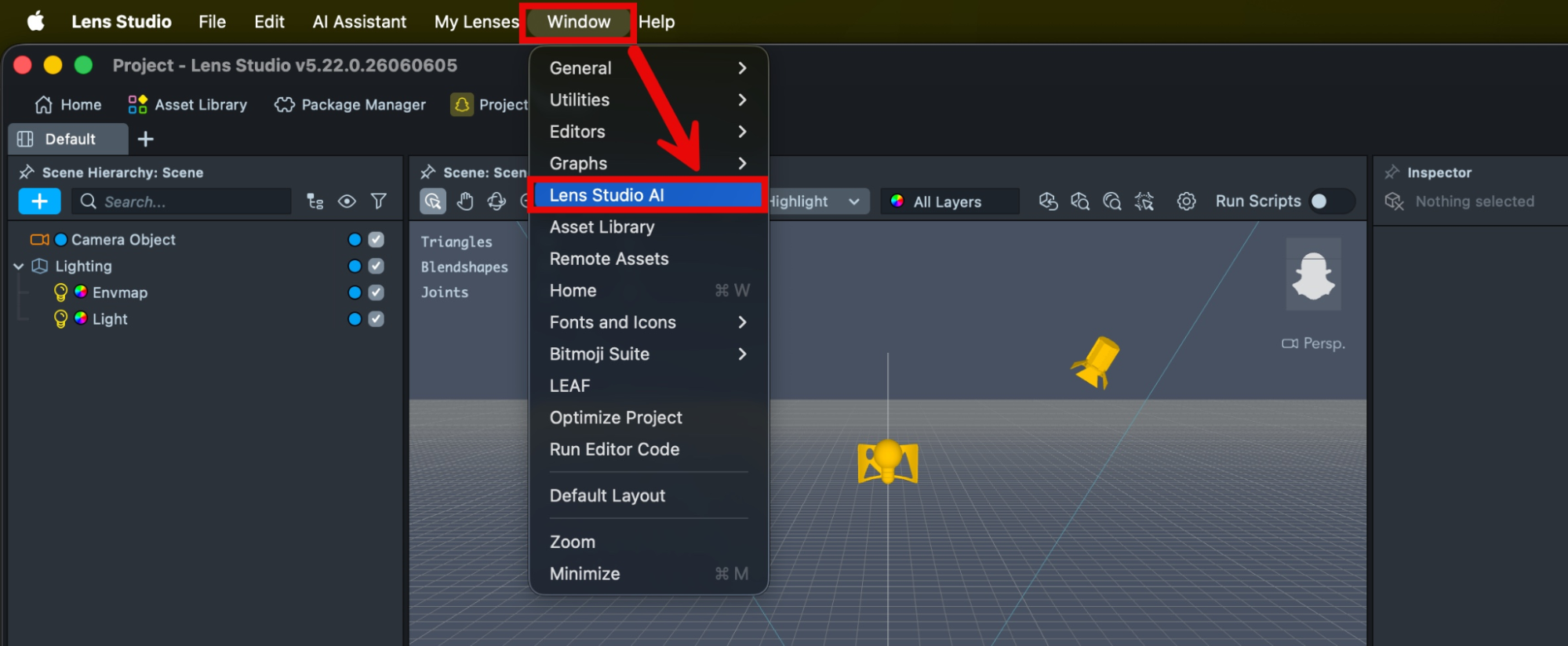
With Lens Studio open, select Window > Lens Studio AI from the menu bar.
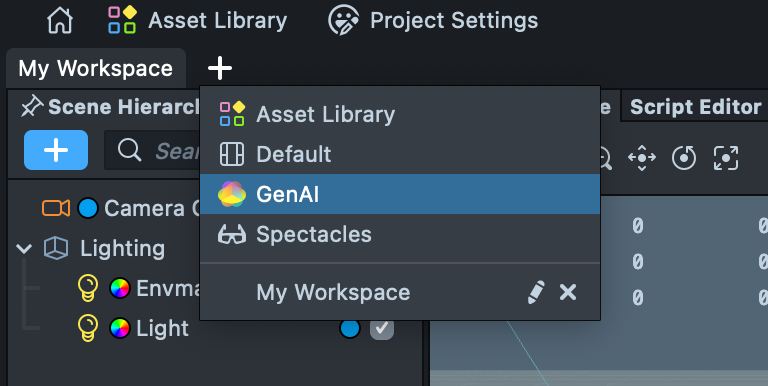
Alternatively, you can create a new Workspace:
-
Within the Lens Studio AI panel that appears, you can select the dropdown to switch between Developer Mode and Creator Mode.
Interacting with the panel
-
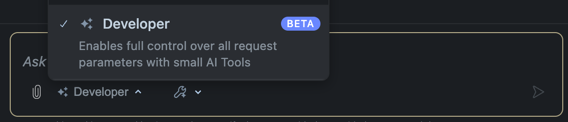
You can enable Developer mode by toggling the mode drop-down at the bottom of the chat panel where the chat box is.
-
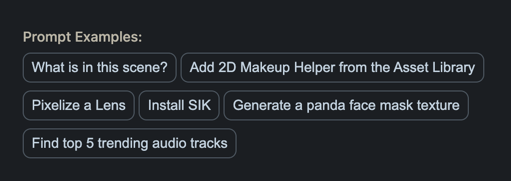
You can try one of the example prompts by clicking on them, and pressing enter. Notice that you can ask it to analyze your scene, ask it to debug, add things from the asset library, find trending music, and more.
-
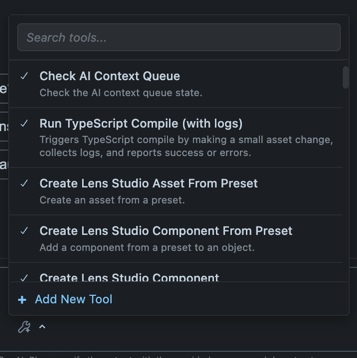
Key to the way Developer mode works is the tools it has access to. These tools allow an AI agent to interact with Lens Studio
Interacting with the AI
-
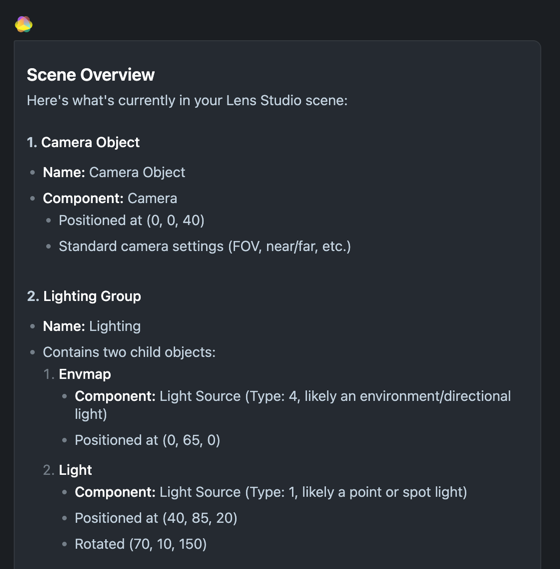
For example, if you ask the AI what's in the scene, it will call the built-in
Get Scene Graphtool to give you the answer.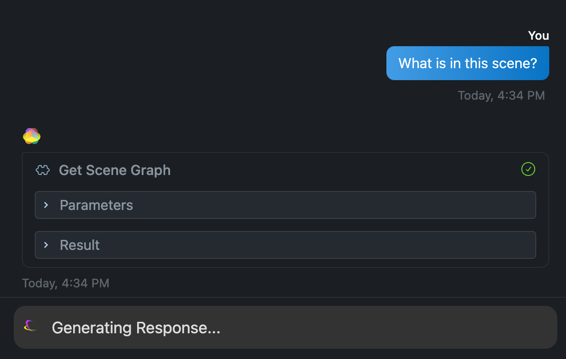
-
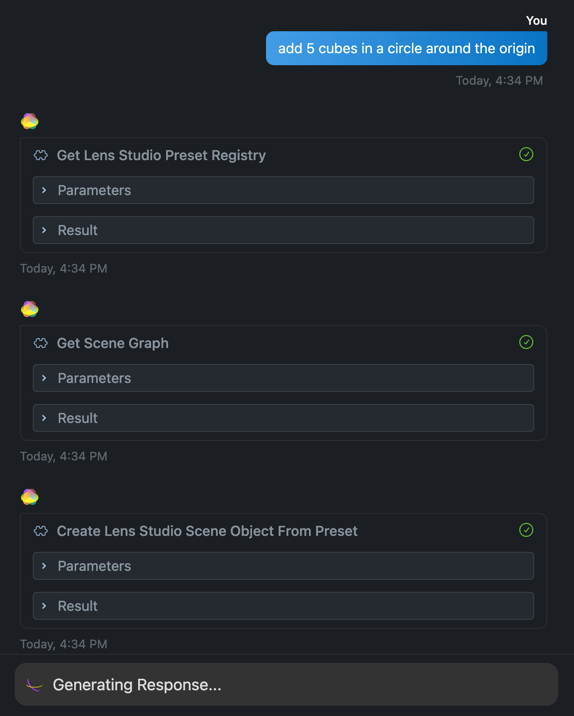
You can ask it to modify your scene. In some cases, the AI will use multiple tools to answer your prompt.
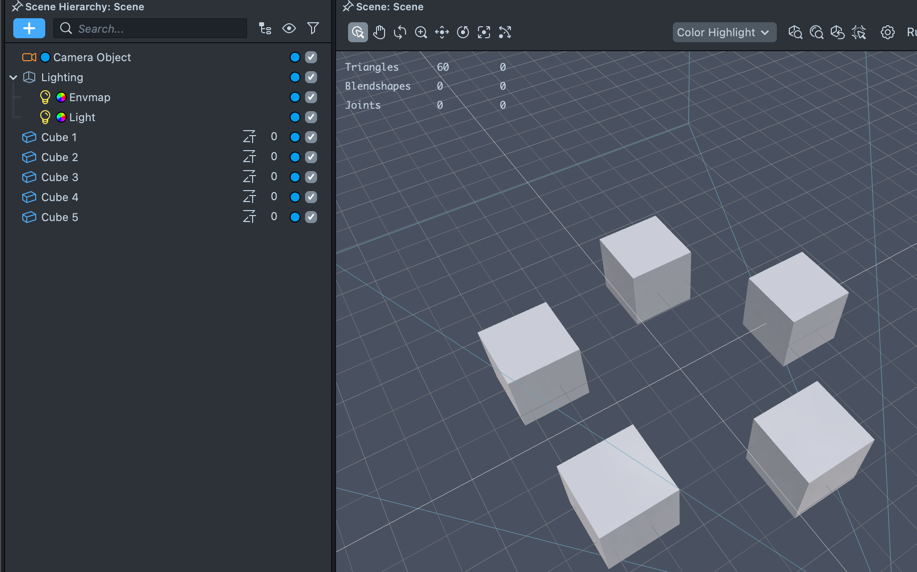
-
You can provide follow-up request as well.
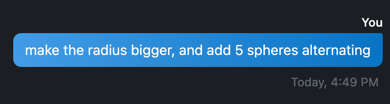
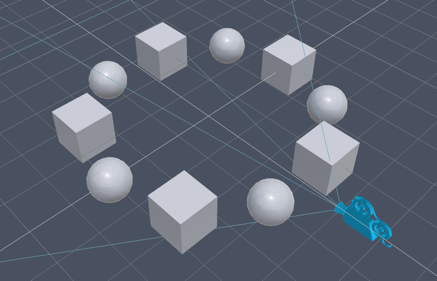
AI will start to lose context the longer a conversation becomes, so at times you might want to start a new conversation to make sure it doesn't lose focus.
-
You can ask the AI to add interactivity, and it will try to make a script for you.
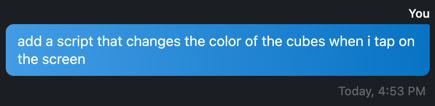
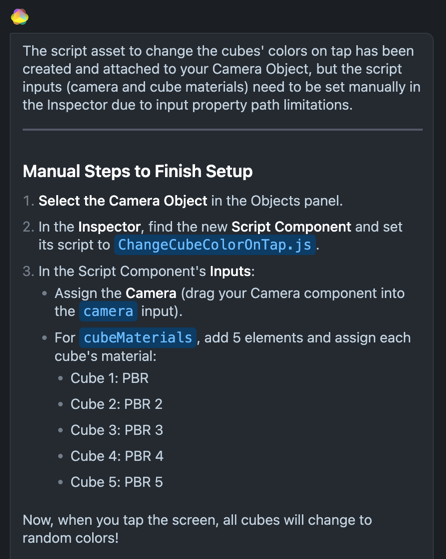
-
If you have an error in your project, or the AI makes a mistake, you can ask it to double check its work, or help you fix it.
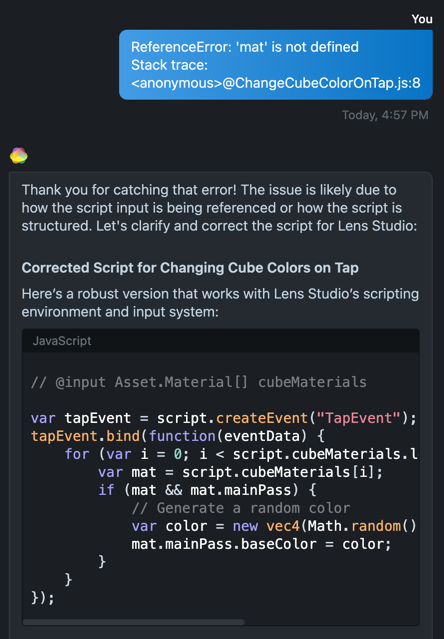
-
To help you learn, the AI will give you instructions on how to do the things you want to achieve. But you can tell the AI to do it for you as well.
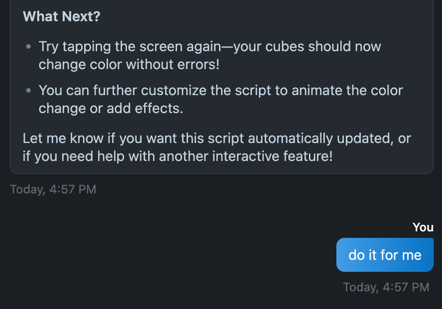
Adding Additional Tools
As you start to develop more specialized Lenses, you might want to add your own tools.
Tools are just Lens Studio plugins, that extend the ChatTool class.
You can find additional ChatTools in the Asset Library.
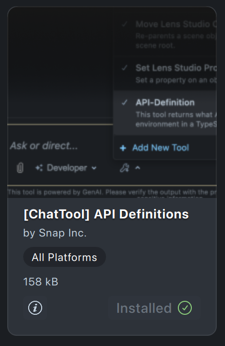
Once installed, you will find it in the tools list.
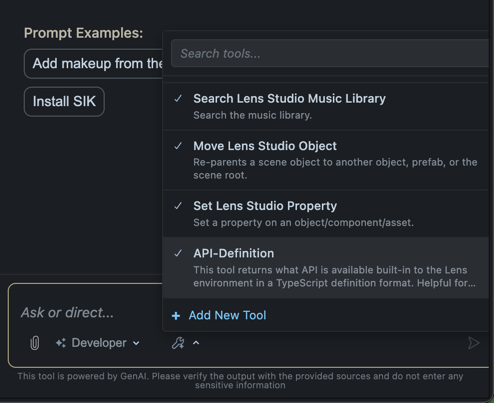
You can also add a Chat Tool by pressing the Add New Tool in the tool configurator.
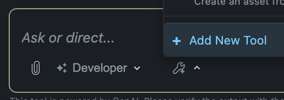
Since these are just tools, you can manage them in the Lens Studio Preferences. You can even include a folder with many tools, and share it with your team.
Using Lens Studio AI with other LLMs
You can expose these various tools using MCP to be accessed by other AI agents, or code editors.
To have your AI agents have access to the Lens Studio MCP server, you just need to have your terminal/editor be in the Lens Studio folder when starting up.
The MCP server is per Lens Studio window. You can open another Lens Studio window, save your project in a different location, and have your AI work on multiple projects simultaneously.
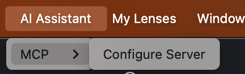
In the Lens Studio menu bar, click AI Assistant > AI Model Context Protocol (MCP) > Configure Server.
In the popup window, click Copy MCP Config.
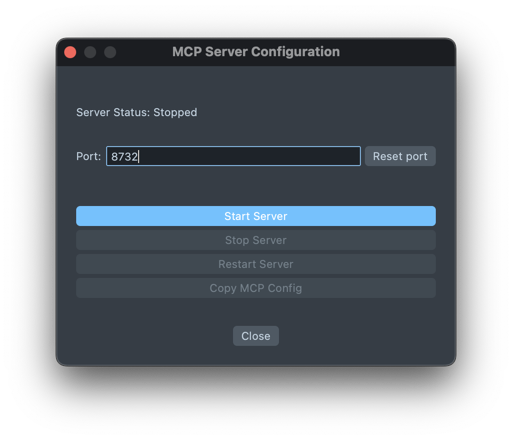
In your clipboard, you will get something like this:
{
  "mcpServers": {
    "lens-studio": {
      "headers": {
        "Authorization": "Bearer [some key]"
      },
      "type": "http",
      "url": "http://localhost:50040/mcp"
    }
  }
}
Please refer to your software's documentation for instructions on how to use this configuration.
Take a look at the Example Prompt which you can use to optimize your code editor's performance when working with Lens Studio.