Hand Mesh
The Hand Mesh feature provides a 3D mesh that mimics the user's hand in real time. It gives you an accurate hand surface for rendering, mesh effects, and attaching objects, without having to set up a separate 3D hand model.
Like Face Mesh and Body Mesh, Hand Mesh can be used anywhere a mesh may be used.
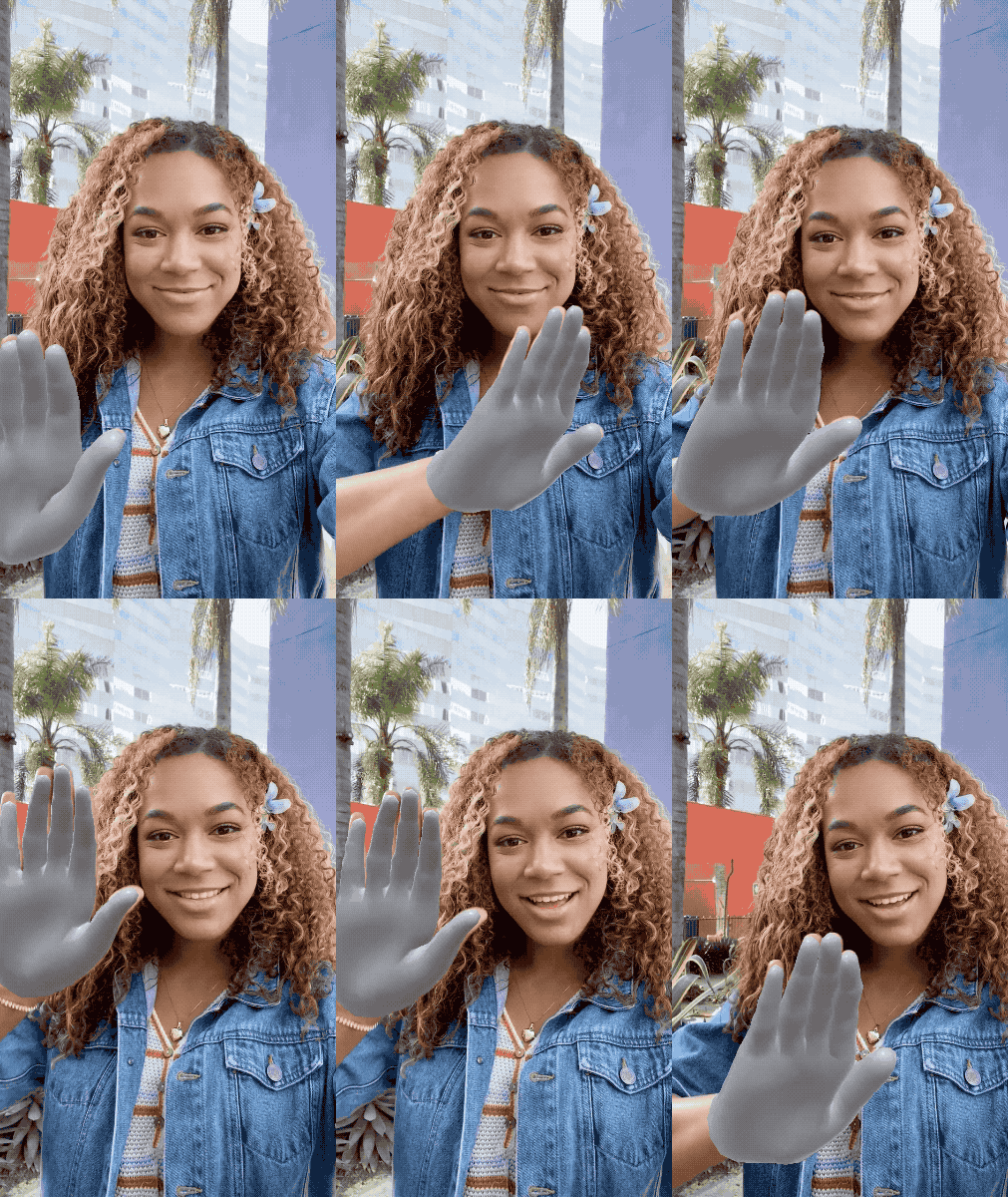
Adding a Hand Mesh
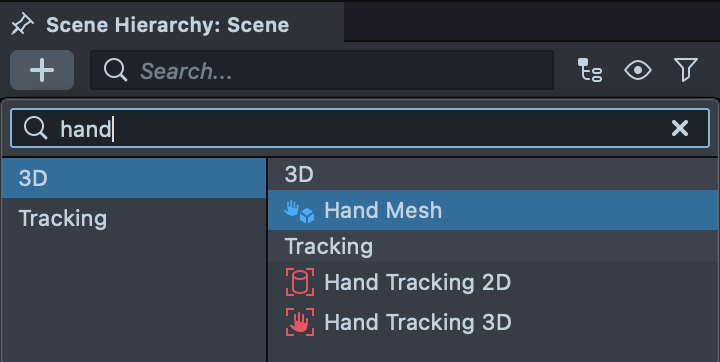
To add a Hand Mesh to your project, go to the Scene Hierarchy panel, press the + button, and select Hand Mesh. This sets up the object and a Hand Mesh asset in a single step.
You can then apply a material to the Render Mesh Visual to control how the hand appears in your Lens.
Hand Mesh Settings
Select the Hand Mesh asset in the Asset Browser panel to adjust its settings in the Inspector panel:
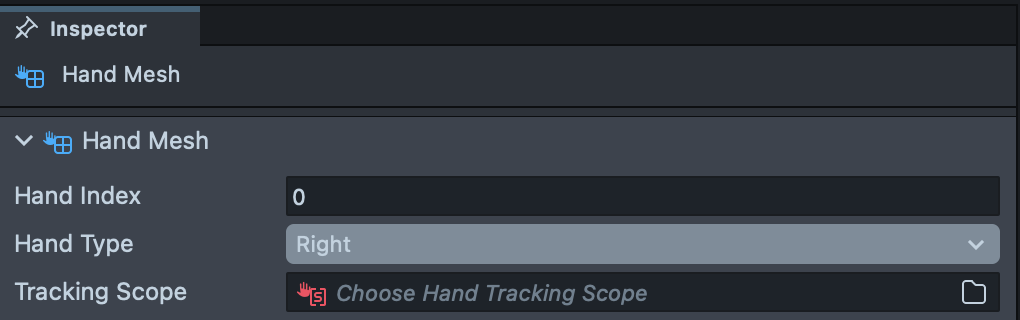
- Hand Type: Whether the mesh tracks the
LeftorRighthand. - Hand Index: Which tracked hand instance the mesh corresponds to. The first detected hand has an index of
0, the second an index of1, and so forth.
Attaching Objects to the Hand
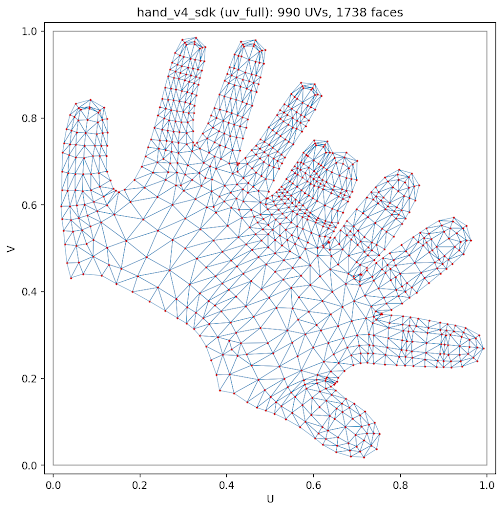
To attach an object to the hand surface, add a Pin To Mesh component to it and set the Hand Mesh render mesh visual as the target. Adjust the Pin UV coordinates to control where on the hand the object is pinned.
Both the left and right hand share the same UV space, so a texture or pinned position maps consistently across hands.
To track the hand on a custom texture (such as a Media Picker texture, dual camera, or an embedded video), use a Tracking Scope.