Texture Generator
The Texture Generator lets you create textures from text prompts, making it straightforward to produce unique designs and materials. Whether you need city landscapes for backgrounds, fabric patterns, metal surfaces, wood textures, or abstract visuals, the plugin offers the flexibility to match any project’s style.
Getting Started
-
Navigate to the
Lens Studio AIoption in the top right corner of the Lens Studio. Then, click on theGenAI Suitetab in the sidebar.
-
On the
GenAI Suitetab, you may need to scroll down to find Texture Generator.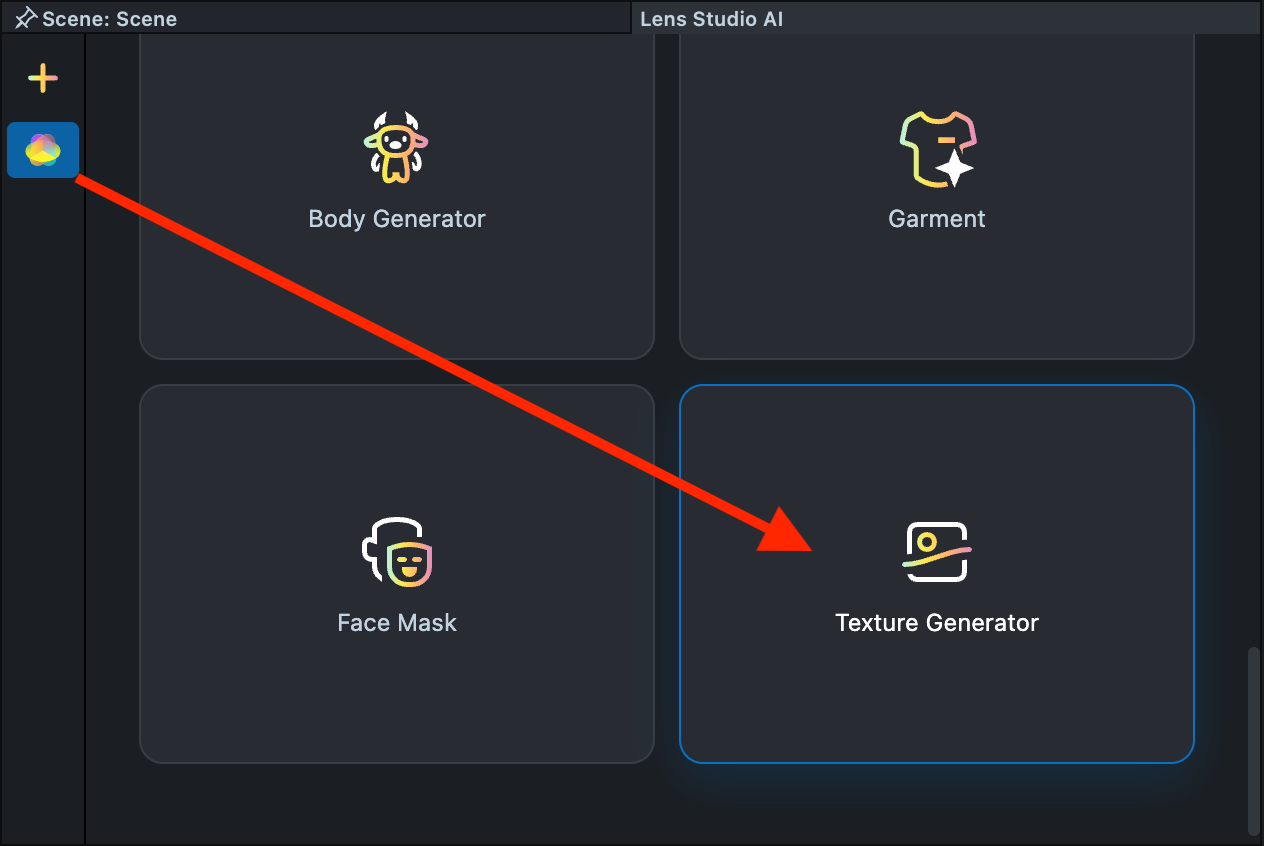
Effect Creation flow
-
Click the
Surprise mebutton to try one of the default prompts and get familiar with the model.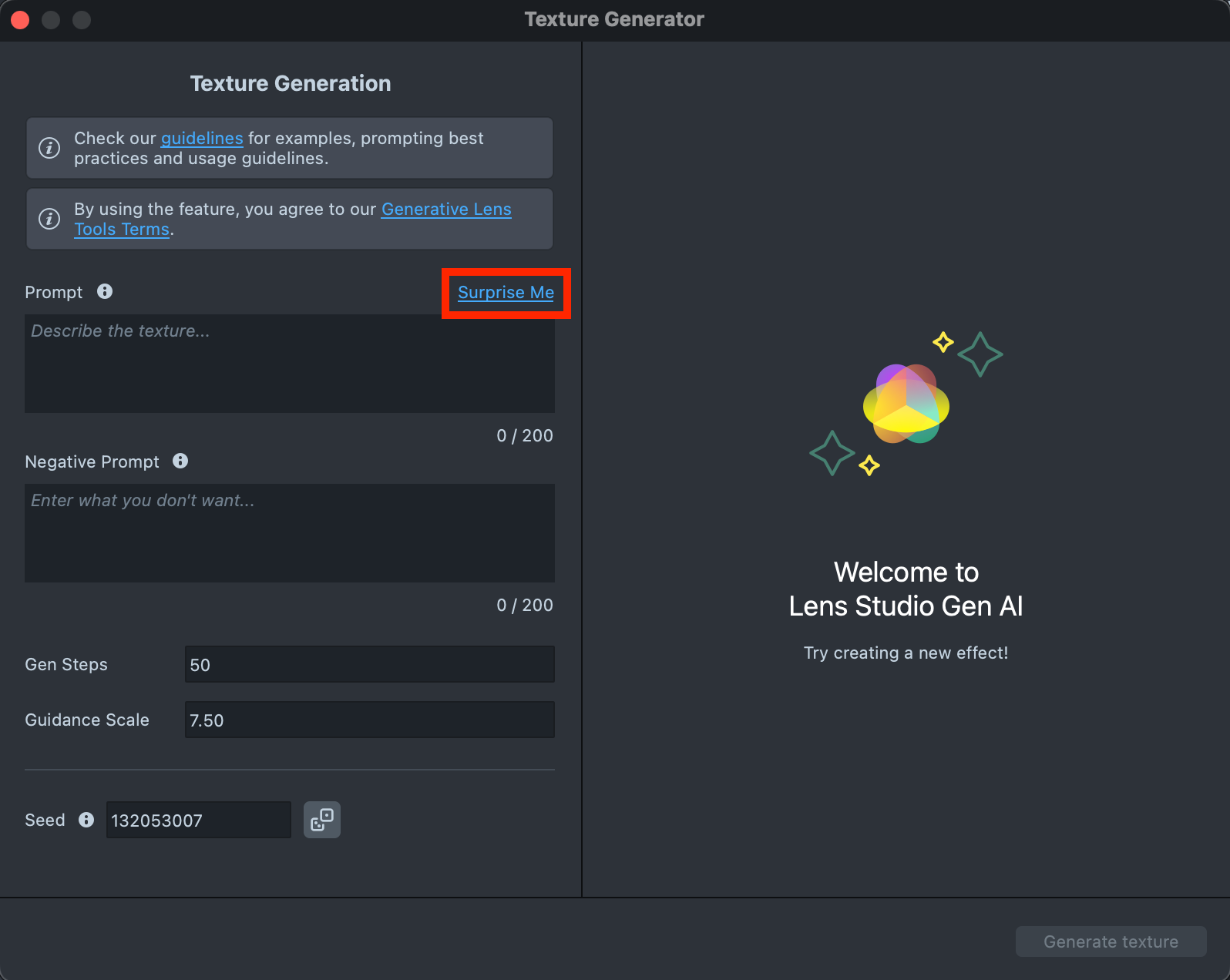
-
If you are ready to use your own prompt, enter a description of the texture you’d like to generate in the
Prompttext field (up to 200 characters).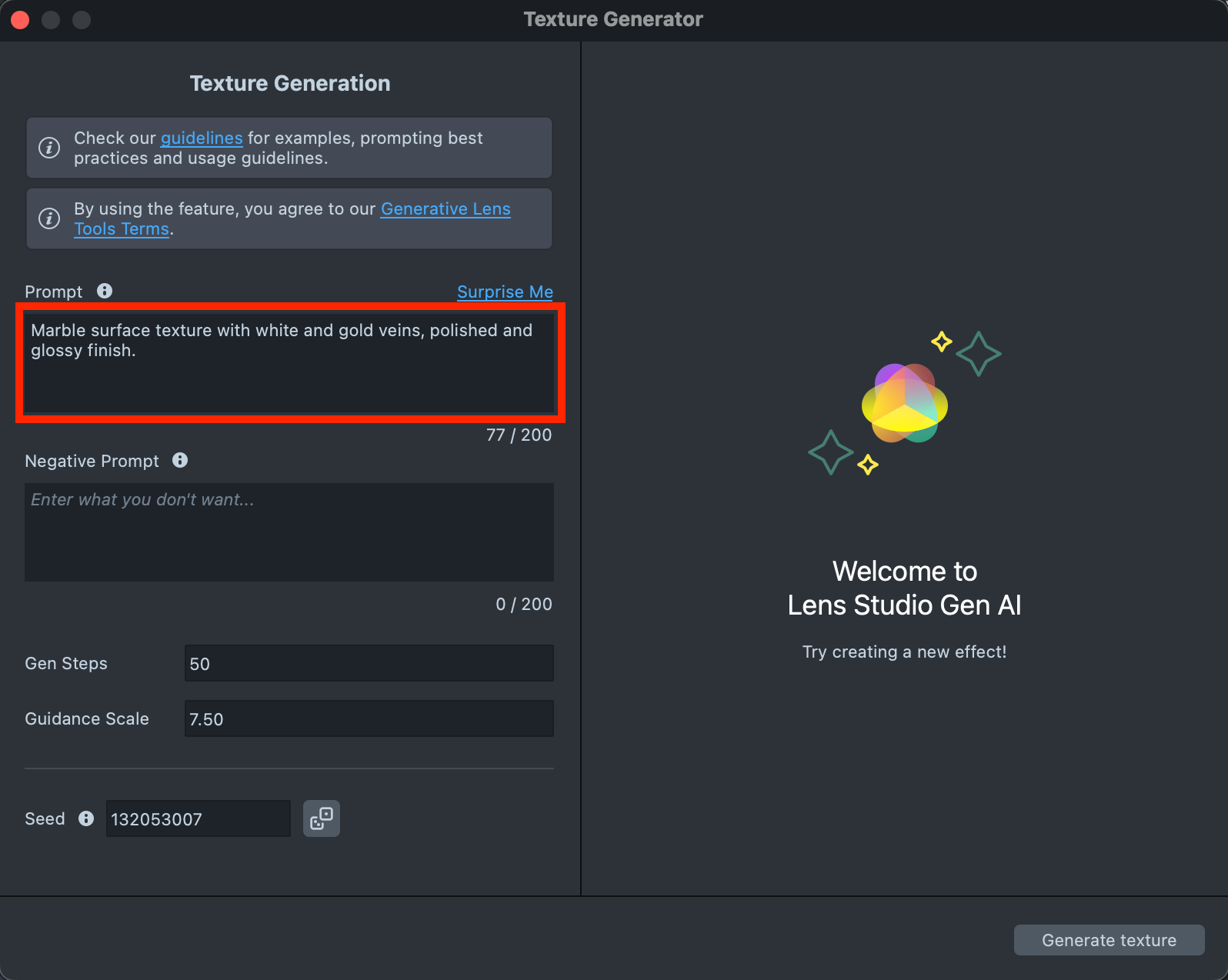
-
When your prompt is ready, press the
Generate texturebutton to generate the texture.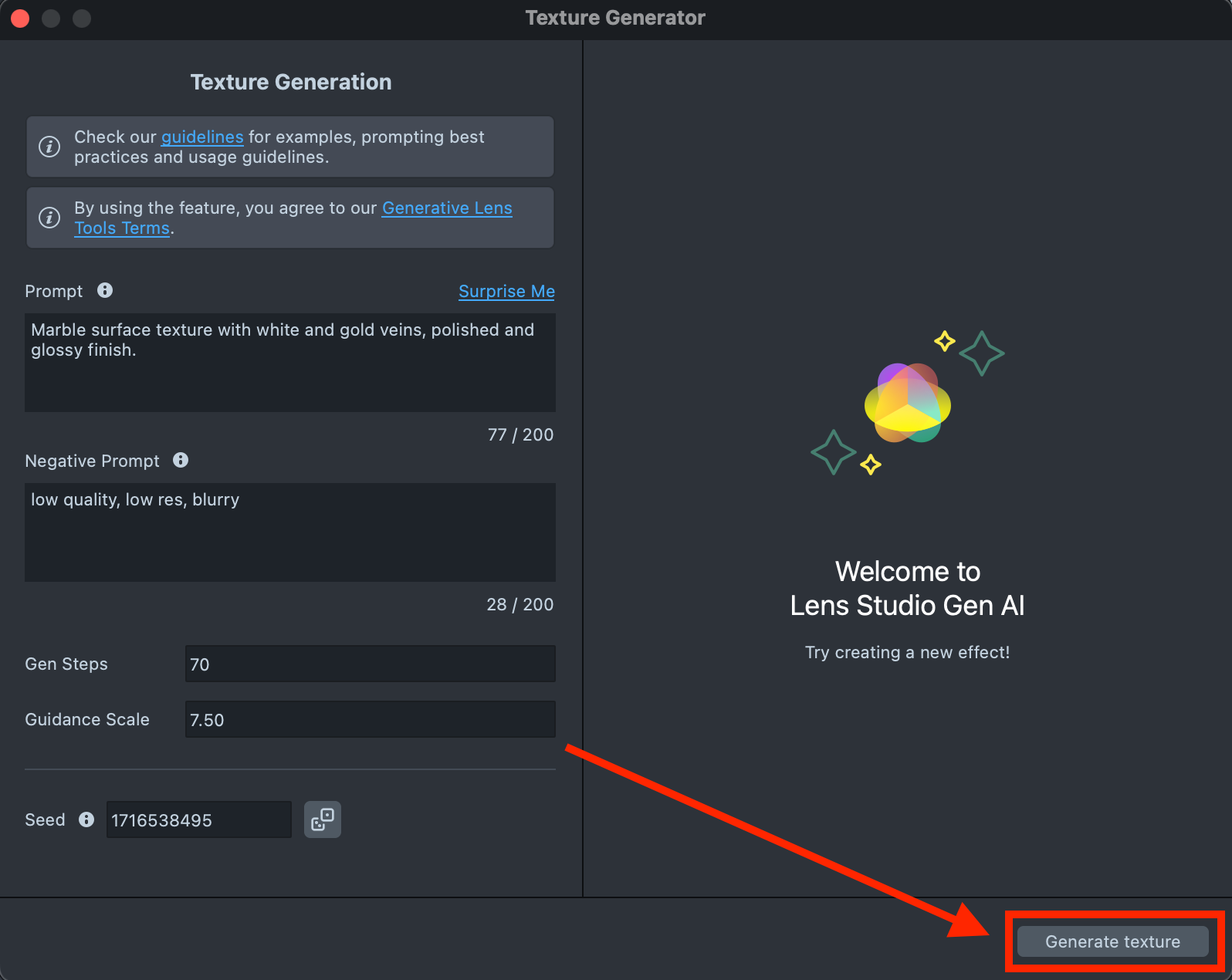
-
If the preview doesn’t meet your expectations, adjust the prompt to explore alternative visual outcomes. When you’re ready, click
Regenerateto create a new preview.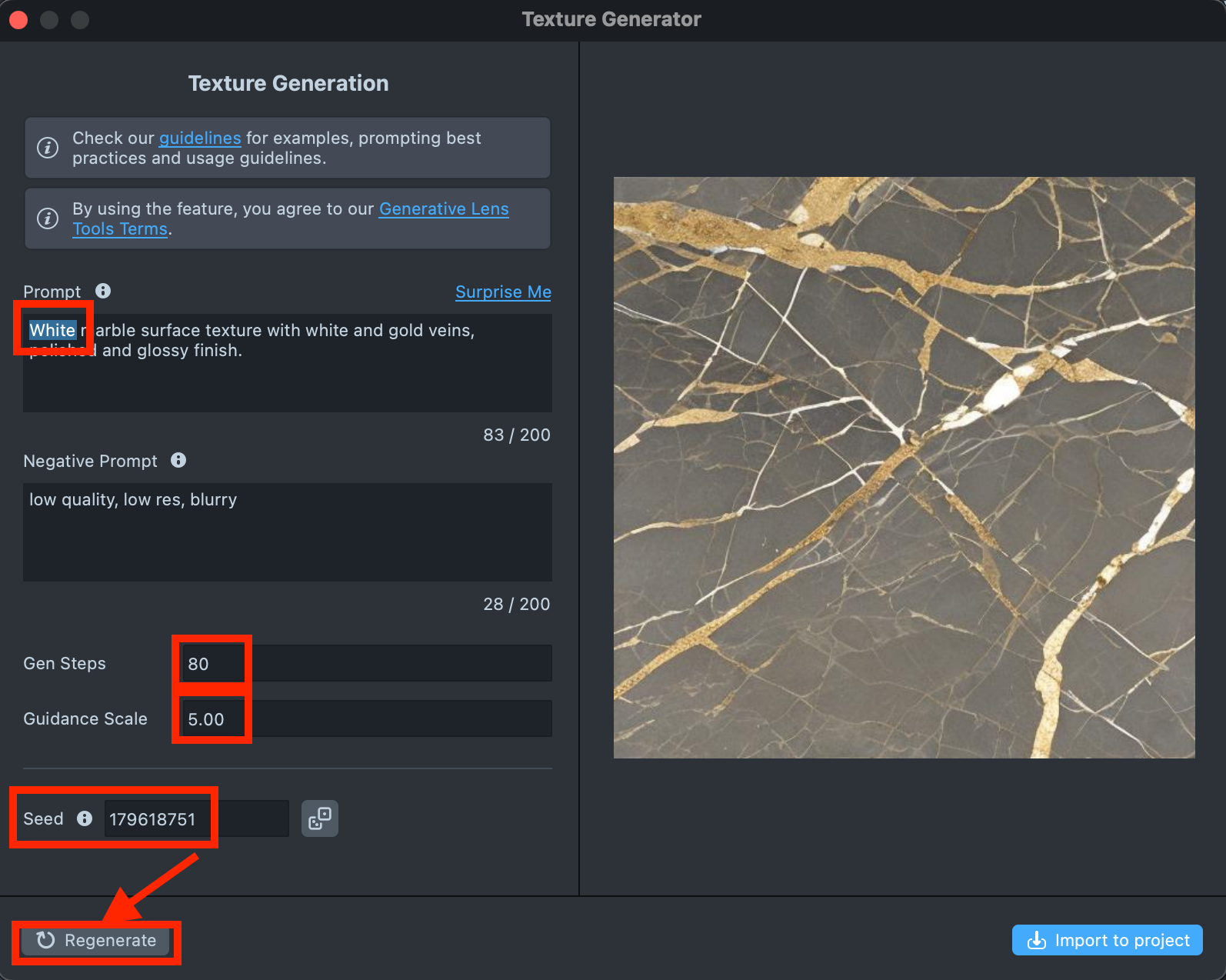
-
Happy with the result? Click
Import to projectto continue building your Lens.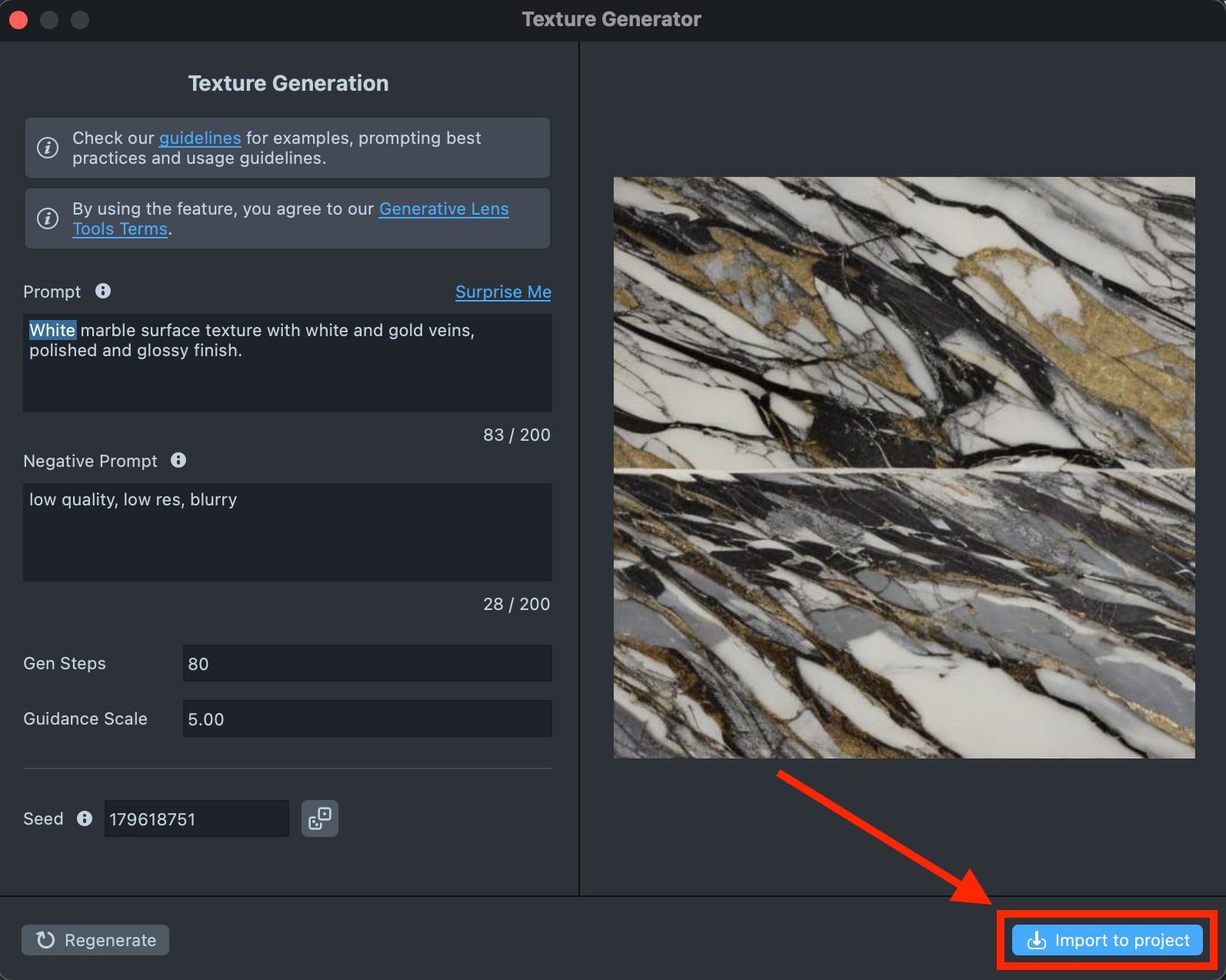
-
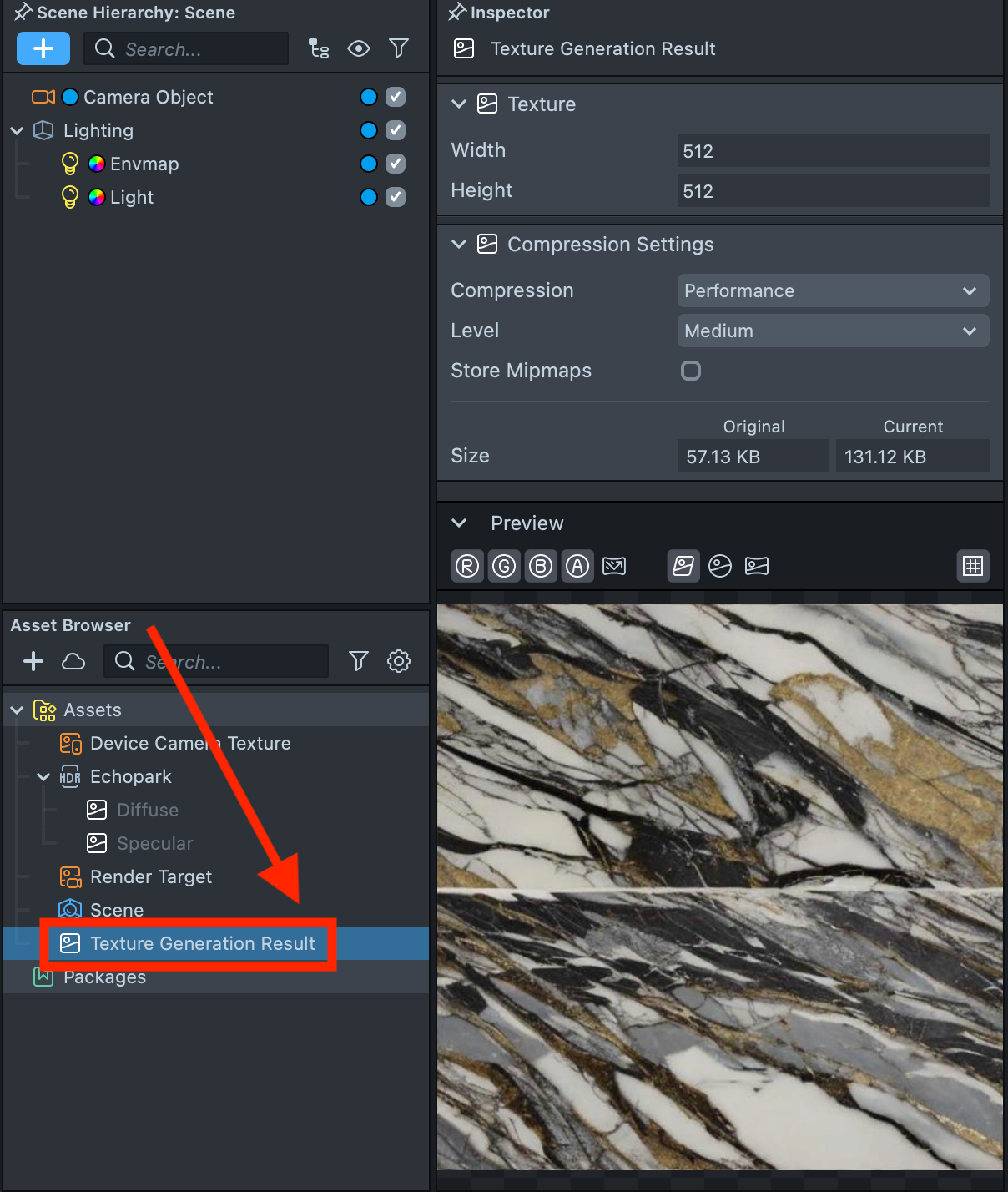
The generated texture appears in the Asset Browser, in a package folder named Texture Generation Result.