AI Photo Duo
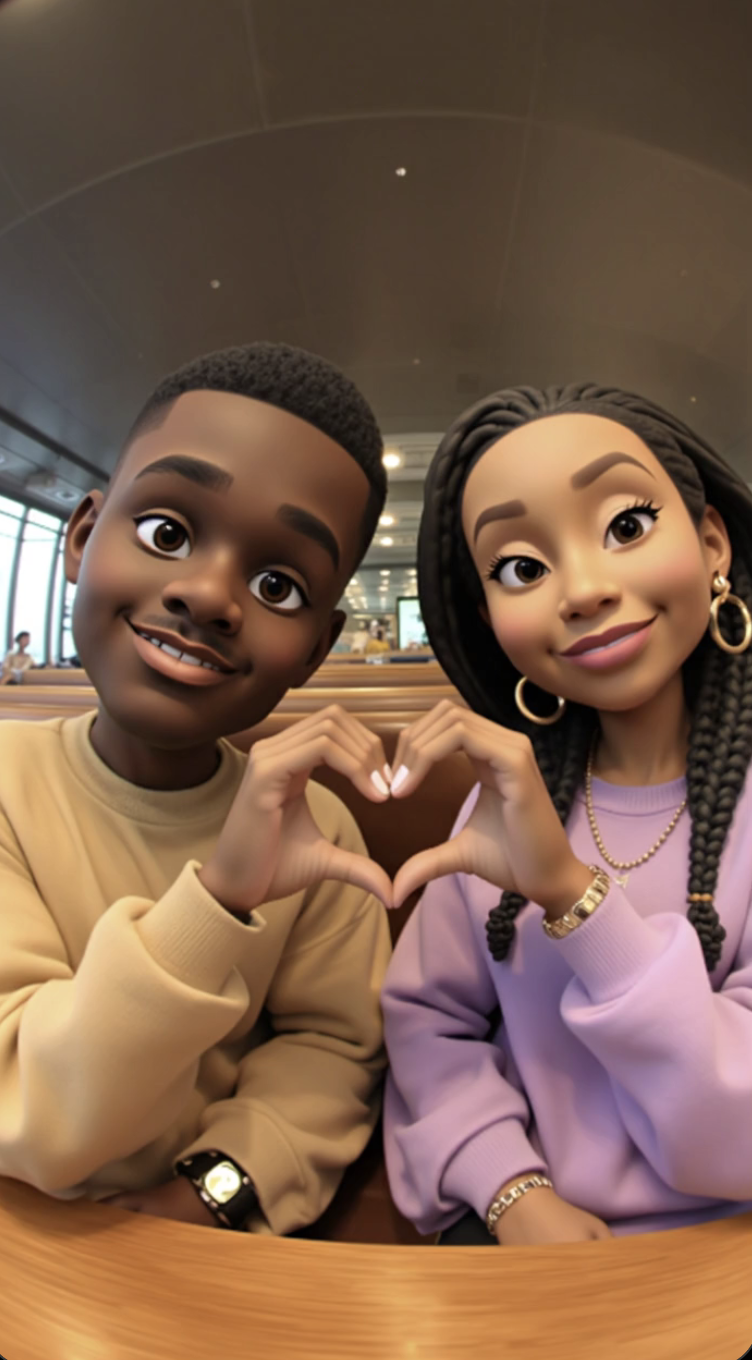
AI Photo Duo plugin lets creators build Lenses that generate an AI-transformed photo of two people: the Snapchatter and a selected friend. Each Lens applies a unique embedded prompt to a captured selfie. You can change style, outfit, props, appearance, or the background for both people in a single still image. Snapchat calls these on-device still Lenses AI Snaps.
Getting Started
Only Lens+ subscribers can use Lenses created with the AI Photo Duo plugin. Using AI Photo Duo doesn't automatically enroll you in Lens+ Payouts. To begin monetizing your Lenses, apply here.
Launching AI Photo Duo
- Navigate to the
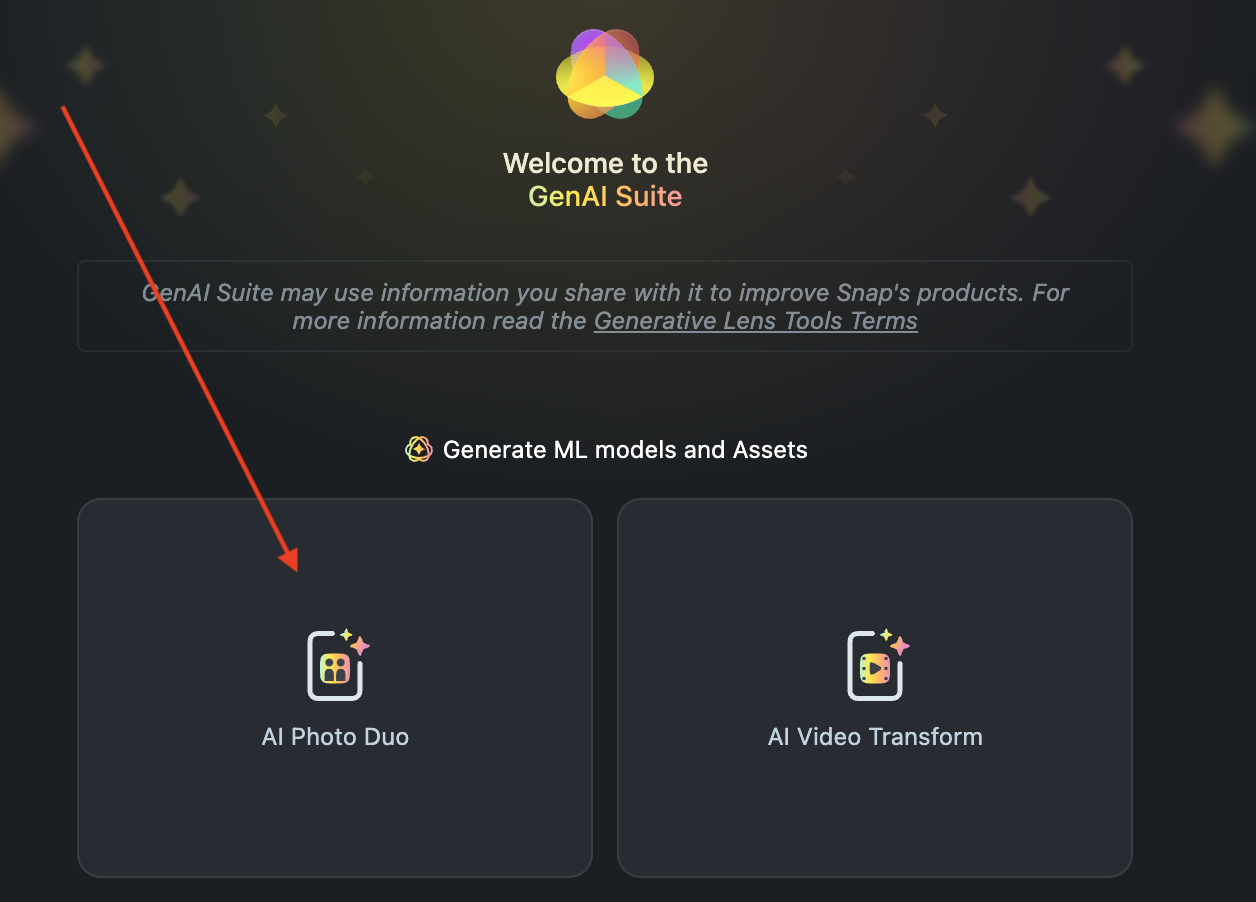
Lens Studio AIoption in the top right corner of the Lens Studio. Then, click in theGenAI Home Pagetab in the sidebar.

- On the
GenAI Home Pagetab, you may need to scroll down to find AI Photo Duo.
User Interface Overview
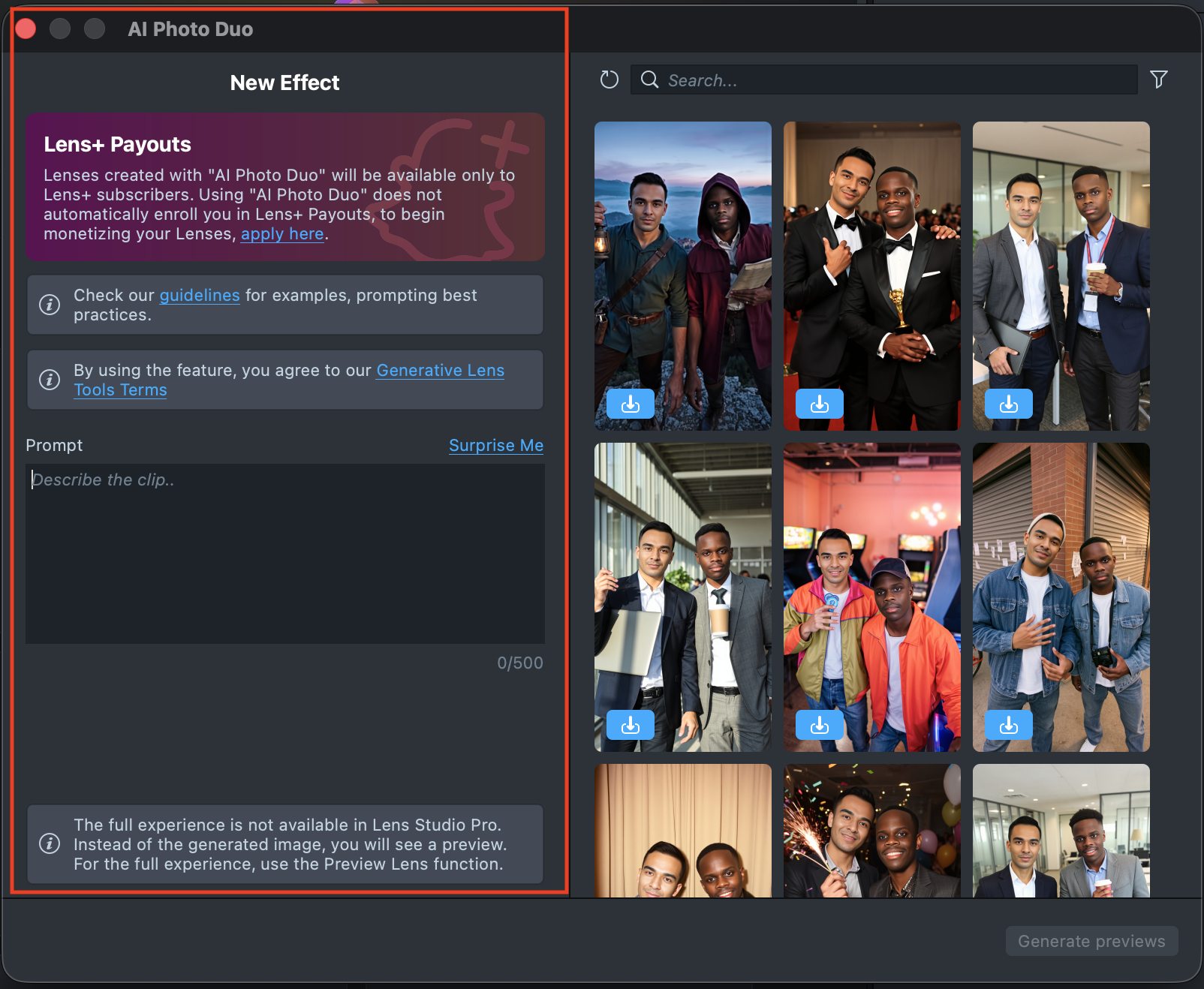
- Creation Panel: provides tools for creating and editing AI Photo Duo effects.
- Gallery: shows all the effects you’ve created along with their statuses.
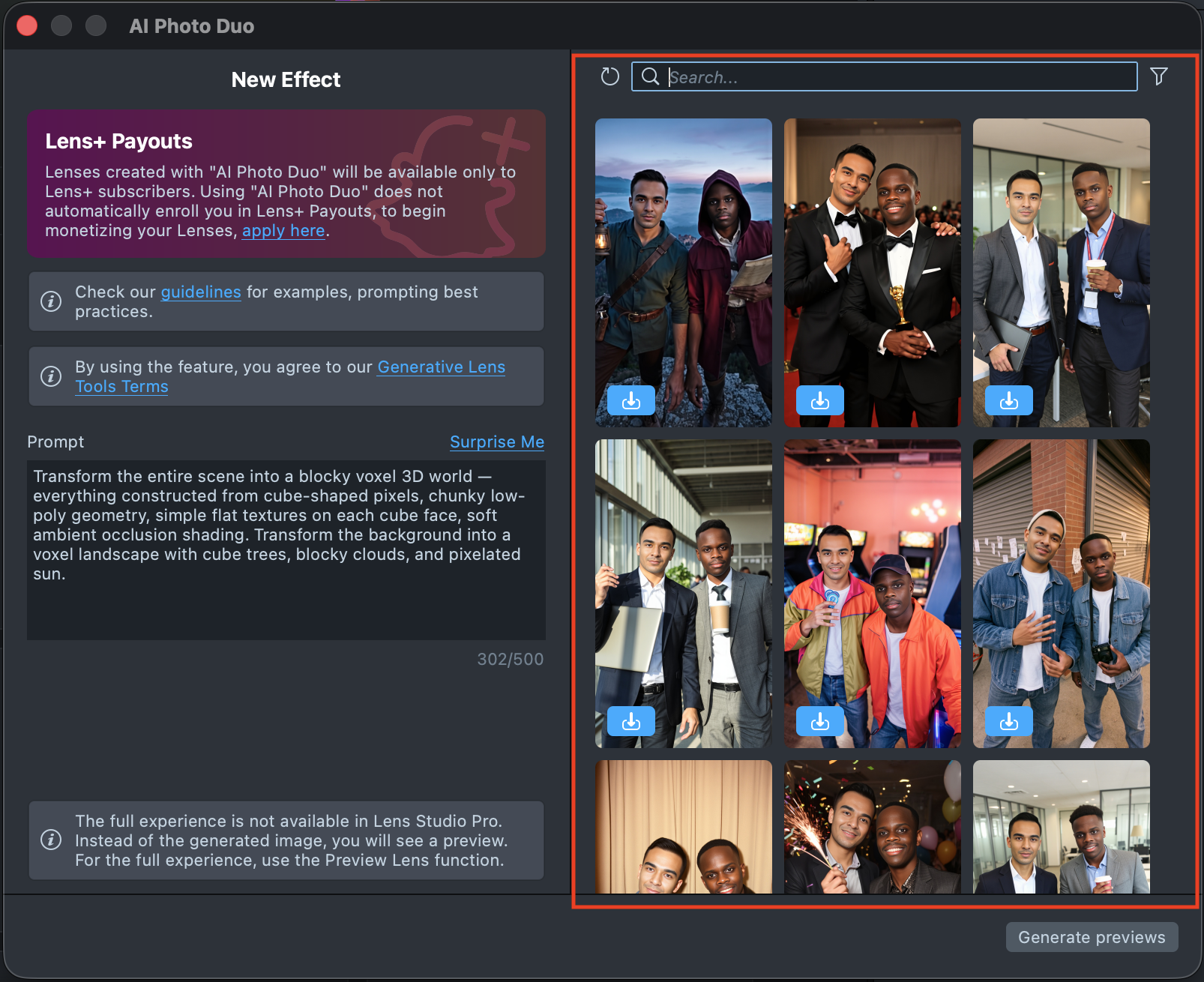
- Search: allows you to quickly find specific effects by name or keyword within your Gallery.
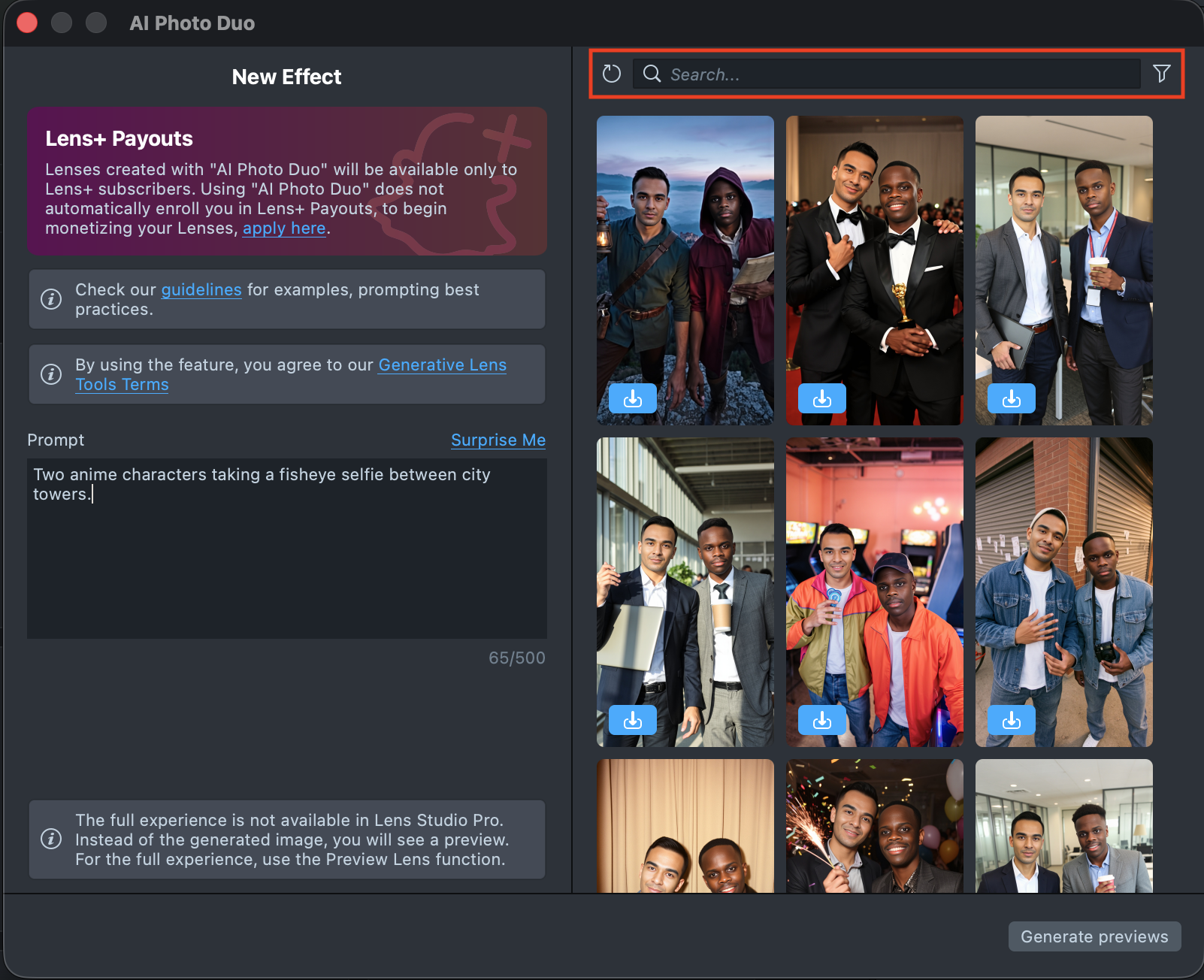
Effect Creation flow
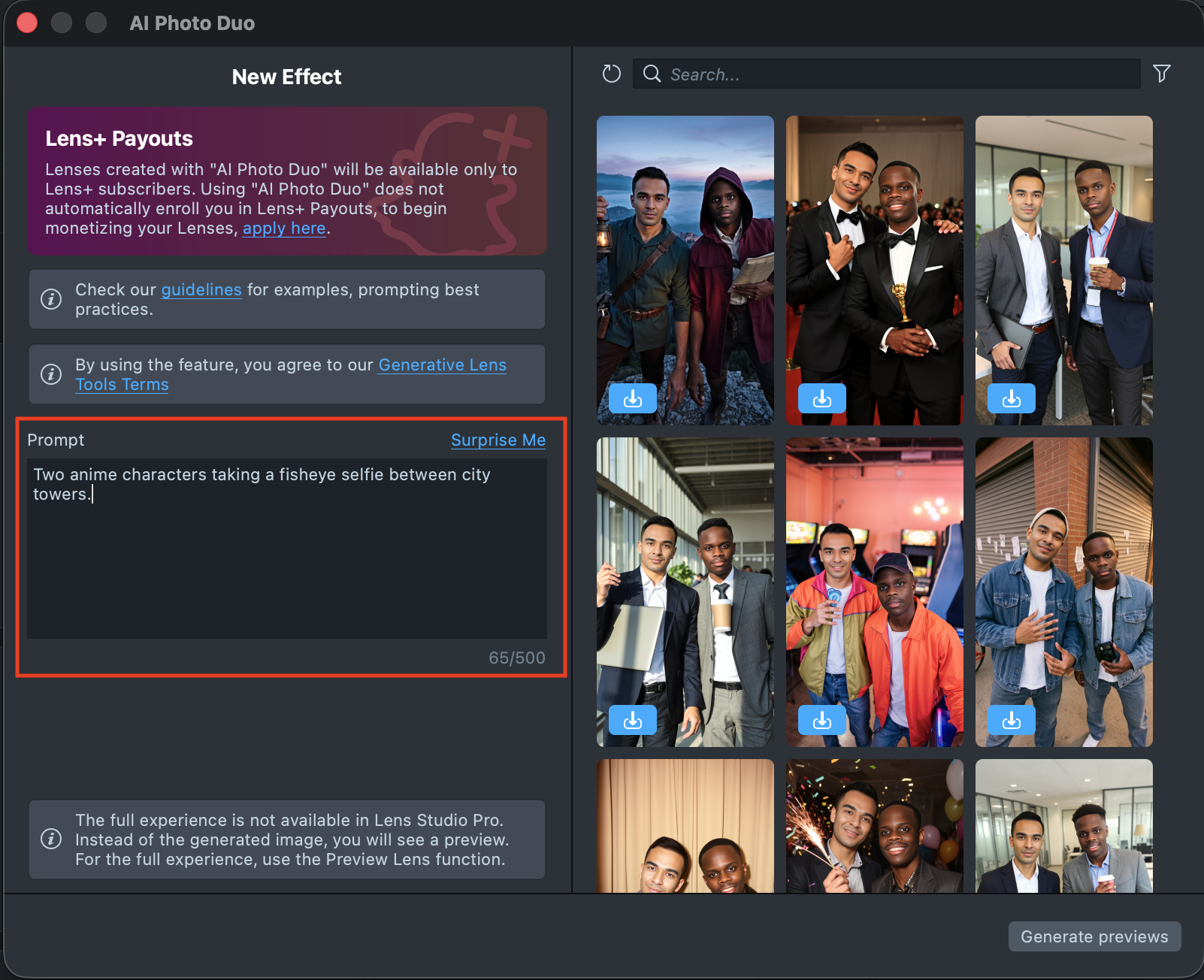
- Enter a text description of the transformation you want to apply. You can use the
Surprise Mebutton to insert one of the default prompts and get familiar with the creation flow.
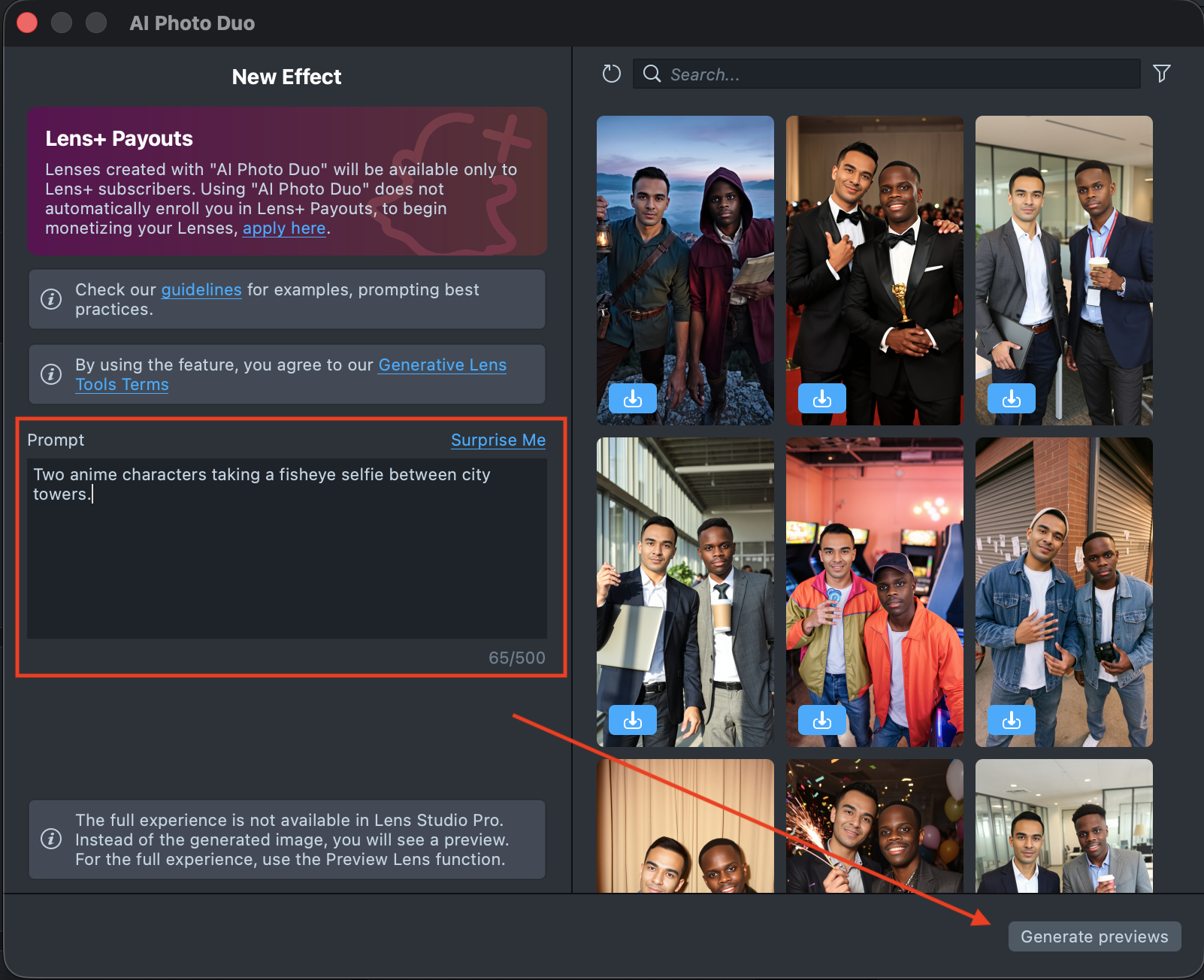
- Once you’ve entered your prompt, click the
Generate previewsbutton to generate a sample of your effect.
-
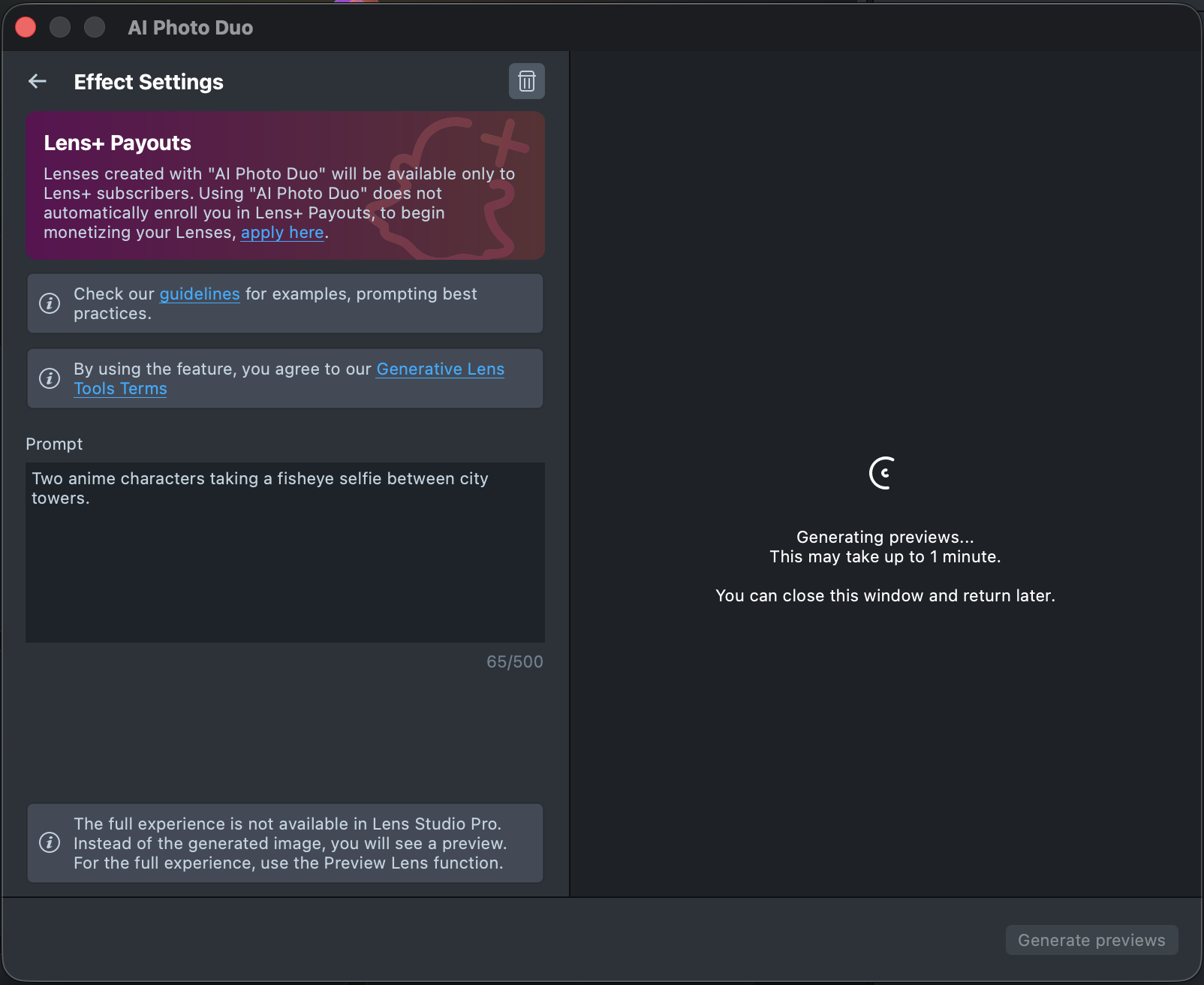
You’ll see a message indicating that preview generation has started. Feel free to close the plugin window or switch to another one - your preview remains in the Gallery, showing its generation progress.
Generating the preview may take up to 1 minute, but you can close the plugin and return later.
You can generate up to 10 previews every hour.
-
Once the preview finishes, click its tile in the Gallery to open the details page and review the result.
-
If the preview doesn’t match your expectations, return to the Creation Panel, adjust your prompt, and generate a new preview. Each generation appears in the Gallery as a new effect, without altering the previous one. This way, you can always go back and compare whether the updated effect looks better than the original.
-
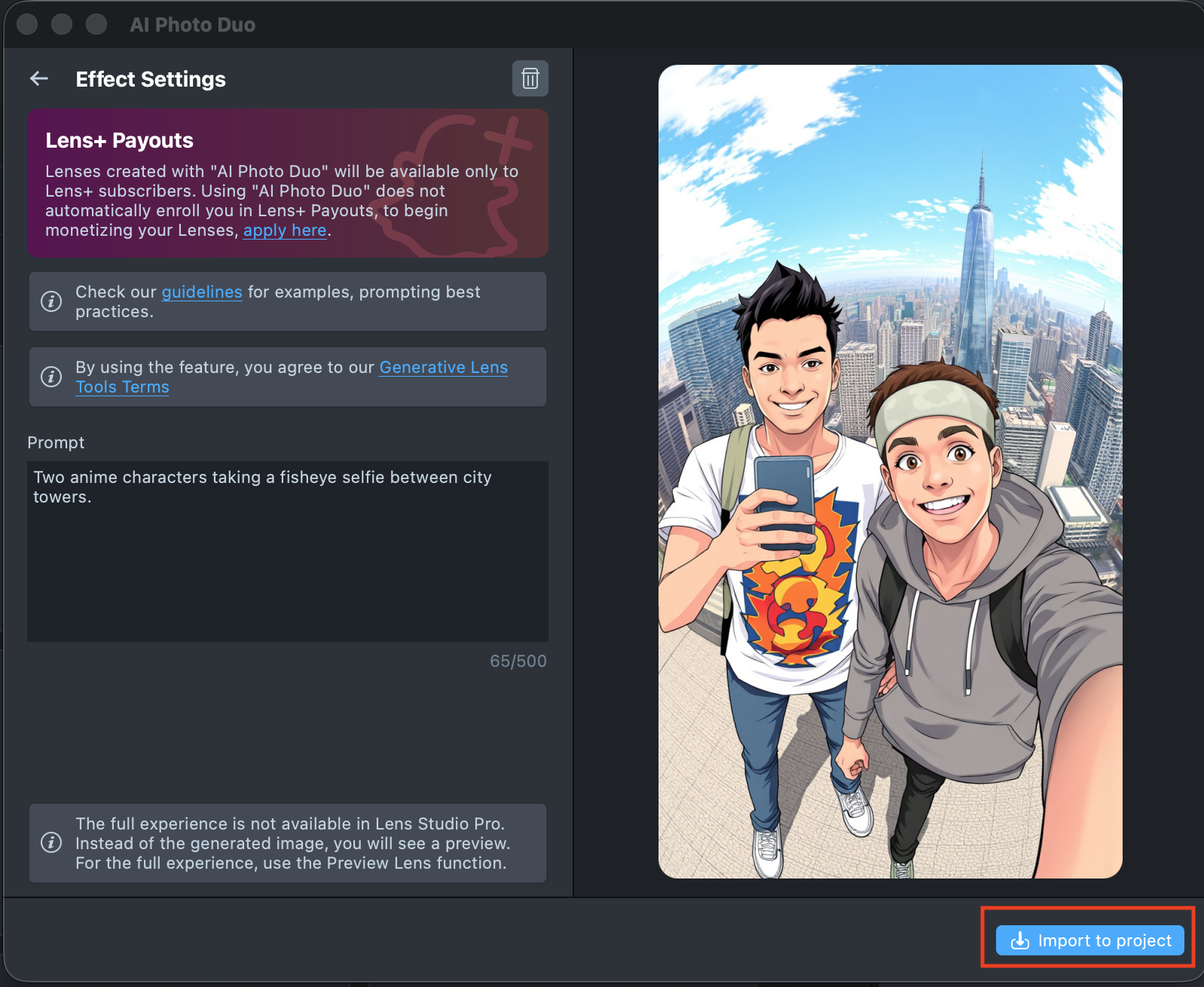
Once the preview finishes, you can import the effect directly from the Gallery by clicking the
Importbutton, or clickImport to projecton the details page to add it to your project.
-
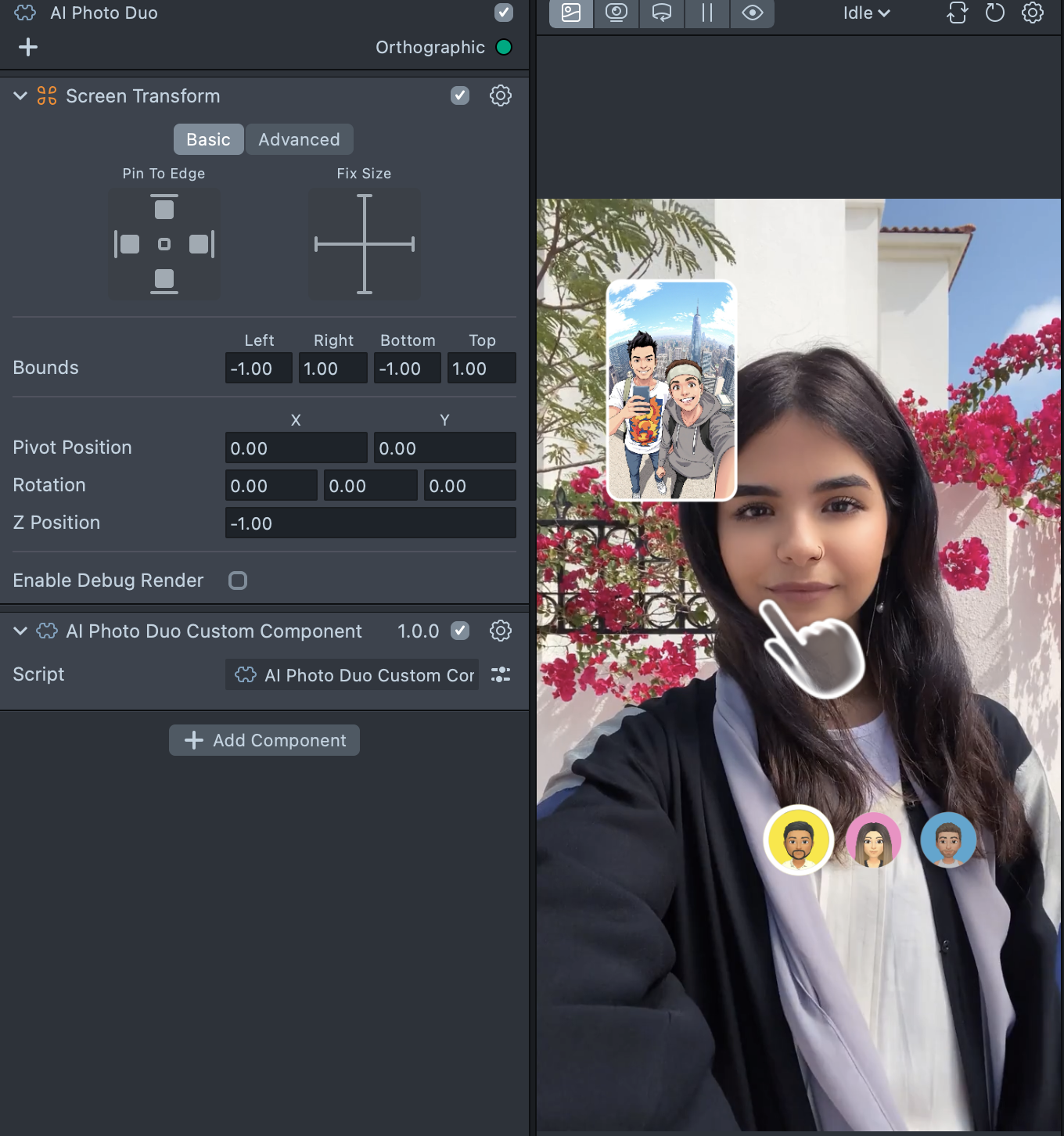
The imported component already includes all the necessary logic, a friends carousel, and a hint - essentially giving you a ready-to-use Lens. You can tap on the Preview screen or push the project to a device to see the Lens in action. On device, the user selects a friend, captures a selfie, then the Lens transforms that photo of both people according to your prompt.
The Push to Device feature in Lens Studio sends a Lens to your device, but it only opens if your account has an active Lens+ subscription.
Don't add music, the Music Lyrics component, or the Face Animator component to your project. These components don't work with AI Photo Duo and can block Lens publish.
Lens Studio Preview shows a limited experience. To test the full flow with friend selection and generation, click "Preview Lens" and try it on your device.
Best Practices for Writing Your Prompt
Getting Started
Quick Tip: Idea → Edit prompt → Generate → Refine. Start small, test often, improve in small steps.
AI Photo Duo edits a two-person photo. It doesn't invent a freeform story. Your prompt should describe the visual changes to apply to a selfie of the Snapchatter and their friend. By default, the Lens transforms both people in the frame together.
Start with a clear edit. Decide what should change: outfit, props, style, appearance, or background.
Write a focused prompt. Describe the visual modifications in concrete terms:
- what changes on the people in the photo
- what changes in the background or full scene
- materials, colors, and other appearance details
Generate and review. Test your prompt, then refine one change at a time.
Keep prompts clear and visual. Focus only on what should change on screen. Avoid inventing multi-step storytelling or actions that a still photo can't show.
Think Like an Editor
Quick Tip: describe only the delta—what should change. Everything you don't mention stays grounded on the captured selfie.
Treat your prompt as a short edit instruction for a two-person photo.
Consider:
- What should change on both people - outfit, props, appearance, or style
- What should change in the background or full scene
- How far to specify the new look - colors, materials, silhouette, era, or art style
Prompts that list clear, concrete edits produce more stable, readable results across varied selfies, and friend pairs.
Prompt Structure
Clear structure helps the model interpret your edit accurately.
Recommended structure: subject change → Background or scene change → Style, if needed
Example structure: add [outfit or prop] on the subjects. Change background to [environment]. Change style of the full scene to [look].
Keep descriptions direct and focused on the requested visual modifications. When both people should match, say so explicitly. For example: “dress any people in…” or “transform the subjects…”
Supported Edit Types
Use explicit edit language when possible:
- change background to a concrete environment or setting
- add a specific outfit or prop on the subjects
- change style of the subjects or full scene to a specific look
- replace an item the subjects hold or wear
- remove a specific element in the scene
- transform the full scene into a cohesive world or aesthetic
For any newly added outfit, prop, or background element, describe appearance in detail—materials, colors, patterns, scale, and condition—not just the category name.
Prompt Length
Quick Tip: short, concrete edit prompts tend to work well: specific enough to guide the change, open enough to ground on the captured selfie.
Prompt length can change results a lot.
- Short prompts under 15 words: work well for a single clear edit, but may feel vague for multi-part transformations
- Medium prompts of about 20 to 60 words: balance clarity and visual detail for most edits
- Long prompts over 80 words: help with multi-part edits that need rich appearance detail, but avoid adding extra actions or narrative beats
Subject Description
Quick Tip: prefer "subjects" / "any people" / "background" / "full scene" over first-person storytelling.
You can write edits in everyday language such as "make them pirates" or "anime style." For more reliable results, translate those ideas into explicit visual commands, for example:
- add pirate outfits on the subjects, change background to a wooden ship deck at sunset
- change style of the full scene to 2D anime with clean black outlines and flat cartoon shading
The system applies edits across the primary people and scene in the captured two-person photo.
Testing and Refinement
Quick Tip: if it breaks: simplify → regenerate → gradually add details back.
Testing a few variations helps you find what works.
Try a few prompts. Test 2-3 prompt variations for the same idea.
Compare generations. Run related prompts to see which edit instructions land more consistently.
If results break or feel inconsistent:
- Reduce the number of simultaneous edits
- Make appearance details more concrete
- Prefer one primary change before adding supporting edits
- Avoid poetic or abstract language
- Keep both people in the same creative concept so the duo still reads as a matched pair
Well-structured prompts with clear subject and background edits produce the most stable results.
Known Limitations
Keep these model behaviors in mind when you design prompts:
- Complex multi-step storytelling doesn't fit this tool—focus on visual edits
- Fine details may soften during large style or background changes
- The model may skip some subtle props or accessories
- Abstract vibe-only language often works less well than concrete visual commands
- Both people should share one coherent look. Mismatched concepts for each person can reduce consistency
If this occurs, simplify the edit or put the most important changes earlier in the prompt.
Current Limitations
-
Don't add music, the Music Lyrics component, or the Face Animator component to your project. These components don't work with AI Photo Duo and can block Lens publish.
-
Lens Studio Preview shows a limited experience. To test the full flow with friend selection and generation, click "Preview Lens" and try it on your device.
-
Only Lens+ subscribers can use AI Photo Duo Lenses.